
Netflix is the increasingly popular video streaming service with a great collection of original shows and movies. But you no longer need to stream every episode or video you wish to watch, as Netflix offers an ability to download any Netflix video to be able to watch it offline directly on an iPhone, iPad, Android, or even a computer.
Downloading Netflix video for offline viewing is a great solution for if you’re planning on being out of data or wi-fi service for a while, or if you’re going into a region that is known to be of lesser quality internet service. Perhaps you’ll be boarding a plane and want to binge watch Stranger Things, or you’re going on a long car ride and want to entertain passengers, or maybe you’re going to a remote cabin somewhere and you still want to be able to watch your favorite shows. This tutorial will show you how to watch Netflix offline by downloading shows and movies to a local device.
Downloading Netflix videos for offline viewing is really easy, as is browsing your list of offline content for playing anywhere. Here’s how this works:
How to Download Netflix Videos for Offline Watching
You can watch any Netflix show or movie offline this way, here’s how it works on the iPhone, iPad, or an Android device:
- Select or find the movie or show you want to download locally from Netflix
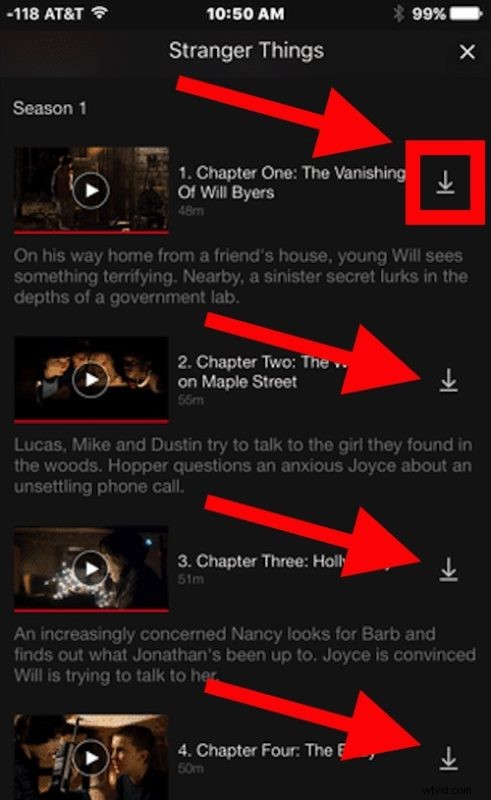
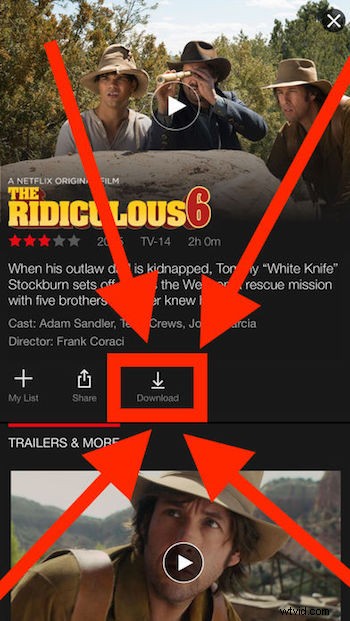
- Tap the Download button to start downloading the video to watch it offline (the download button looks like a little downward facing arrow)
- To download Netflix shows: the download button is next to each individual episode
- To download Netflix movies: the download button is below the title
- Repeat with other videos or shows you want to download from Netflix for offline viewing
Browsing Downloaded Netflix Shows for Offline Viewing
Downloaded Netflix shows and movies and will appear in the “My Downloads” section of the Netflix app.
You can access “My Downloads” in Netflix by clicking on the menu button (it looks like a series of stacked lines, in the upper left corner) and choosing “My Downloads”.

Playing any downloaded Netflix video offline is easy, just go to My Downloads and then tap the show you want to watch and choose the play button.

Most Netflix downloads have some sort of expiration attached to them, which you can also find in the My Downloads section of the app.
Deleting Downloaded Netflix Videos
- From Netflix, tap on the menu button (the series of stacked lines in the upper left corner)
- Choose “My Downloads”
- Tap on the Edit button and then tap the X button on a video you wish to delete from offline viewing downloads in Netflix
- Repeat with other videos and shows if desired
That’s all there is to it, happy Netflix’ing!