
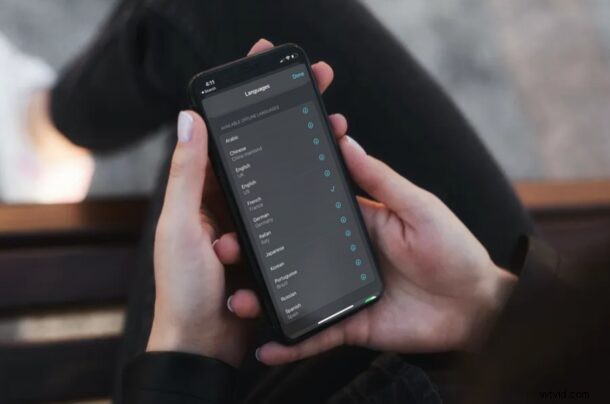
One of the interesting recent additions to iPhone and iPad is Apple’s own Translate app, which allows for translation of speech and text right from iOS and iPadOS. This is Apple’s take on real-time language translations that competes against the likes of Google, Microsoft, and other third-party developers. By default, translation requires the usage of the internet, but you can use offline translations by downloading languages, which is what we’ll cover how to do here.
If you’ve been putting the Translation app to good use for communicating with those speaking a foreign language, traveling or otherwise, you may already know that Apple Translate requires your internet connection to work properly. The thing is, you cannot expect to stay connected to the internet at all times, especially when you’re on the move. What if you need translation when you’re in the middle of a flight or anywhere with no cellular connectivity? This is where the app’s offline translations feature come in handy, but you cannot access it unless you manually download the respective languages. So, let’s discuss how you can download languages to the iPhone or iPad for offline translation purposes.
How to Download Languages for Offline Translation on iPhone & iPad
Downloading languages for offline use is a manual process but it’s pretty straightforward for the most part. Just follow the steps below to get started.
- Open the “Translate” app on your iPhone or iPad. Use Spotlight search to find the app if it’s located in your App Library instead of the home screen.
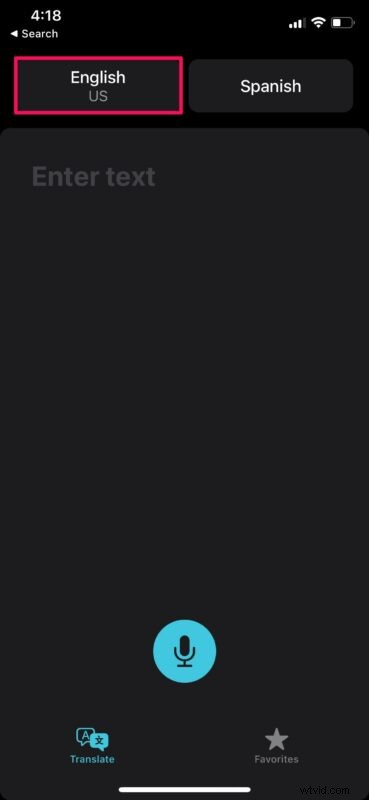
- Tap on the language option on the left to enter the language selection menu where you see all the 11 available languages.
- Here, scroll down to the “Available Offline Languages” part in the menu. Now, tap on the download icon next to the language you want to download.
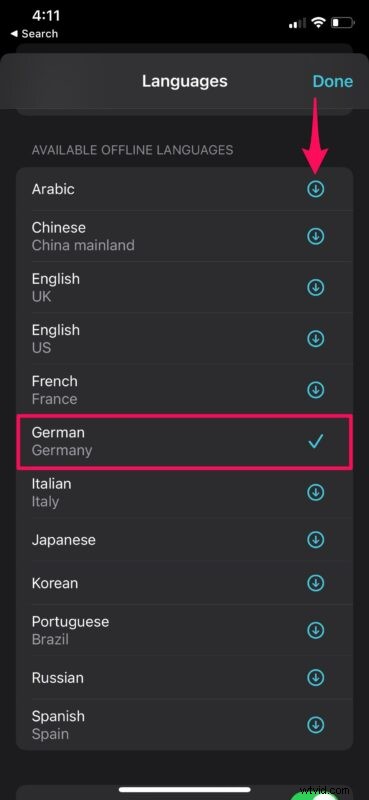
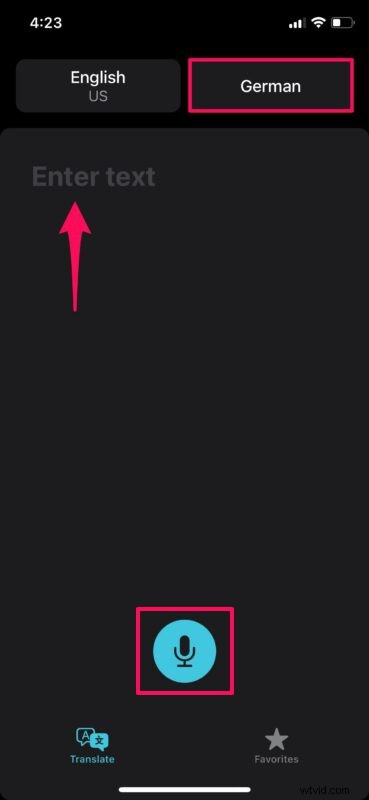
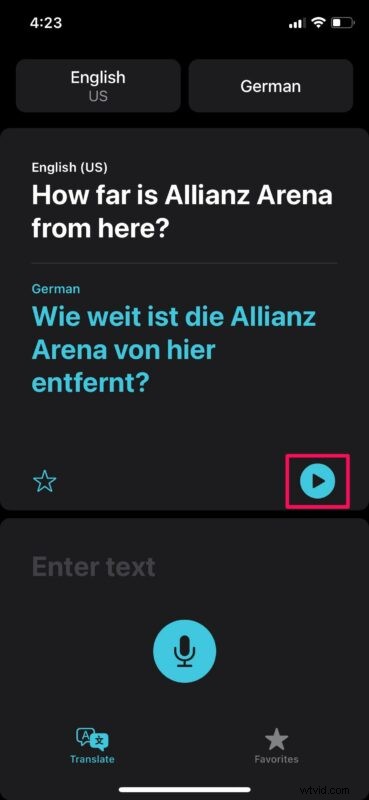
- Now, you can do the same for the translated language. To translate offline, both the languages you chose must be downloaded to your device. Once you’re done, you can test it by putting your device in Airplane mode. Type in the “Enter text” area or tap on the microphone icon to record the audio for translation.
- You’ll get the translation result with no errors regarding the lack of an internet connection.
It’s worth pointing out that the language download could take several minutes, depending on the speed of the internet connection. So, keep your app open and running in the background to make sure it’s ready the next time you use it.
As mentioned earlier, if one of the languages that you’ve selected for the translation isn’t downloaded for offline use, you won’t be able to make the translation. Instead, you’ll be prompted to connect to the internet. It’s better to download all the languages just to be on the safer side.
Thanks to Apple’s Translate app, the next time you’re having issues communicating with a foreigner who speaks a different language, you can simply grab the phone out of your pocket and translate what they’re saying in seconds. Sure, the language selection may seem poor in comparison to Google Translate, but the conversation mode feature that automatically detects and translates the language that’s being actively spoken makes up for it.
We hope you were able to use Apple’s new Translate app to its full potential on your iPhone and iPad. What do you think of offline translation capabilities? Let us know in the comments how it works for you.