
 Have you ever wished you could see pictures taken exactly a year ago? With the iPhone 3D Touch feature, you can quickly do exactly that, with a simple trick that shows photos on the device from a year ago.
Here’s how this works, it’s quite simple but requires a 3D Touch enabled iPhone like the 6S or 6S Plus:
- Go to the iPhone Home Screen and 3D Touch the Photos icon (give the icon a firm press)
- In the Photos pop-up menu that appears, choose “One Year Ago”
- Photos app will launch automatically into an album of images from a year ago
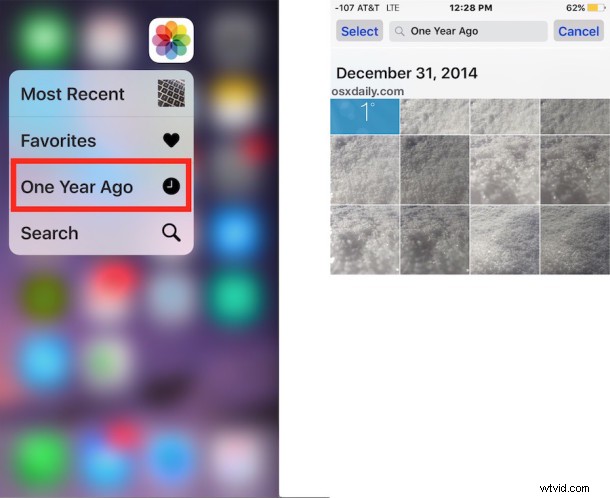
Photos app opens instantly to view pictures from exactly a year ago, if no pictures exist from precisely a year ago, the date range will stretch to be a bit more general, but still from a year prior.
Of course, if no photos from a year ago are on the iPhone at all because it’s brand new or they’ve been removed, nothing will show up.
While this trick requires 3D Touch to activate, you can also use Siri to search photos as well, including by location and by date. Note that Siri doesn’t have quite the same precision when searching dates from the Photos app, and if you ask Siri to show you images from a year ago you may just get older pictures in general. This is likely to be a bug or a feature that has not been fully implemented, so don’t be surprised if it works as intended with precise searches in the near future, since many of the Siri search functions that are processed through Apple servers can be updated by Apple without a broader iOS update.
Thanks to @viticci for the tip idea, particularly useful for events and milestones!