

Many users connect their iPhone, iPad, or iPod to a computer for syncing with iTunes. When syncing and iTunes usage is finished, users may or may not want to eject the iOS device, depending on their intended usage. We’ll cover a few methods of ejecting iOS devices from a computer with iTunes, and they work with wi-fi synced devices or with iOS devices connected with a USB cable.
Ejecting an iOS device while keeping it connected to the computer has the benefit of the iOS device charging, while not being accessible to iTunes and thus preventing syncing or other behavior. This can be desirable for obvious reasons, particularly if you’re charging someone elses device but don’t want the iTunes interference.
Ejecting an iOS Device from iTunes
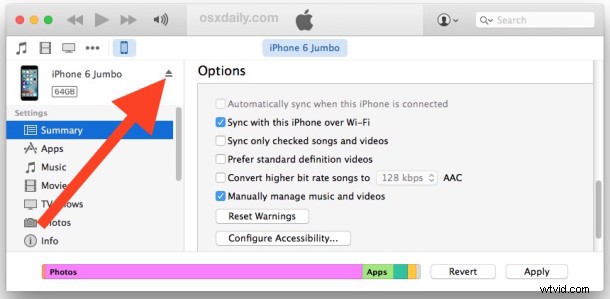
If you only have a single iOS device connected to iTunes, either through wi-fi sync or with a USB cable, simply select the device in the iTunes toolbar then click the eject button as shown in the screenshot:
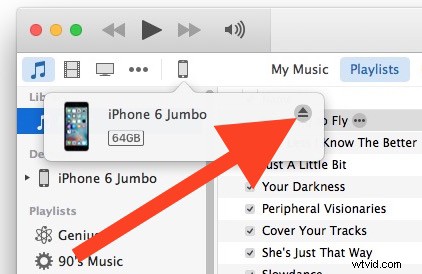
You can also eject an iOS device directly from the device toolbar item without actually selecting the device itself, this can be helpful if you have multiple devices connected or synced to the computer with iTunes:
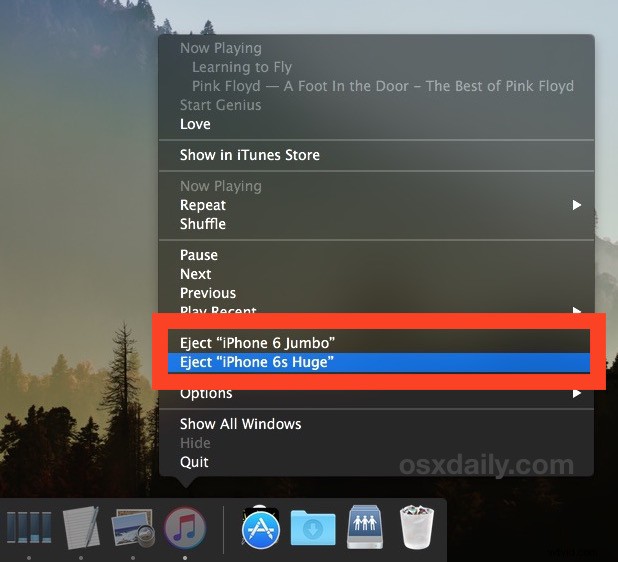
Eject an iPhone / iPad / iPod from the iTunes Dock Icon in OS X
Mac users can use a really easy iTunes Dock trick to eject connected iOS devices:
- Right-click on the iTunes icon in the OS X Dock and choose “Eject (name of iOS Device)”
Finally, you can also just quit out of iTunes and then disconnect the iPhone, iPad, or iPod touch from a USB cable, but if the device has wi-fi syncing enabled (and it likely should because it’s convenient) then it won’t ‘eject’ completely this way, and obviously it wouldn’t receive battery charging if it was disconnected from the USB cable.