
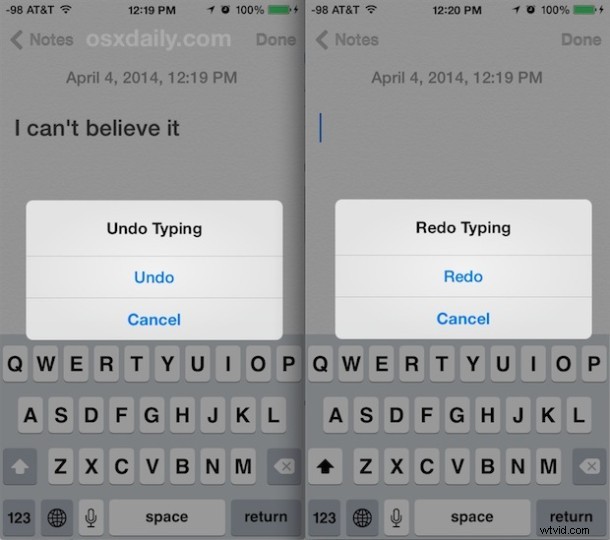
The iPhone, iPad, and iPod touch uses a physical Shake to Undo and Shake to Redo feature to serve as the equivalent of “undo” and “redo” keys, since unlike the iPad which has the undo / redo buttons on the keyboard, the iPhone and iPod touch lack screen buttons for those functions. And if you’re unfamiliar, yes literally shaking the device will attempt to undo the prior action or typing.
Anyway, while shaking the iPhone or iPad around to undo and redo can be useful, it can also be annoying and activated when you don’t intend to do so, and for users who would like to they can choose to disable the Shake to Undo function in iOS.
How to Disable Shake To Undo on iOS for iPhone, iPad, iPod touch
This turns off the shake to undo feature, disabling the undo alert box from appearing when the iOS device is shaken around:
- Open the Settings app and head to “General” and then to “Accessibility”
- Scroll down a ways to find and tap on “Shake to Undo”
- Toggle the ‘Shake to Undo’ switch to the OFF position to disable the feature in iOS
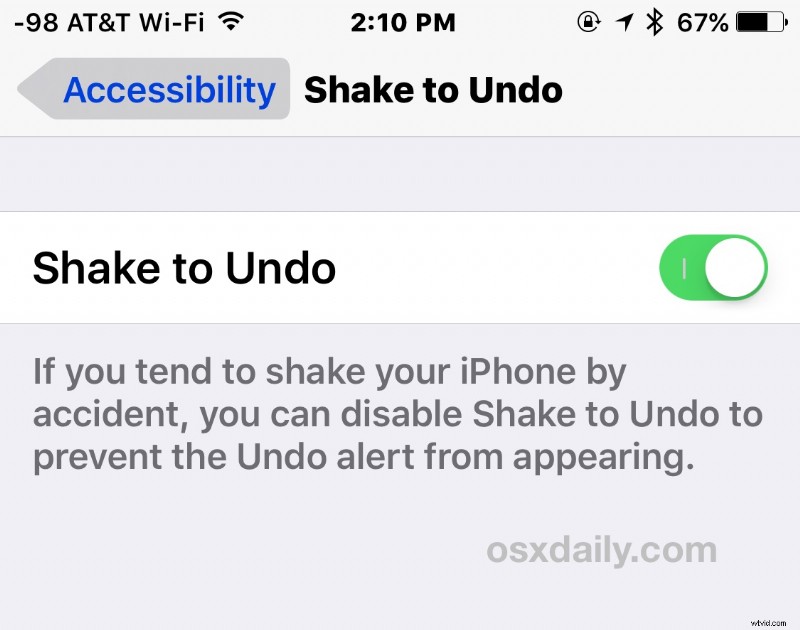
The effects are immediate and you can start shaking your iPhone around after typing something in Notes app to see the effect whether you turned it off or on. With the feature off, no more undo dialog appears, including the “nothing to undo” message if it is accidentally activated. And with the feature on, the undo and redo dialog appears as usual.
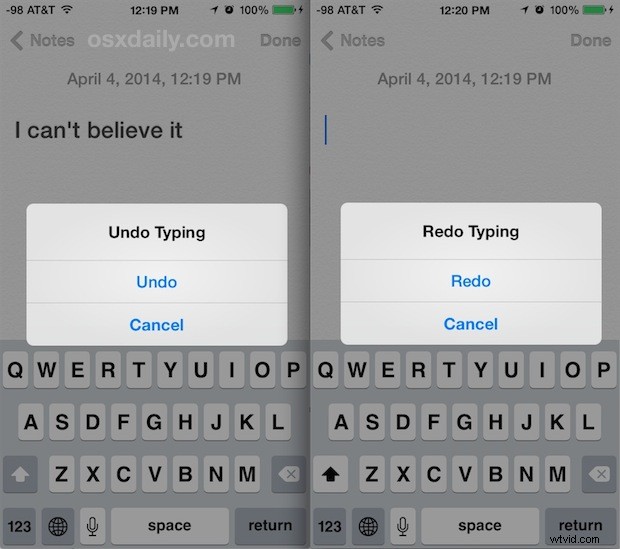
Again, the iPad has a dedicated button on the keyboard for undo and redo, so this doesn’t really matter quite as much for tablet users, as disabling the feature there won’t remove the only means of undoing and redoing actions. But for those with iPhone, iPad, and iPod touch, whether or not you like Shake to Undo or want to disable it largely depends on personal preference, if you like the feature, and if you actually use it.
How to Enable Shake To Undo / Redo on iOS
If you had previously turned off Shake to Undo and Shake to Redo in iOS, you can turn it back on again with any iPhone, iPad, or iPod touch by doing the following:
- Open the Settings app and go to “General” and then to “Accessibility”
- Tap on “Shake to Undo”
- Toggle the Shake to Undo switch ON to turn the undo/redo feature back on again
With Shake To Undo and Shake to Redo re-enabled, physically shaking the device will return the undo and redo feature. This applies to iPhone, iPad, and iPod touch.