
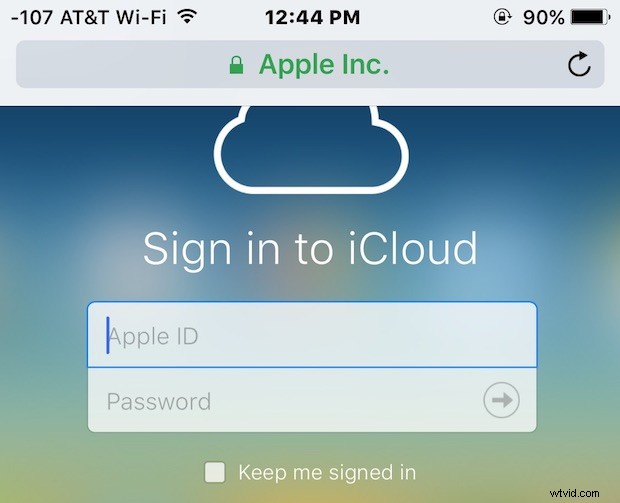
The iCloud.com website allows users to access various iCloud features including the endlessly useful Find My iPhone from anywhere with a web browser, but if you have tried to visit iCloud.com from an iPhone or iPad, you’ll notice rather than the traditional sign-in to iCloud login page that is mobile friendly, you’ll be redirected to an iOS specific page that attempts to launch local iOS apps for the iCloud.com services instead. This isn’t desirable if someone is using someone else’s device to locate a misplaced iPhone or iPad, or just to access other iCloud services, and thus a better solution than logging into those apps is to access the full iCloud login website directly from an iPhone, iPad, or iPod touch using a web browser instead.
We’ll show you how to login to iCloud.com from an iOS device and have full access to all of the iCloud.com features and abilities.
How to Login to iCloud.com on iPhone or iPad with Safari for Full iCloud.com Access
To access and sign-in to the iCloud.com page with all iCloud.com features from iOS Safari, simply do the following:
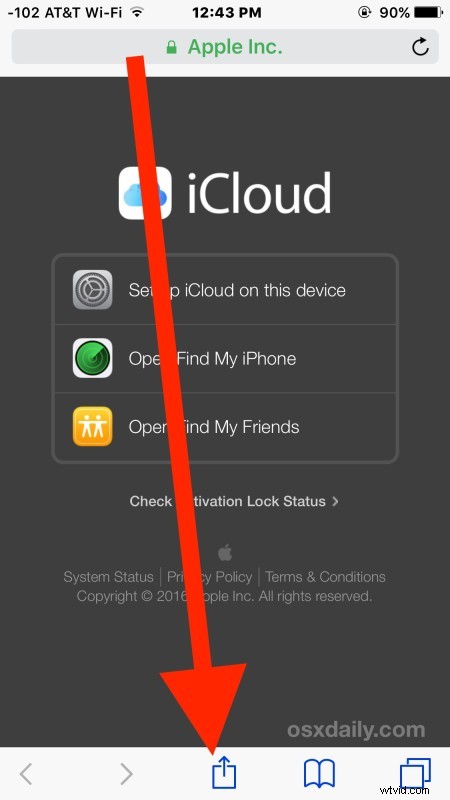
- Open Safari if you haven’t done so already and launch http://icloud.com into a new browser window or tab
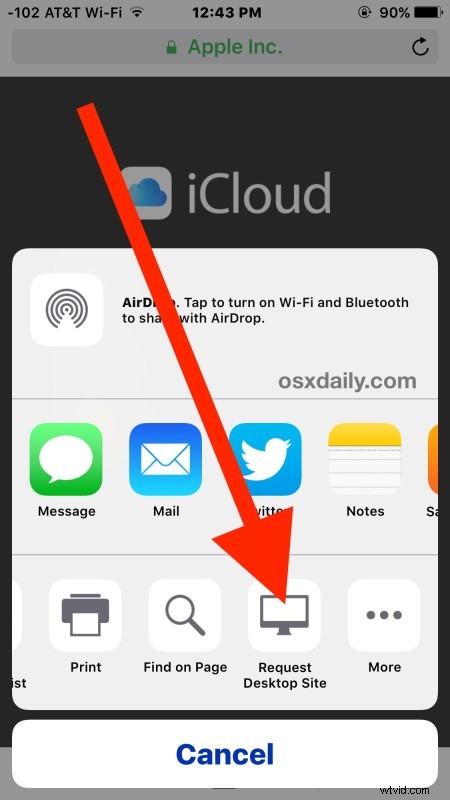
- When you see the generic iOS iCloud page with the app shortcuts, ignore everything on the page and instead tap on the Sharing button which looks like a box with an arrow flying out of it
- Navigate the sharing options to choose “Request Desktop Site”
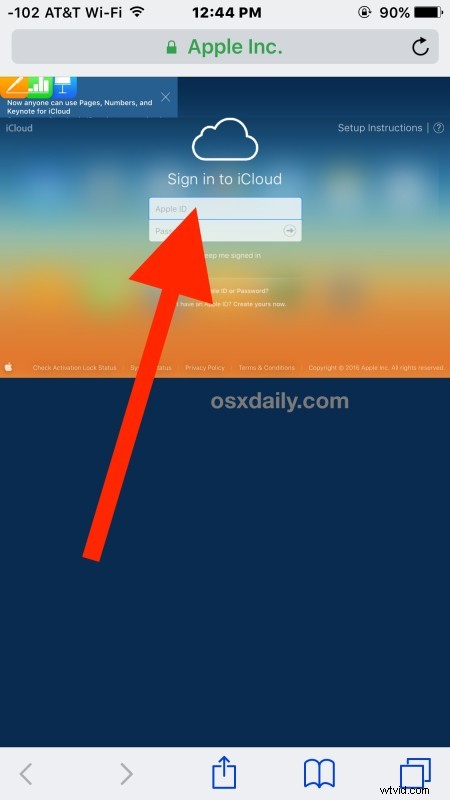
- iCloud.com will automatically reload as the complete desktop version, tap on the user name to sign into iCloud as normal from the desktop website
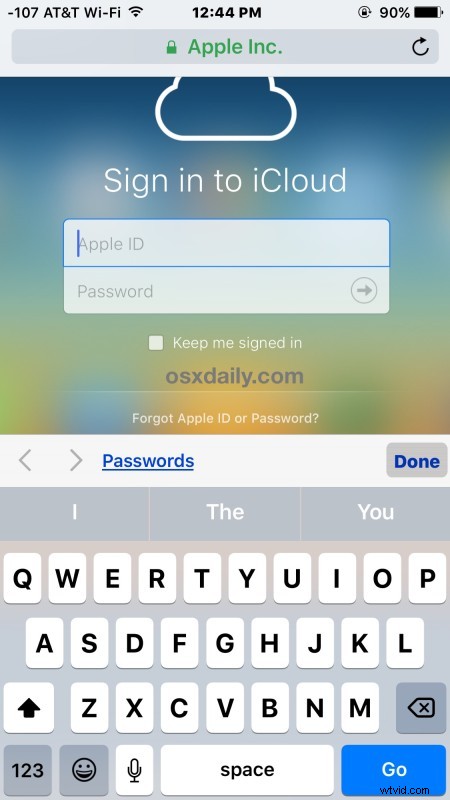
Once signed into iCloud.com from iPhone or iPad, you can access all of the normal desktop iCloud.com functions, including the all-important Find My iPhone feature for tracking down lost or misplaced devices (even when their battery is dead), but also access to disable iCloud lock, access to iCloud Contacts, Notes, Pages, Keynote, Numbers, remote wipe, and every other iCloud web app function and feature.
Using the desktop version of iCloud.com works fine on an iPad, but on an iPhone or iPod touch it is a little cumbersome because of the smaller screen size, and it’s obviously not intended for this purpose, but it’s use potential and use cases are obvious (perhaps a mobile site is in the works for exactly this purpose).
The trick is to remember to request the desktop site in Safari for iOS 9 and later, you can also request desktop sites in iOS 8 and iOS 7 but it’s slightly different than modern versions of iOS. And if you don’t have access to modern iOS versions or Safari isn’t your browser of choice, you can use Chrome or another browser that lets you request desktop versions of iCloud.com as well, as we’ll show you next with the Chrome mobile app.
How to Sign In to iCloud.com Full Version from iPhone, iPad, iPod touch with Chrome
You can also access the iCloud.com login on any iOS device from the Chrome browser app as well:
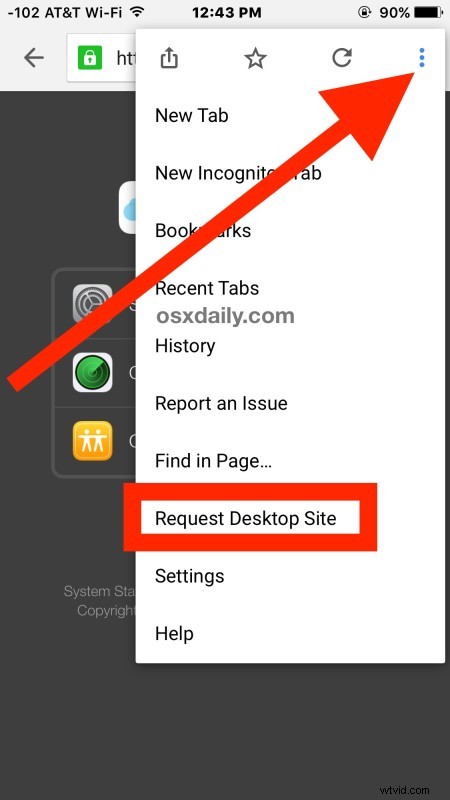
- Open Chrome browser and go to iCloud.com, then click on the three dots option button in the upper right corner of Chrome app
- Select “Request Desktop Site” from the dropdown settings list to refresh the iCloud.com as the desktop sign in page
- Login to iCloud.com as usual from the Chrome mobile browser
And yes, this works to access iCloud.com full sign in page from Android Chrome browser as well.
Obviously for most users, the iCloud.com site is better used on a desktop browser, whether it’s a Mac, Windows PC, or Linux machine, but if you’re in a bind and need to access the iCloud featureset while on the go from either your own device or someone else’s iPhone or iPad, this trick can be invaluable, particularly if you lost or misplaced your device and want to make it beep, or just need to access an iCloud feature from iOS while on the go, whether it’s a specific note, a contact, or for checking iCloud activation lock status through the official iCloud service.