
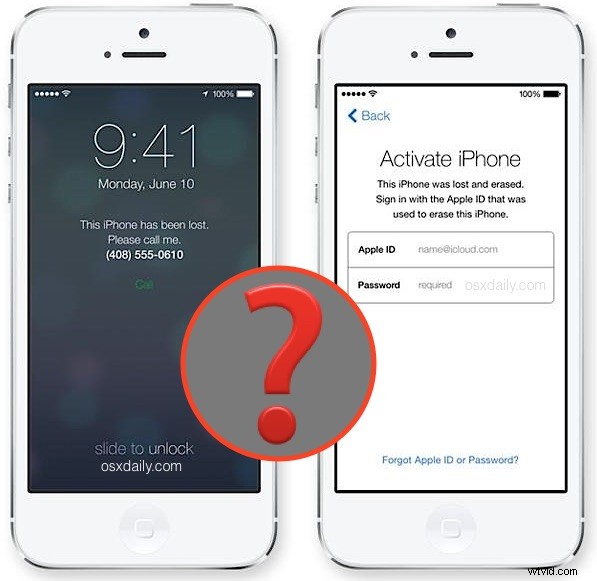
iCloud Activation Lock is a great feature which allows owners to lock down an iPhone, iPad, or iPod touch and prevent it from being used in the event that a device has been misplaced, stolen, or lost. This is part of the Find My iPhone feature set, and it’s a very welcome addition for iDevice owners. Of course the other side of iCloud Activation Lock is that it can potentially interfere with the resale market of iOS devices, because a device that has been locked will require the attached Apple ID be entered to remove the lock to make it usable again.
To avoid a situation where you purchase a used iPhone, iPad, or iPod touch with Activation Lock enabled, you should take the time to check the devices IMEI or serial number to see what the iCloud Lock status is. This is quite simple to do, and you don’t even need an Apple ID or login to check devices for the activation lock.
Checking iCloud Activation Lock Status of an iPhone, iPad, or iPod touch
This will quickly tell you if a device is iCloud locked or not:
- Get the serial number or IMEI from the iPhone, iPad, or iPod touch – either works
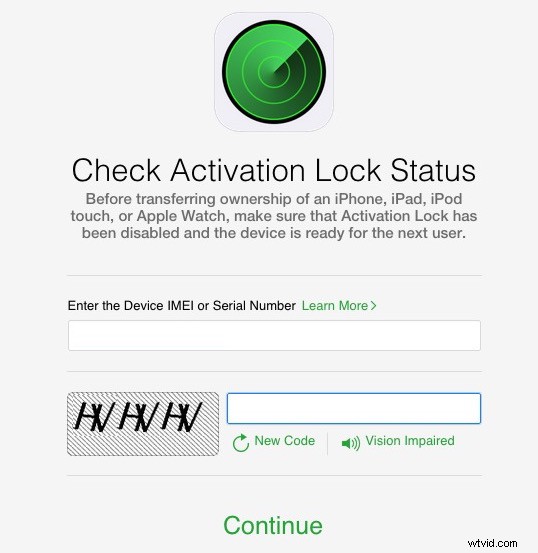
- Head over to the official Apple website here to check the device iCloud status
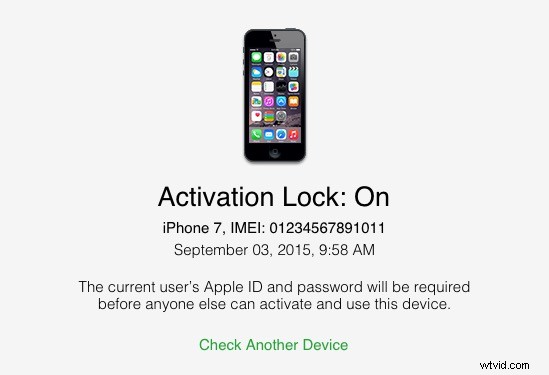
- Enter the IMEI or serial number, enter the appropriate CAPTCHA code, then click “Continue” to see the result, it will be one of the following:
- Activation Lock: ON – this means the current users Apple ID will need to be logged into before another user can activate and use the device
- Activation Lock: OFF – this means any user will be free to use the device by entering a new Apple ID and setting up the device
If you’re buying a used iPhone, you should always check the activation lock status before completing the sale so that you don’t end up with a locked and useless device.
Keep in mind that if the device is activation locked, you’ll want to have the prior owner enter their Apple ID credentials to activate the iPhone, iPad, or iPod touch, and then manually remove the device from their Apple ID account by logging out of iCloud, turning off Find My iPhone, and then resetting it back to factory settings. You can also have the prior owner remotely disable Activation Lock through iCloud, which can be done from anywhere, also requiring the Apple ID log in.
If for whatever reason yourself or the prior owner can’t unlock the device because the forgot the password or email address used, you can follow the instructions to recover a forgotten Apple ID login.