
If you’re buying a used iPhone or repairing an iPhone, you may wonder if you can find out if the iPhone was bought as new, is a refurbished model, or is a replacement device provided by Apple via a service request.
Wonder no more, you can use an interesting device model identifier trick to discover if an iPhone is new, refurbished, a replacement, or even personalized by engraving. This can be helpful information for buyers of used devices, if you’ve received a device as a gift or hand-me-down, if you’re troubleshooting or repairing an iPhone, and more.
How to Determine if iPhone is New, Refurbished, Replacement, or Personalized
You can decipher the device model prefix to determine the original status of an iPhone (and probably an iPad too) device, here’s how:
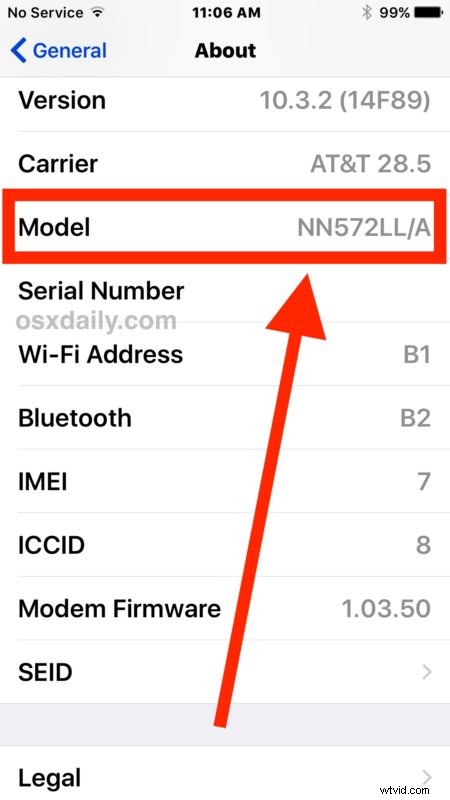
- Open the “Settings” app on the iPhone
- Go to “General” and then go to “About”
- Look for “Model” and then read the model identifier next to that text, it will look something like “MN572LL/A”, the first character will let you know if the device is new, refurbished, replacement, or personalized:
- M – Brand new device, meaning the device was purchased new
- F – Refurbished device, meaning the device has been through refurbishing process
- N – Replacement device, meaning the originally bought device was replaced by this model likely due to a service request
- P – Personalized device with engraving, meaning the device was customized with an engraving on purchase
That’s all there is to it, now you know how to determine if an iPhone is new, referred, replaced, or other. It’s possible there are some other identifier prefixes for iPhone devices that aren’t listed here, if you know of any do share them in the comments.
I have tested this with a handful of my own iPhone devices that I know are either new, refurbished, or replacements, and it has held up. I haven’t personally seen the “P” identifier however.
By the way, it’s important to note the model identifier shown here (like MN572LL/A) is different from the general model (like iPhone X) and model number of the iOS device (like A1822) – admittedly a bit confusing since they all have similar labels, but they are indeed entirely different things.
You can use similar tricks to sort out some details about iPhone devices by retrieving the iOS device serial number and then reading it too.
Thanks to a helpful post on the Apple Discussion forums for this neat little trick.