
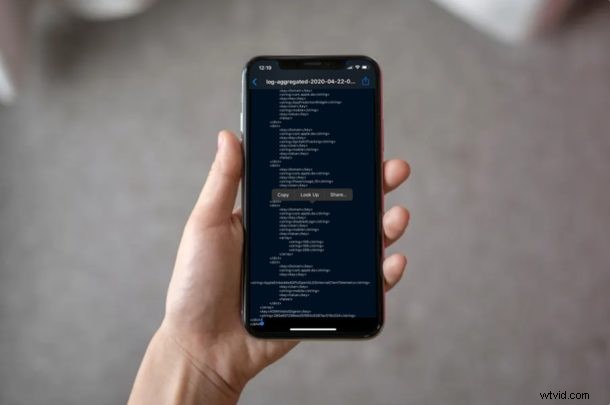
Want to check the battery cycle count of an iPhone? If you’ve ever wondered how well the battery on your iPhone has aged over time, you may find that checking the battery cycle count can help you get a rough idea of battery health and usage. Knowing how many battery cycles your iPhone has been through can help to determine if the devices battery is in good shape, or if it may be time to consider a replacement.
If you’re not aware what battery cycle count means, it’s a measure of the total number of times a battery is fully charged and depleted. For example, if you fully charged your iPhone to 100% all the way from zero, and then completely drained the battery, it means you’ve completed one battery cycle. Realistically, no one charges and uses their iPhones like that, so let’s say you depleted the battery on your fully charged iPhone to 20% in a day and then recharged it to 100%. The next day, when you deplete your battery to 80%, you’d essentially complete one battery cycle.
Battery cycle count can be useful to determine the battery health, and if you’re interested in knowing how your iPhone battery has fared, we’ll guide you through the necessary steps to check an iPhone’s battery cycles.
How to Check iPhone Battery’s Cycles
Checking the battery cycle count directly on an iPhone is not as easy as you may think. You’ll need to fiddle with some files to actually view the count. Let’s take a look.
- Open the “Settings” app on your iPhone.

- Scroll down and tap on “Privacy”.
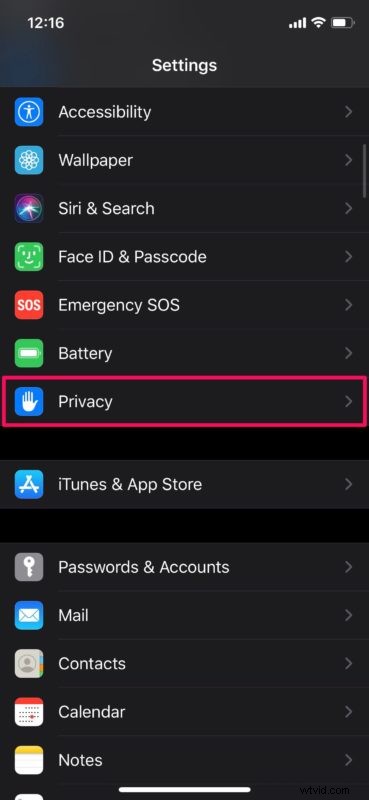
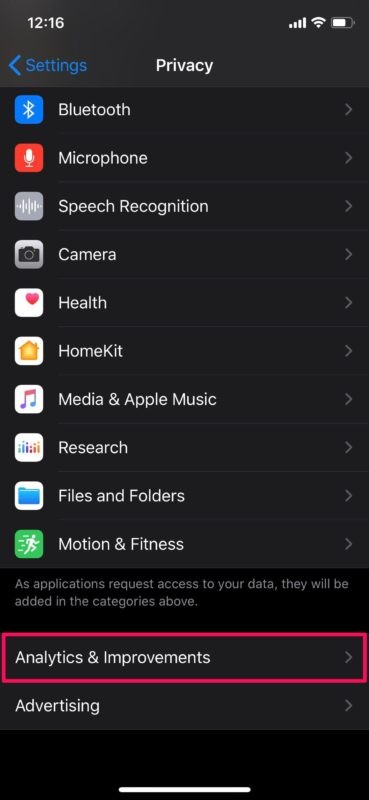
- Now, scroll all the way to the bottom and tap on “Analytics & Improvements”.
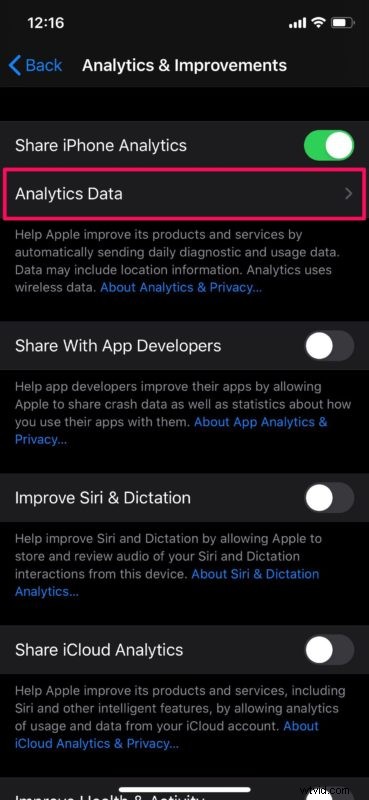
- Next, select “Analytics Data” as shown in the screenshot below.
- Here, you’ll see a huge list of files sorted in alphabetical order.* Scroll down until you find the “log-aggregated” files. Tap on the last log-aggregated file to view the most recent data.
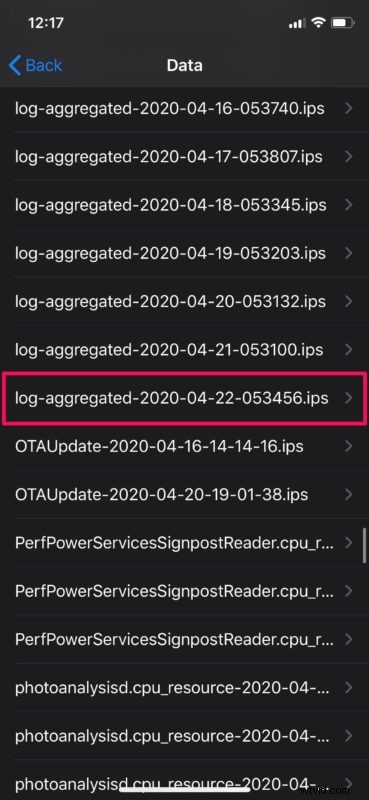
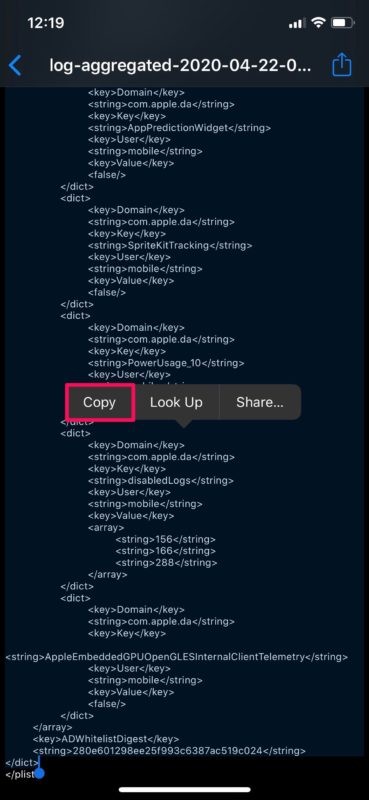
- Here, you’ll need to access the iOS selection tool by long-pressing on the screen. Select all the text within this file by dragging your finger towards the bottom edge of your screen. Then, tap on “Copy” for copying the content to clipboard.
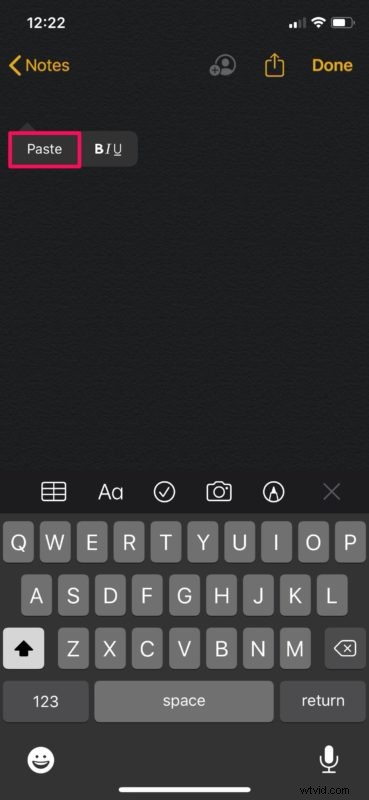
- Now, open the stock “Notes” app on your iPhone.

- Long-press within a note and select “paste”.
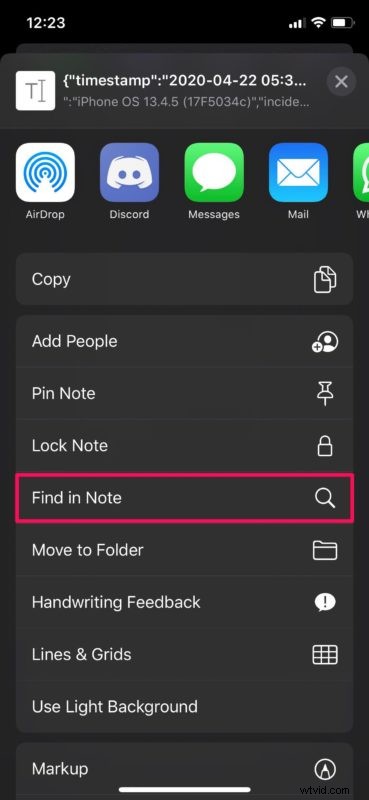
- Now, tap on the “share” icon to bring up the iOS Share Sheet.
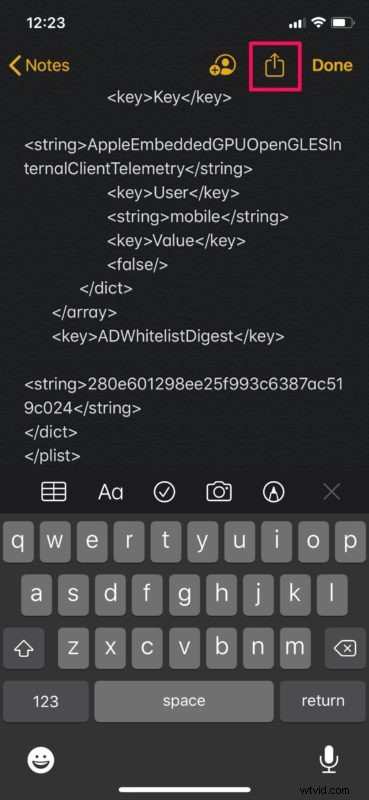
- Scroll down and tap on “Find in Note”. This feature is identical to “Ctrl+F” in Windows. or “Command+F” on Mac.
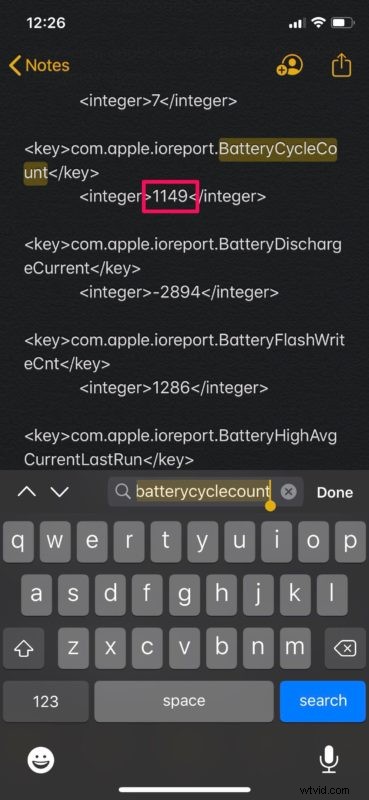
- Type “batterycyclecount” without spaces in the search bar at the top of the keyboard. Look for the integer right below the highlighted text. That’s your battery cycle count.
Now you’ve learned how to check your iPhone’s battery cycles. Hopefully that wasn’t too hard, though admittedly this is not the most user friendly approach out there.
Once you’ve copy pasted the text within a note, your iPhone might start to slow down a little because of all that text, but please be patient and you’ll find things catch up and get back to normal after a moment or two.
* Note that if you do not see the log data, it may be because you have the iPhone data analytics feature turned off in the settings.
According to Apple, iPhone batteries are designed to retain up to 80% of its original capacity at 500 battery cycles. This is its peak performance capability. However, this is just a rough number, because it heavily depends on your charging habits. As you can see here, my iPhone X has been through a lot with over 1100 battery cycles in the past two and a half years. However, my battery health is still at 79% which is really impressive for the cycle count.
Before you compare your battery cycle count with your battery health, you might want to learn how you can check the battery health percent of your iPhone. Apple recommends you to replace the battery when it drops below 80%. If you’re using the same iPhone for 2 years or less, it’s likely that your battery would stay above 80% health unless you have bad charging habits. If you have a low battery cycle count and a low battery health percent, you may need to adjust how you use the devices battery.
We hope you found your iPhone’s battery cycle count, as it can be useful to know for troubleshooting battery issues. What numbers did you get and how does it compare to the battery health percent? Do you replace iPhone batteries or do you just tend to get a new iPhone every few years? And do you know of a better or easier method to getting battery cycle count on iPhone? Let us know your experience in the comments section down below.