
Wondering how you can tell if an iPhone is unlocked? Did you recently purchase a new iPhone for yourself or maybe for someone else as a gift? Or perhaps you are reselling your used iPhone, or considering switching carriers? Maybe you’re thinking of traveling to a different area and you’re wondering if you can swap in a local SIM card? Whatever the case, you may want to make sure that your iPhone is capable of accepting any SIM card.
There are multiple ways to check if an iPhone is locked to a specific carrier or not. For starters, typically the iPhones that are sold and paid for in full from Apple are unlocked with no SIM restrictions in place. If you purchased your from a carrier’s store instead, chances are, you’re using a locked iPhone however. Of course, you can check this by swapping the SIM cards and trying a different network, but now, there’s an easier way to check your iPhone’s SIM restrictions, if any.
Thankfully, you don’t have to get in touch with your carrier or remove the SIM card from your device to find out. In this article, we’ll cover exactly how you can check if your iPhone is SIM Unlocked in iOS 14.
How to Check if iPhone is SIM Unlocked via iOS
This method to check for a carrier lock was introduced with the latest version of iOS. So, make sure your iPhone is running iOS 14 or later before you get started with the procedure.
- Head over to “Settings” from the home screen of your iPhone.

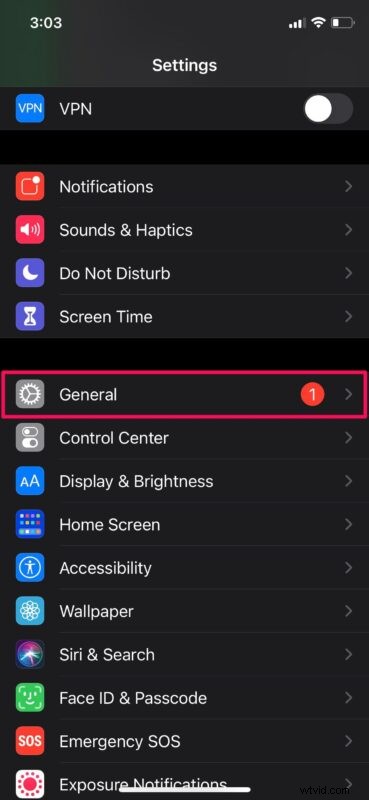
- In the settings menu, scroll down and tap on “General” as shown in the screenshot below.\
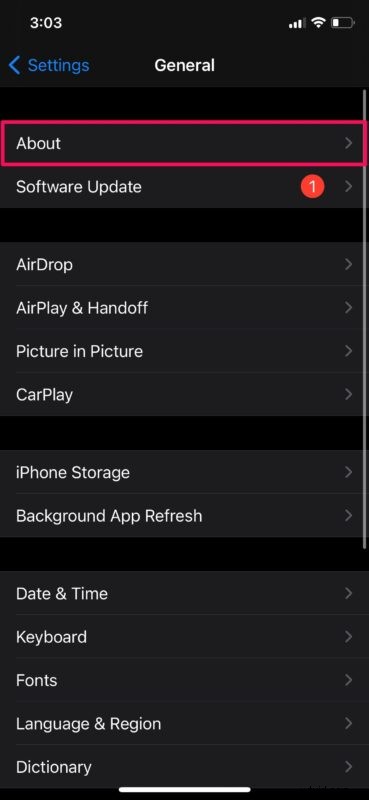
- Next, go to the “About” section by tapping on the first option in the menu.
- Now, scroll down and look for the “Carrier Lock” or “Network Provider Lock” option. If you see “No SIM restrictions” next to this, it means that your iPhone is fully unlocked and can be used with any carrier of your choice. If not, your iPhone is still locked to a specific carrier.
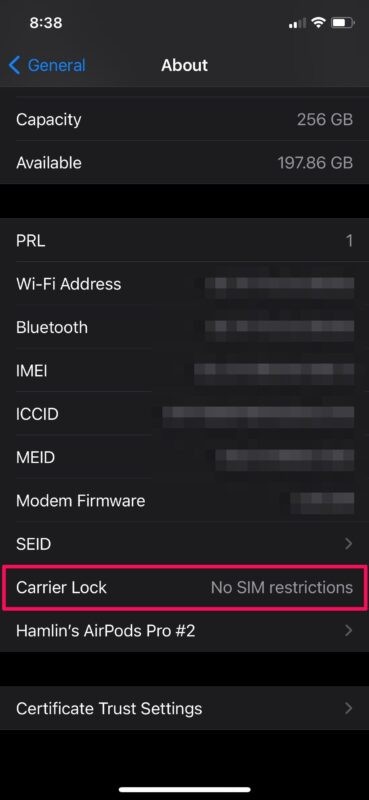
There you go. Now you’ve learned the easy way to check if your iPhone has carrier restrictions.
Until now, iPhone owners had to contact their respective carriers to check if their device was unlocked. An alternative option was to try using a different carrier’s SIM card, or to use services with an IMEI lookup to attempt to determine if the device was locked or not. As you can probably tell, these options are far from convenient to the user. This new addition certainly makes it easier for people to check for any SIM restrictions, since it’s right in the Settings app.
If you’re in the market looking for a used iPhone, consider this method to be a convenient way to make sure you’re not accidentally purchasing a locked iPhone from someone.
Other ways to know if you’re using an unlocked iPhone or not is by checking if you’ve paid the full price for the device. If you didn’t pay for the iPhone in full, or if you’re on contract, it’s highly likely that you’re not using an unlocked iPhone.
We hope you were able to check for a carrier lock on your iPhone the easy way. What do you think about this method? Is your iPhone factory unlocked or locked to a specific network? Share your thoughts and perspectives in the comments.