
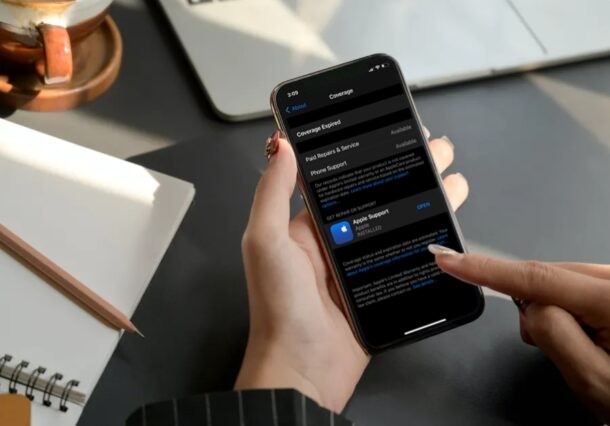
Need to determine if your iPhone is still under warranty? What if we told you that there’s no need to grab your iPhone’s serial number and head over to Apple’s website to check warranty status anymore? It turns out that you can check warranty status, right from iPhone.
Every Apple product comes with a one-year limited warranty against manufacturing defects and hardware failures, unless you extend it by paying for AppleCare. Until recently, the only way to check an iPhone’s warranty was to find the device’s serial number from settings and then entering it manually in Apple’s support coverage website. This method was far from convenient as it required multiple steps, but fortunately there’s an easier way to get accurate details on your iPhone’s warranty with just a few taps.
How to Determine if iPhone Under Warranty
Checking your iPhone’s warranty status is now a pretty simple:
- Open the “Settings” app from the home screen of your iPhone.

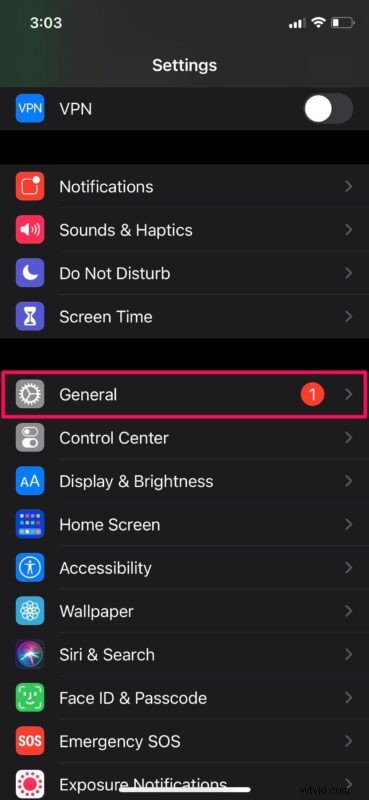
- In the settings menu, scroll down and tap on “General” to proceed.
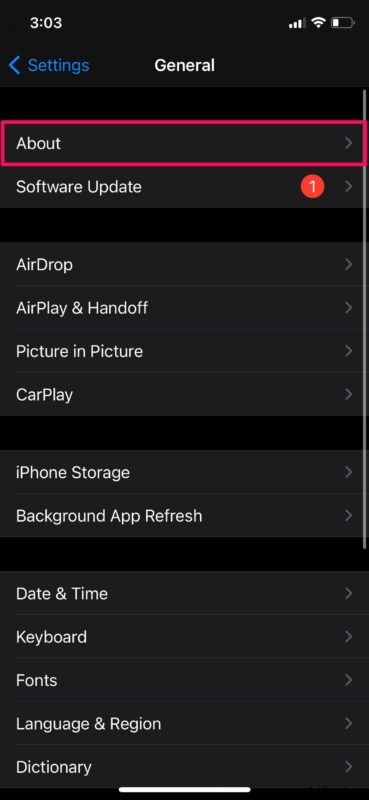
- Next, tap on “About” which is located right at the top of the menu.
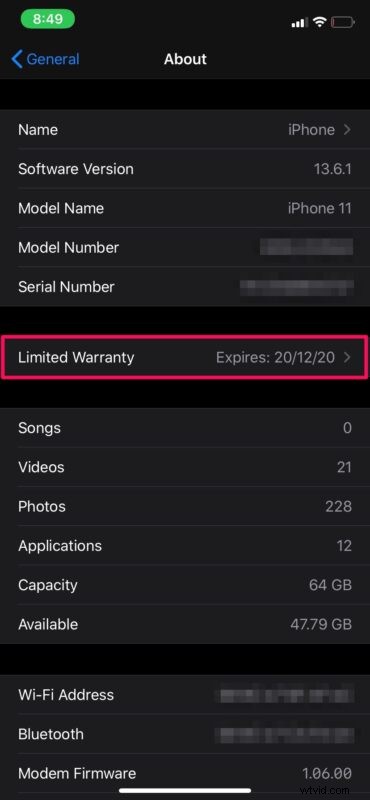
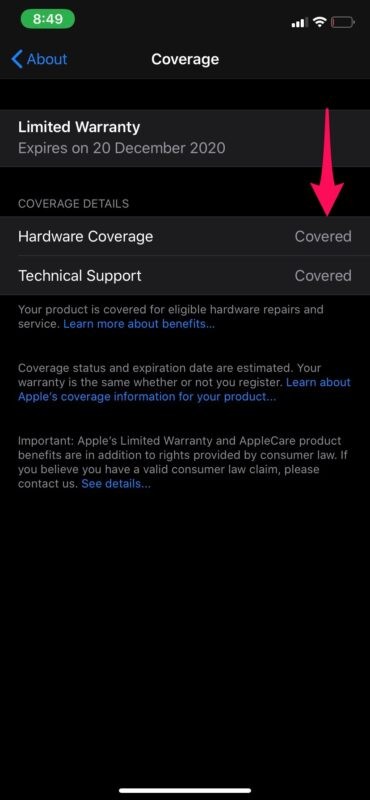
- Here, if your iPhone is still in warranty, you’ll find the option “Limited Warranty” with the expiry date right below the serial number. Tap on it to view more details.
- Now, you’ll be able to view your coverage details like Hardware Coverage and Technical Support, as shown in the screenshot below.
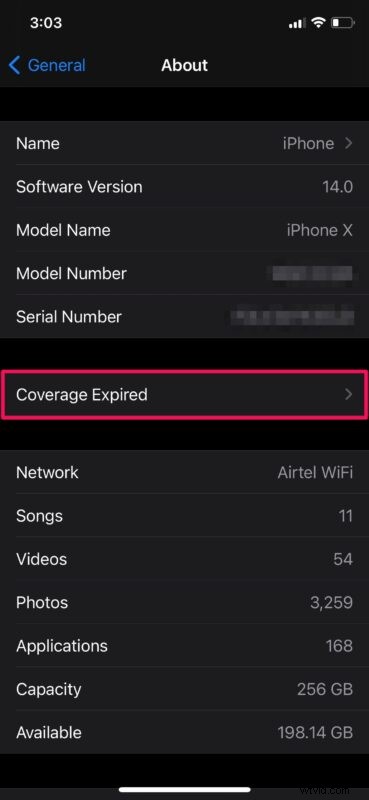
- On the other hand, if your iPhone is not in warranty, you’ll find the option “Coverage Expired” in the About section.
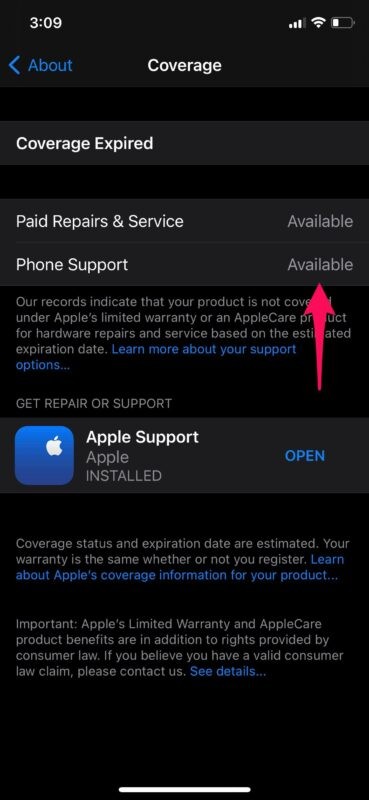
- Tapping on Coverage Expired will show you that Phone Support and Paid Repairs are still available, if necessary with a link to download the Apple Support app.
That’s how easy it is to check your warranty status right from your iPhone.
Although we were focusing primarily on the iPhone in this article, you can follow the above steps to check the warranty information of your iPad as well, if you have one. Just make sure your iPad is running iOS 12.2 or later before you go ahead with this.
Mac users can also easily check Mac warranty status on modern versions of macOS too.
Of course, if you own other Apple products like AirPods or HomePods, you’ll need to use the traditional route to check if your device is still covered by Apple’s one-year limited warranty. If you’re not sure how to find the serial number of your AirPods, just open the lid of its charging case and look inside carefully. Or, you can check it from your iPhone if the AirPods are paired.
It’s worth keeping in mind that accidental damage and liquid damage are not covered under Apple’s one-year limited warranty, even if your iPhone is advertised as IP67 or IP68 water-resistant. However, Apple does state on their website that depending on where you live, you might have rights under consumer law.
So, is your iPhone still under warranty? And do you need to have a warranty repair? What do you think of this feature?