
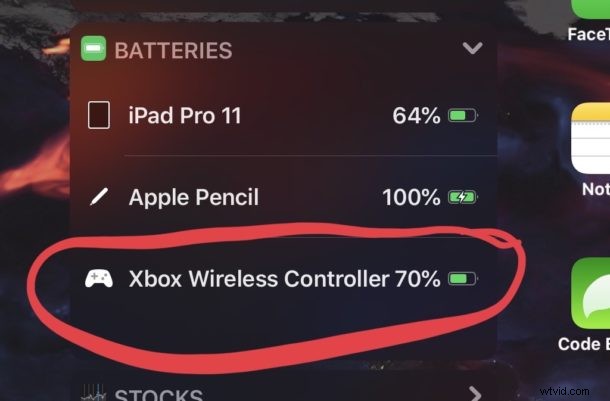
If you have connected an Xbox controller or PS4 controller to an iPhone or iPad, you may be wondering if it’s possible to see what the battery life is of those connected game controllers.
It turns out that much the same way you can check the battery life of Apple Pencil or AirPods, you can also quickly check the battery percentage remaining of connected Bluetooth gaming controllers too in iOS and iPadOS.
Note to see battery life of the game controller, it must be connected to the iPhone or iPad via Bluetooth, turned on, and within range of the device. This is the same with any Bluetooth game controller, whether it’s an Xbox One controller or a PlayStation 4 controller, or a third party Bluetooth gaming controller.
How to See Battery of Xbox / PS4 Controller from iPad or iPhone
Assuming you have a game controller connected to the iOS or iPadOS device, checking battery percentage of that game controller is easy:
- Swipe to open the Today View widget screen of iPad or iPhone:
- On iPhone, swipe right from the Home Screen until you see the widget view
- On iPad, swipe right at the Home Screen to show the Today View widgets
- Locate the “Batteries” widget in the list to see the current battery life of any connected game controller that is powered on
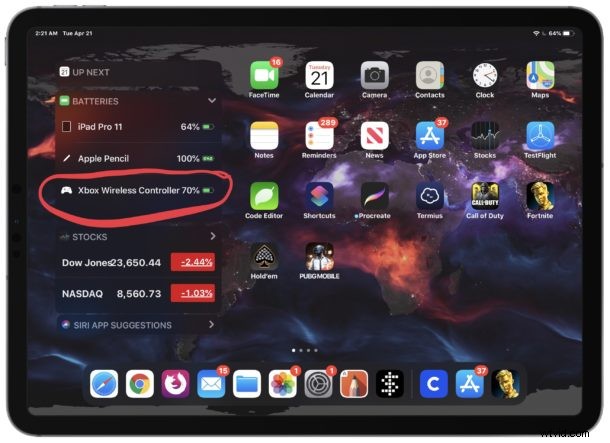
This is the same place you’d also be able to see any battery info for the device itself, along with battery capacity of any connected Apple Pencil, AirPods, Apple Watch, AirPods Pro, Bluetooth keyboard, game controller, or other battery operated Bluetooth accessories and devices.
If you have enabled the persistent Today View widgets screen on iPadOS with the batteries widget visible, you’ll be able to see this information extra quickly from the iPad Home Screen. IPhone and iPod touch users will still need to access the Today screen separately with a swipe, as would any iPad user who isn’t pinning the Today View widgets to their devices Home Screen.
Do you know of another way to check the battery life of a connected game controller from iPad or iPhone? Share it with us in the comments!