
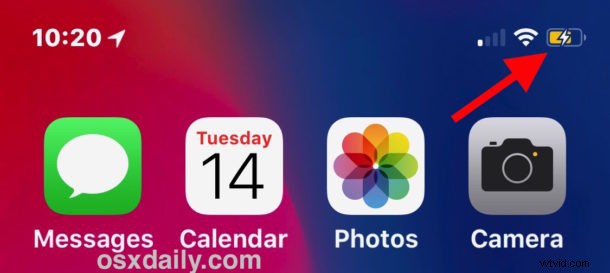
Want to see the battery percentage remaining on an iPhone 11, iPhone 11 Pro, iPhone 11 Pro Max, iPhone X, iPhone XS, iPhone XS Max, or iPhone XR? If you have one of these iPhone models, you may have noticed that the battery percentage indicator is not an option to enable in the device settings. This is probably because the prominent notch at the top of the screen, which houses the front facing camera and the phones ear speaker, does not allow for sufficient room on its sides to fit the battery percentage indicator.
So how do you see the battery percentage indicator on iPhone 11, 11 Pro, 11 Pro Max, X, XS, or XR? And how do you know what percentage charged the iPhone 11, X, XS, XR is, or how much percentage charge is left on the iPhone 11, X, XR, XS battery?
With iPhone X and newer, including iPhone 11, 11 Pro, iPhone 11 Pro Max, XS, iPhone XS Max, and iPhone XR, there is a way to see the battery percentage on the phone, but it’s probably not where you’d expect it to be.
That’s because battery percentage on iPhone X and newer is now tucked into Control Center. Thus, you must access Control Center to see the battery percentage on iPhone 11, X, XS, XR. Well, technically there’s another way too with charging the latest iPhone series, but we’re emphasizing the Control Center approach here.
How to See Battery Percentage Indicator on iPhone 11, X, XS, XR
Open Control Center on the iPhone 11, X, XS, XR, which is different than opening it on any other device, and you’ll find the battery indicator you are looking for:
- Swipe down from the top right of the iPhone screen (the portion of iPhone screen to the right of the Notch) to access Control Center
- Look in the upper right corner of Control Center to see the battery percentage indicator next to the battery icon
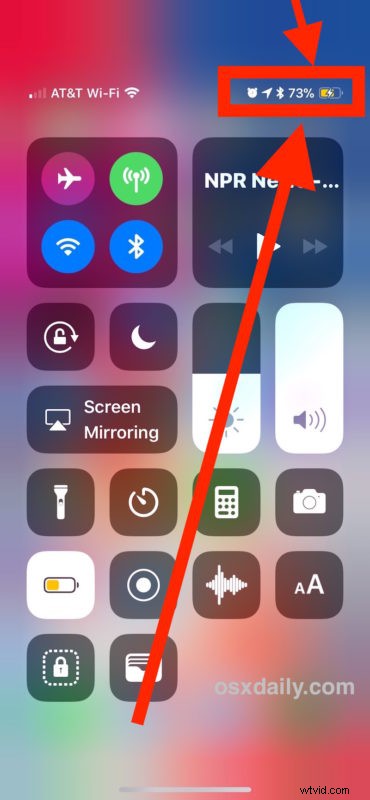
Anytime you want to see battery percentage on iPhone 11, X, XS, XR and later, just open Control Center.
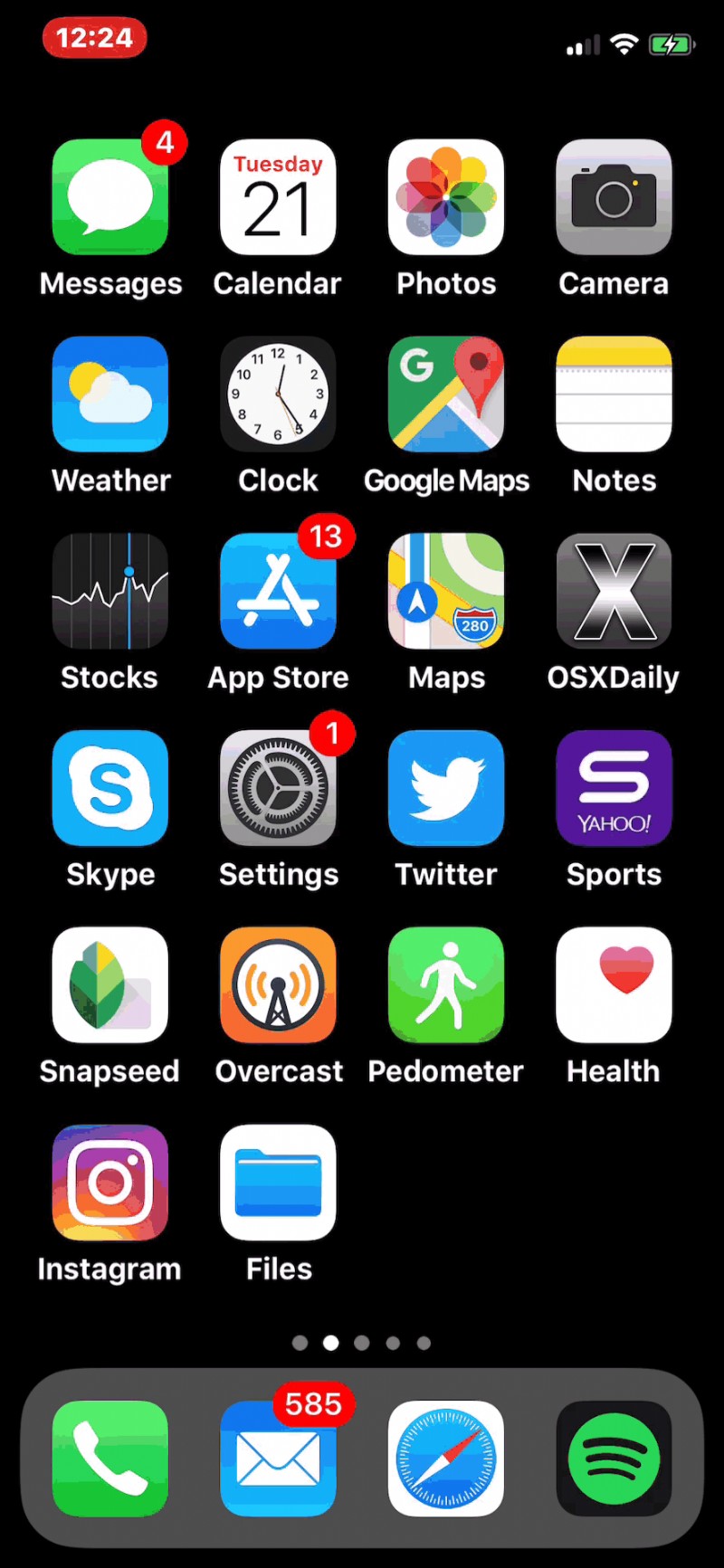
This is notably different from other iPhone or iPad models without the screen notch, where you can use an iOS setting to show battery percentage all the time in the top icon bar.
Seeing Battery Percentage Indicator on iPhone 11, X, XS, XR When Charging
There is one other way to see battery percentage on iPhone 11, X, XS, XR: when charging the phone.
When you start to charge iPhone X either with a pad charger or plug-in charger, you will see the battery percentage as well splash on the screen briefly. Just plug in iPhone X or rest it on a plug-free conductive charger, and you’ll see it briefly.
But that’s much less convenient and you likely won’t use that method if you’re on the road. So we’ll focus on the Control Center approach instead.
It’s possible Apple will change who you invoke Control Center on new iPhone models again, and it’s also possible Apple will enable some other way to see the percentage of battery on iPhone 11, X, XS, etc without having to access Control Center. But for now, open Control Center on iPhone 11, XS, X, etc to see the battery time remaining.
This applies to any iPhone model with the screen notch that hides the battery percentage indicator from display, including iPhone 11 Pro, iPhone 11 Pro Max, iPhone 11, iPhone XS Max, iPhone X, iPhone XS, iPhone XR, and presumably any future screen notch equipped iPhones.