
If you own an iPhone 11, iPhone 11 Pro, or iPhone 11 Pro Max, and you’ve noticed less than ideal battery health for your device, this article is just for you. The good news is that there’s nothing wrong with your iPhone. And with newer iOS versions, you can recalibrate the battery for these devices.
Over the past few months, several iPhone owners have reported inaccurate estimates of the Battery Health feature in iOS. The issue primarily affected last year’s flagship iPhone 11 line-up, where the maximum battery capacity displayed was a lot lower than what it actually should have been. However, with the most recent versions of iOS, Apple has pushed out a fix to address this issue.
If you haven’t updated your iPhone 11 series recently, you’ll want to do so, so that you can take advantage of this functionality. Let’s take a look at how you can start the battery recalibration process on iPhone 11, iPhone 11 Pro, and iPhone 11 Pro Max models.
How to Recalibrate Battery on iPhone 11 Series
Do note that this procedure is of no use if you’re using a model that’s not specified above and will not show any improvement in your battery health readings. You will have to install an iOS update to do this:
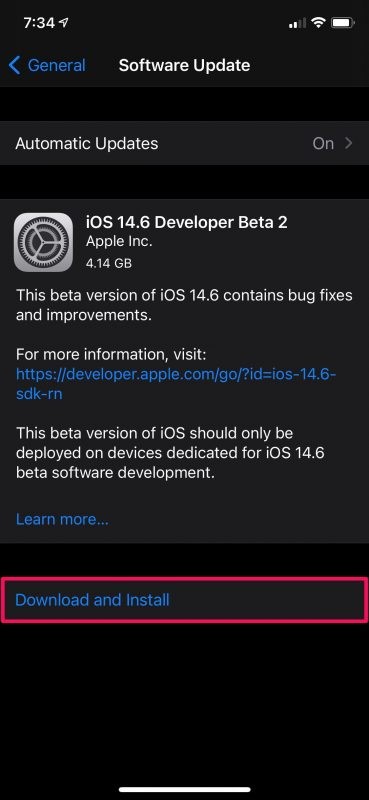
- Basically, all you need to do is just update your iPhone to iOS 14.5 or later by going to Settings -> General -> Software Update. You can skip this step if your iPhone is running iOS 14.5 already.
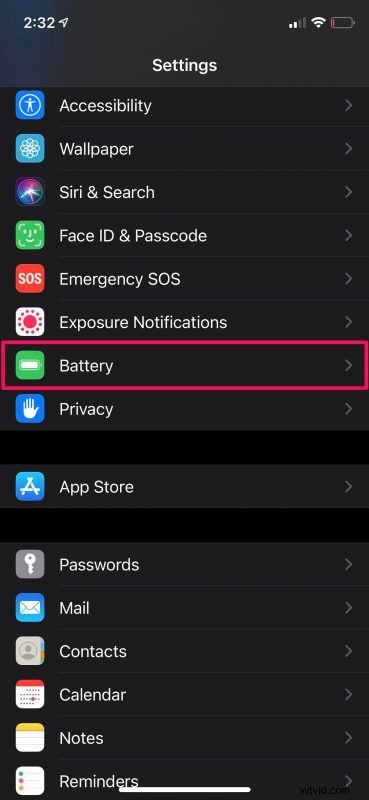
- When you’re done, open the Settings app and head over to the Battery section.
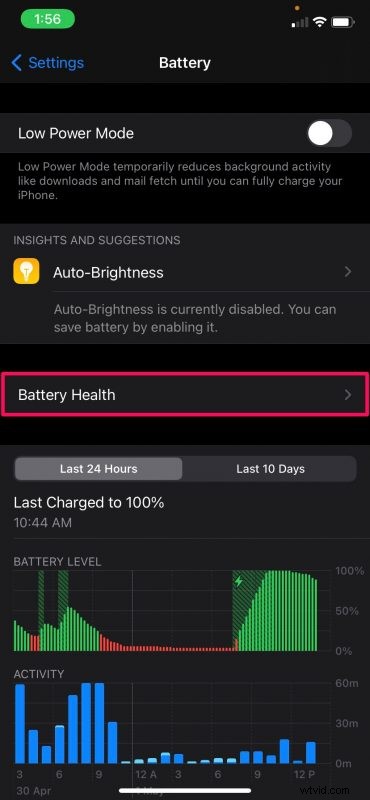
- Next, tap on “Battery Health” located above your battery graph.
- Here, at the top, you’ll find an important battery message. It confirms that your iPhone’s maximum battery capacity and peak performance capability are being recalibrated. You can tap on “Learn Mode” to open a support page and read more about it.
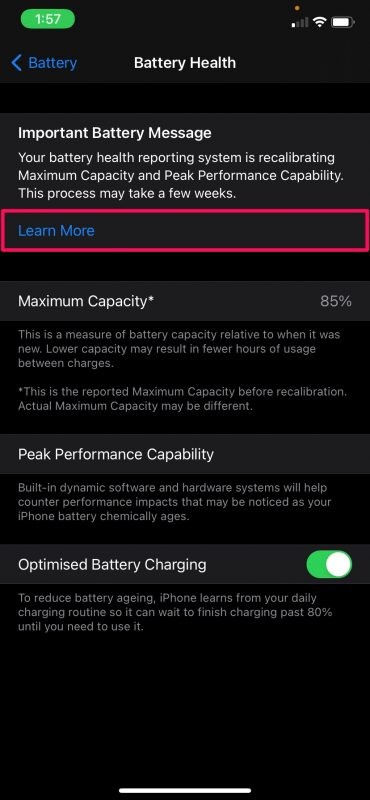
- Everything about the recalibration will be mentioned here. Now, the next thing you need to do is just wait. Seriously, just wait for at least two weeks or more. Trust us.

That’s all there is to it.
We asked you to wait since the recalibration process takes a few weeks to complete as stated in the important battery message that we showed in Step 5. Therefore, you can check your battery health after a period of 2 weeks or so to check if there’s any change in the maximum capacity reading.
If Apple’s updated battery health reporting system still indicates that your battery health has significantly degraded, you’ll get the battery service message. At this point, the only way to get rid of this message would be by servicing your iPhone and getting the battery replaced.
Having said that, Apple does state that the recalibration may still be unsuccessful in some rare cases. If this happens to you, you might be entitled to a free battery replacement from an Apple Authorized Service Provider and thereby restore maximum capacity and peak performance.
If you’re having general battery issues with the iOS 14 releases, you can also check out some battery life tips for iOS 14.x here.
Hopefully, you’re able to get back normal battery health readings on your iPhone 11, iPhone 11 Pro, and iPhone 11 Pro Max. While you wait, why don’t you check your iPhone’s battery cycles to roughly estimate how much you’ve degraded the battery?
Don’t forget to share your thoughts and comments, as usual!