
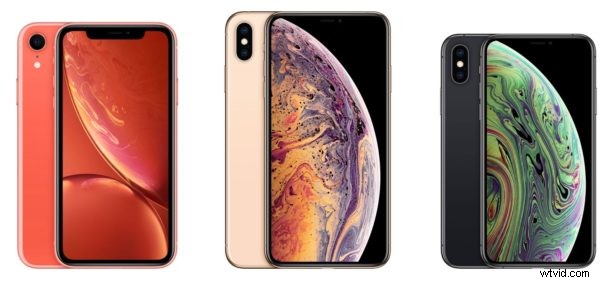
Want to quit apps on your new iPhone? If you have an iPhone 12, iPhone 12 Pro, iPhon 12 Pro Max, iPhone 12 mini, iPhone 11, iPhone 11 Pro, iPhone 11 Pro Max, iPhone XS, iPhone XR, or iPhone XS Max, you might be wondering how to quit apps and access the multitasking App Switcher, since there is no Home button.
Instead, all modern iPhones and iPads without a Home button have the ability to access the App Switcher and to quit apps by using a swipe gesture instead. This article details how that works.
How to Quit Apps on iPhone 12, iPhone 12 Pro, iPhone 12 Pro Max, iPhone 12 mini, iPhone 11, iPhone 11 Pro, iPhone XS, iPhone XR, and iPhone XS Max
- From within an app or the Home Screen of iPhone, swipe up from the very bottom of the screen * to access App Switcher
- Locate the app you want to quit out of in the App Switcher
- Swipe up on the app preview (pushing it off the top of the screen) to quit that iOS app
- Repeat the swipe-up gesture on other apps to quit those other apps as necessary
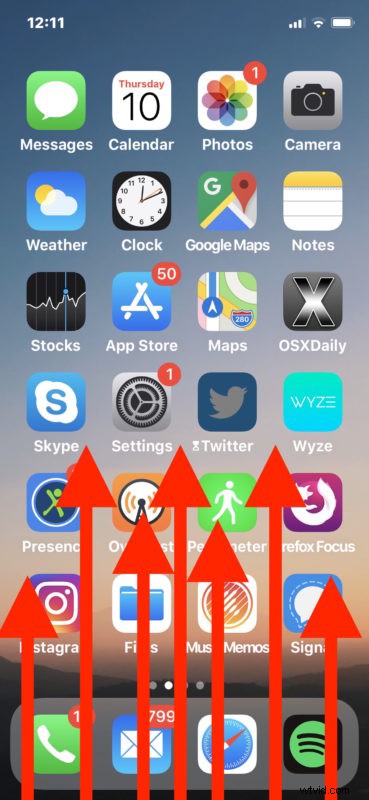
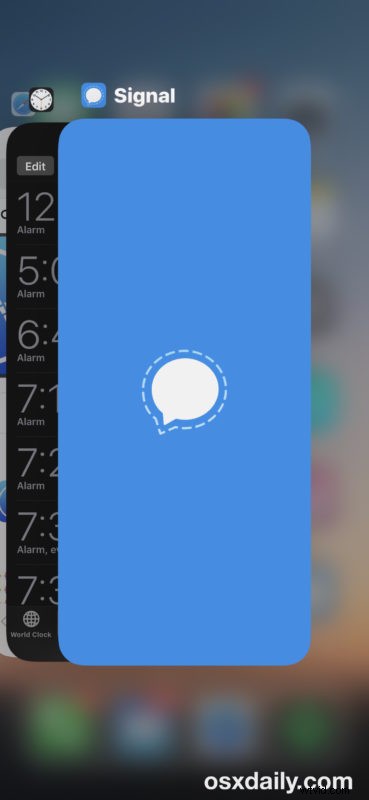
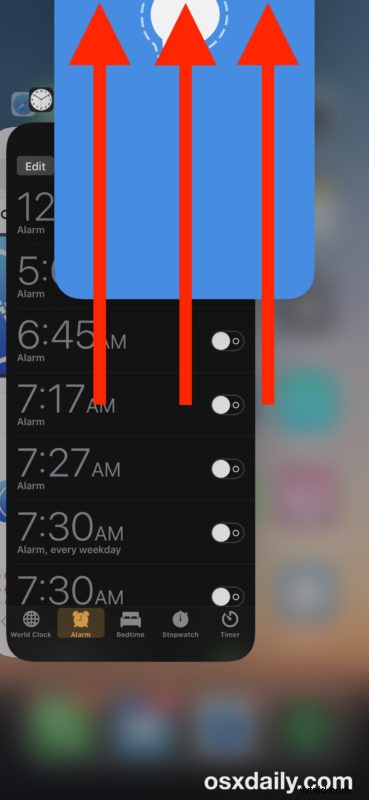
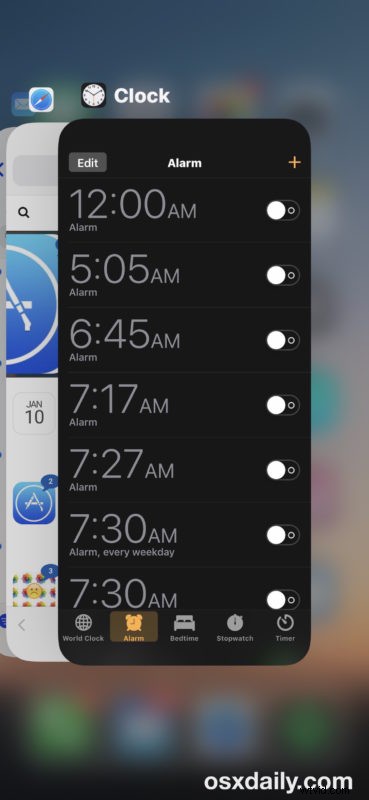
The animation below shows the app quitting process on iPhone 12, iPhone 12 Pro, iPhone 12 Pro Max, iPhone 12 mini, iPhone 11, iPhone 11 Pro, 11 Max, XS, XR, and XS Max.
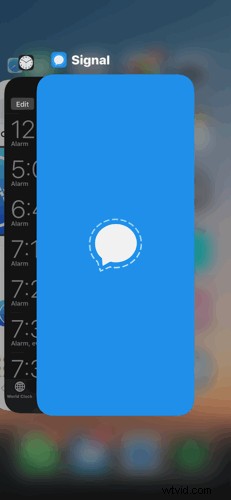
You can then exit the App Switcher at any time by either swiping down, tapping on an app, or by tapping into the blurred background area.
* If you’re having difficulty accessing the App Switcher, try swiping up from below the bottom of the screen, basically starting your finger or stylus directly at the edge of the low edge of the screen and dragging up from there.
You can also swipe up on multiple apps at the same time if you wish to quit out of multiple iOS apps at once, similar to how you’ve been able to do with multitouch. The only difference is that rather than using the Home button to access the app switcher, you use the swipe up gesture.
This process is basically the same as when invoking the app switcher and quitting apps on iPhone X, which was the first iOS device to lose the home button. Presumably all future iOS devices will eventually adopt this swipe gesture based approach too, assuming they also no longer have physical Home buttons anyway.
Apple has changed the appearance of app switcher and approach for quitting apps in iOS on numerous occasions, including differences between modern versions of iOS like iOS 14, iOS 13, iOS 12, and iOS 11 (particularly for iPhone X, XS, XR, XS Max, 11, 11 Pro, 11 Pro Max), and with iOS 10 and iOS 9, iOS 7 and iOS 8, iOS 6, iOS 5, and iOS 4, and a temporary and unique approach for iPhone X with specific versions of iOS 11 as well that required holding the app previews sort of like how you delete an app from iOS (though some users find that finicky on the X, XS series along with other 3D Touch models).
Now you know how to quit out of apps on the iPhone 12, iPhone 12 Pro, iPhone 12 Pro Max, iPhone 12 mini, iPhone 11, iPhone 11 Pro, iPhone XS, and iPhone XR series, have at it!
You might also be interested in learning how to screenshot on iPhone X, XS, XR too, since that’s also a bit different, as is force rebooting iPhone XS, XR, and XS Max and iPhone 12, iPhone 12 Pro, iPhone 12 Pro Max, iPhone 12 mini, iPhone 11, 11 Pro, and 11 Pro Max too.