
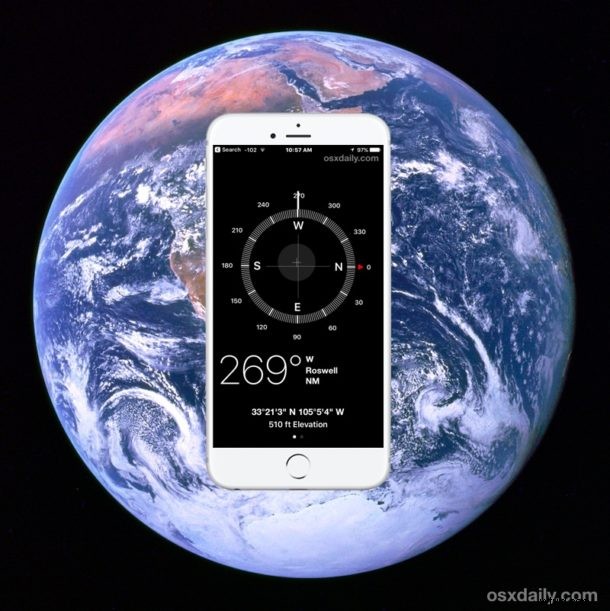
All iPhone models have a built-in GPS device which aids in navigation and allows for pin-point precision for location detection. While most users who interact with location and navigation features on their iPhone will be using the Maps applications, it can also be helpful to get exact GPS coordinates for latitude and longitude, perhaps for placing into a dedicated GPS tracker or for finding particular coordinates for a location on a map.
We’ll show you how to retrieve and display GPS coordinates on iPhone using native applications, there are no third party apps or downloads required.
Before we begin, some of you are probably wondering why anyone cares about GPS coordinates when the iPhone has directions capabilities and a Maps application. It’s not relevant to everyone, but knowing precise GPS coordinates can be helpful for runners, joggers, skiers and snowboarders, explorers, hikers, geocaching (cheating!), geologists, archeologists, realtors, surveyors, photographers, investigators, spies, and many other hobbies and professions.
How to Get GPS Coordindates on iPhone
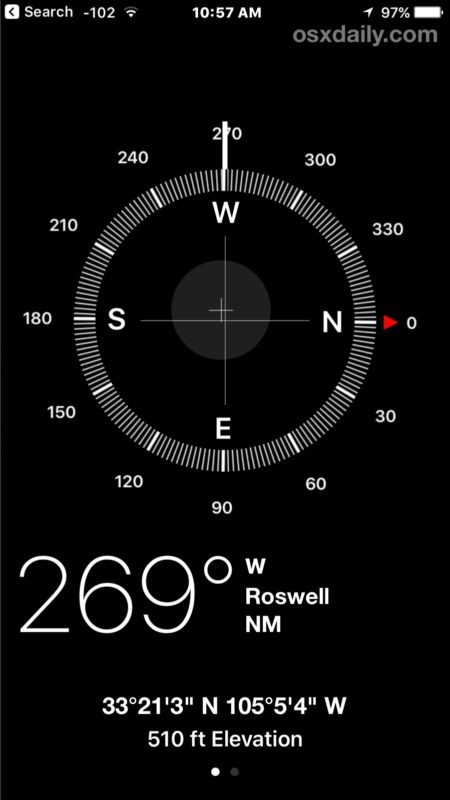
This will reveal current GPS coordinates of an iPhone in DMS format:
- Be sure you have GPS Location Services enabled on iPhone, found in Settings > Privacy > Location Services, and be sure Compass app has access to location data
- Open the Compass app on iPhone
- Calibrate the Compass app if necessary, then wait a moment for the current location to be determined
- Find the GPS Coordinates in degrees, minutes, seconds (DMS) format at the bottom of Compass app on iPhone
- Optionally, copy the coordinates by tapping and holding on the coordinates and choosing “Copy” from the pop-up menu

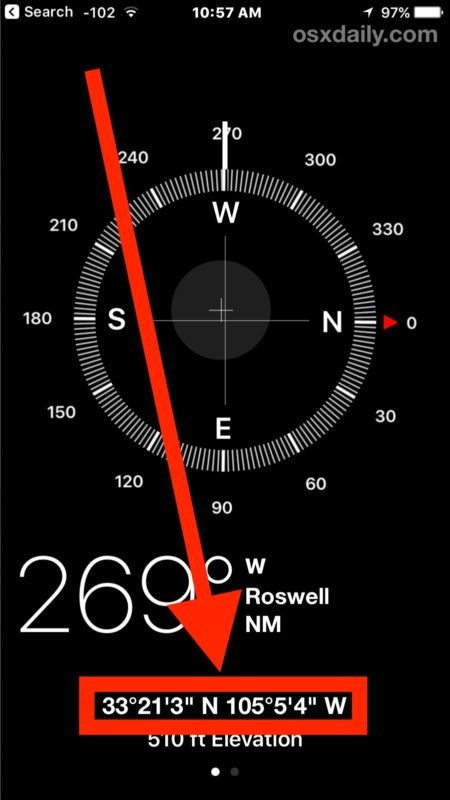
You can either copy the coordinates and paste them elsewhere, into Notes app, a message, email, or otherwise, or take a screenshot of the iPhone display to preserve the coordinates. You can also paste the copied or jotted down GPS coordinates into a Maps application to create a pin or see it on a map. If you save the spot and put it into a Maps app, you can also then later share a Maps location from the Mac or iPhone easily.
The Compass app does not have a “Save Coordinates” or “Share Coordinates” feature currently, but perhaps a future version will have a possible log option or sharing features. If you do want to share where you currently are with someone else you can share your current location using Messages on iPhone however.
Note this trick shows you the exact GPS coordinates of a current location on iPhone, but you can also get GPS geolocation data from iPhone photos as described here assuming the person taking the picture didn’t disable GPS geotagging on iPhone camera (which we generally recommend for privacy purposes).
GPS metadata stored in pictures allows interested users to track down precisely where an image was taken, this can be done on the iPhone, iPad, Mac, PC, or even web browsers. For example, using Preview and Maps app on Mac you can see the exact location a picture was taken easily, assuming the person who took the picture did not disable geotagging of their images.
Generally speaking, I personally recommend disabling geotagging of photos taken with iPhone camera, primarily as a privacy and security mechanism since many pictures are shared online nowadays. Do you really want to post a picture to social media or elsewhere on the internet and have someone be able to track down immediately and easily exactly where you are located or where the picture was taken? Some users may not mind that, but personally I’d rather default to having some degree of privacy and instead opt to include or share geographic location data at my own discretion, but maybe I’m a square.
Speaking of GPS coordinates and your iPhone, if you are trying to track down a location it can be helpful to lock the compass needle position in the same iPhone Compass app.
Have any other interesting GPS tricks for iPhone? Let us know in the comments.