
Do you have GPS coordinates for a location that you’d like to enter on the iPhone? You can input and search maps by GPS coordinates on the iPhone easily by using the Apple Maps or Google Maps applications, as we’ll demonstrate in this walkthrough.
You will be able to input, search for, find, locate, and show on a map any location as defined by GPS coordinates, which are traditionally in a latitude and longitude, DMS, or the DD decimal degrees format, though you can also use other geolocation formats too. While we’re focusing on finding locations by GPS coordinates with iPhone, this trick works the same to enter geolocation data on the same mapping apps on iPad and iPod touch as well.
This tip pairs nicely with our recent discussion on how to show GPS coordinates on iPhone by using the Compass app. GPS coordinates are often used by hobbyists, surveyors, outdoor enthusiasts, and for many other purposes, which gives this approach a more technical lean than simply sharing a location through the Maps apps on iPhone directly, since raw GPS coordinates can be used by not only iPhone as well as Android but also the vast array of GPS mapping devices out there.
How to Enter GPS Coordinates on iPhone with Apple Maps to Find a Location
Have the GPS coordinates for the location you’d like to input handy, then on iPhone:
- Open the Maps application on iPhone
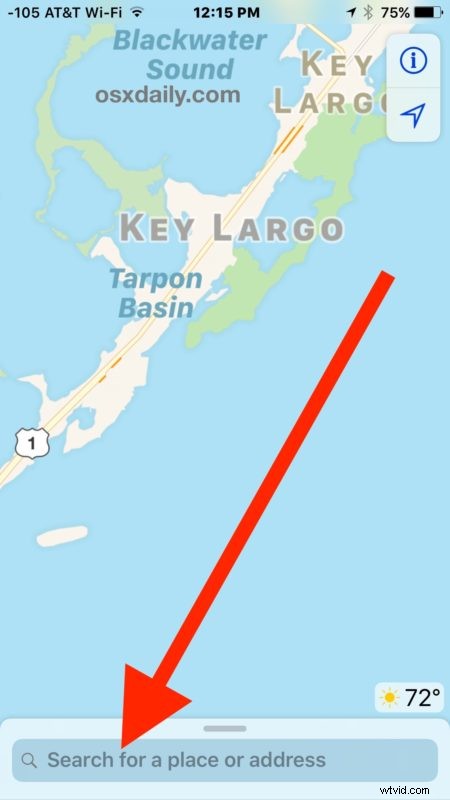
- Tap into the Search bar of the Maps app
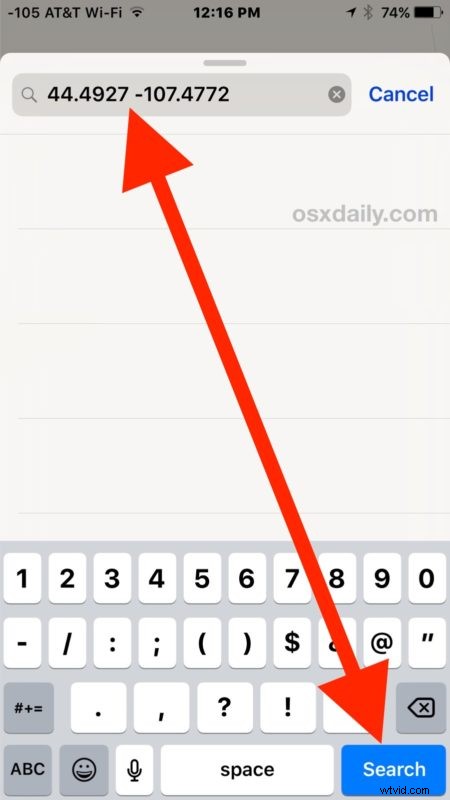
- Enter the GPS coordinates you want to locate, then tap the “Search” button
- The GPS location will be found and shown on screen in maps

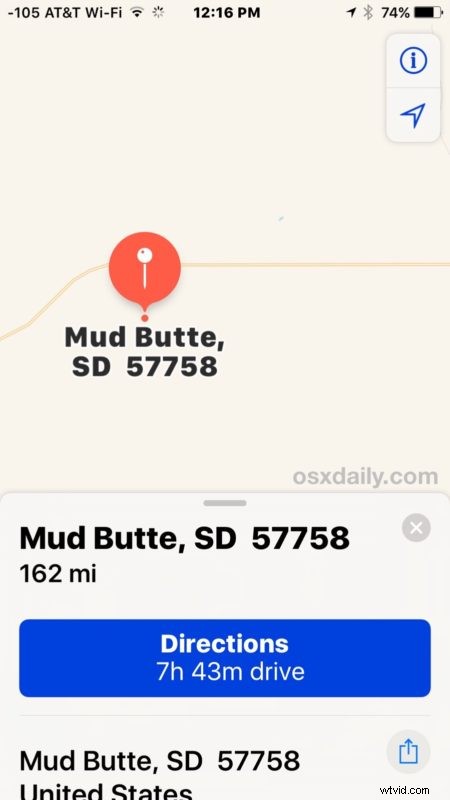
You can show any GPS locations in the general map view or in satellite and hybrid views.
Another useful trick is to take the GPS location after it has been found on the Maps app this way, and then use the Maps location sharing feature on iPhone discussed here to share a marked pin with another iPhone user.
How to Enter GPS Coordinates for a Location with Google Maps on iPhone
With GPS coordinates ready, get the iPhone and do the following:
- Open Google Maps app on iPhone (it’s an additional separate download)
- Tap the “Search” bar and enter the GPS coordinates you’d like to search for, then search
- Google Maps will render the GPS location on the map
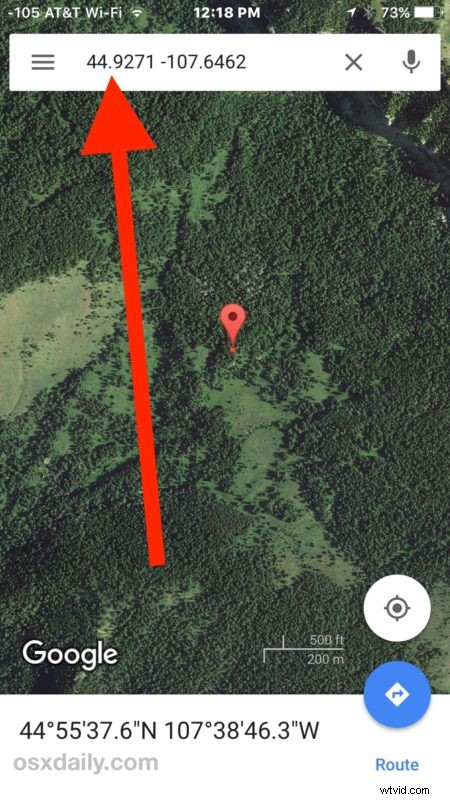
That’s all there is to it, just entering and searching for the GPS coordinates should display them as intended on iPhone in the maps application.
If you are having any difficulty, check the way your coordinates are inputted into the Maps app and searched. You want to be sure there is a space between the latitude and longitude numbers, or the decimal degrees, or the DMS degrees, minutes, and seconds numerical delineators. A typo in a GPS coordinate can easily throw the location and directions far off, so double-check the actual numbers you have inputted too.
Can you convert GPS coordinates from DD, DMS, latitude longitude formats on iPhone?
Let’s say you have GPS coordinates in one particular format but you want them in another, can you use the iPhone to convert those GPS coordinates from one type to another? The answer is yes! At least with Google Maps, which makes this very easy.
Simply search for the GPS coordinates that you do have, and at the very bottom of the Google Maps app you will see the GPS coordinates displayed in DMS degrees, minutes, seconds format:
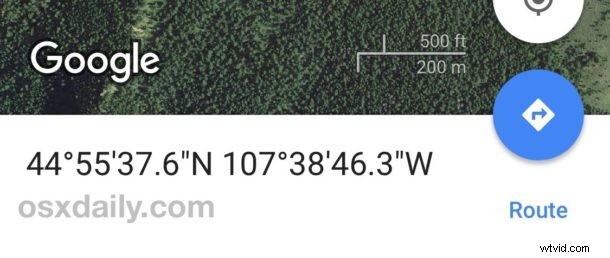
Simple and easy. The Google Maps app will convert the GPS coordinates from one input type and display them easily in the DMS format, though currently the iPhone Apple Maps app will not perform the GPS coordinate conversion even if it will search for and find the proper destination regardless of input format.
This should be a helpful set of tips for many people who rely on GPS for many different reasons, whether for work, hobby, fun, or personal. If you have any additional tricks, tips, or suggestions about finding, locating, and working with GPS coordinates on the iPhone, let us know in the comments!