
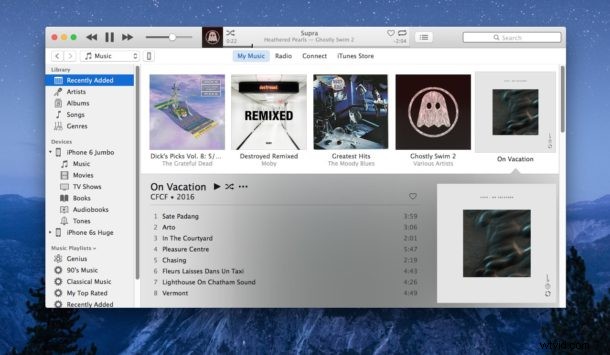
The latest version of iTunes has re-added the sidebar and made some other user interface changes designed to make using the app a bit easier to navigate. Most of the changes are welcome to iTunes, but one of the more unnecessarily difficult tasks remains selecting an iOS device in the iTunes app itself.
Simply selecting an iPhone or iPad within iTunes, which is necessary if you want to backup or restore a device or adjust other settings, is a little unintuitive. If you click on the sidebar icons of the iPhone or iOS device, it drops down the media for the device playlists, but it doesn’t select the device itself. This leads to a fair amount of confusion for those who aren’t deeply familiar with iTunes on Mac OS X or Windows, but not to be too stressed out, it’s actually really easy to select a device in iTunes 12.4 and later versions (including iTunes 12.6, iTunes 12.7, etc) if not a little strange.
Here is how you select an iOS device in iTunes 12.6
IGNORE the “Devices” sidebar menu item which shows your named iPhone, iPad, or iPod touch. Yes, I know that sounds weird but you need to completely ignore the device in the sidebar sidebar which clearly shows your device, this will not allow you to select your iOS device in iTunes. Doing that shows the media for the device.
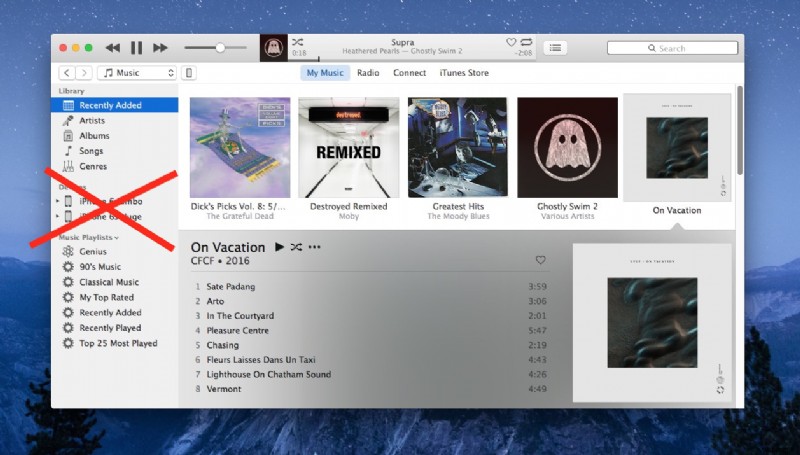
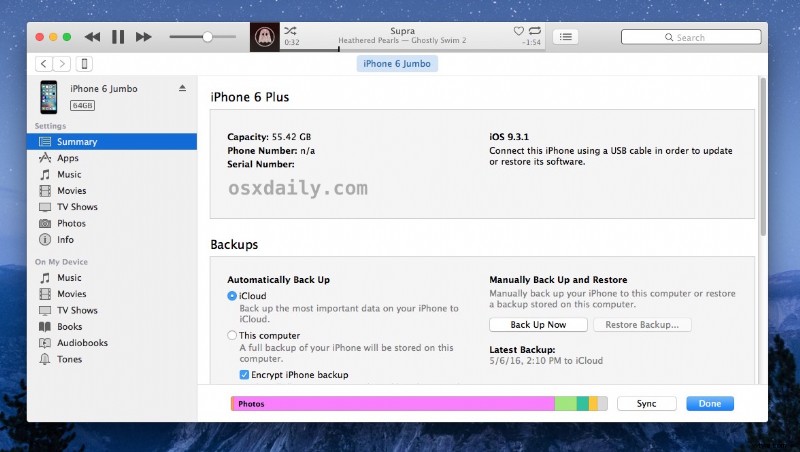
INSTEAD, look for the tiny little icon that looks like an iPhone next to the little dropdown menu in the iTunes menus and tabs area. Click that tiny little icon.
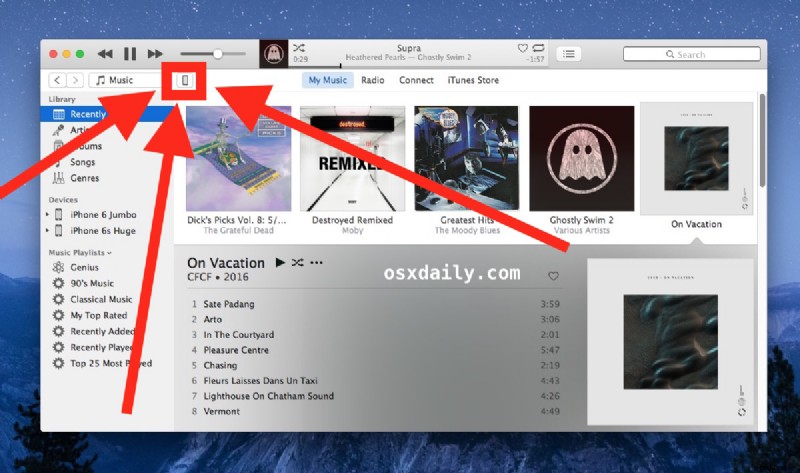
That little icon button reveals a pulldown menu which shows your iOS devices – yes the same iPhone, iPad, iPod touch that appears in the sidebar. But the difference is, here is where you can actually select the iOS devices in iTunes.
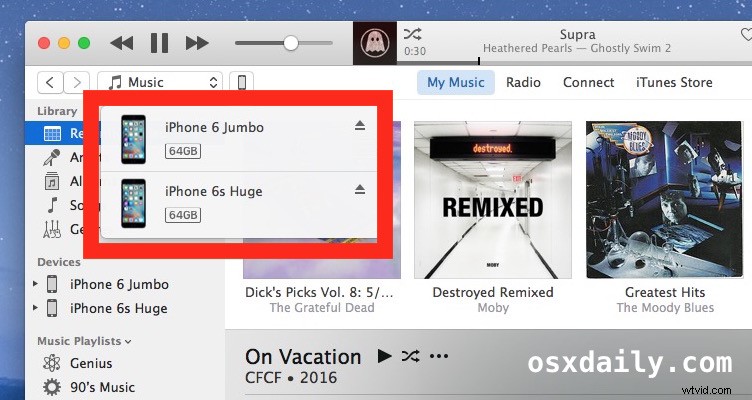
Click on the device in this pulldown you want to select in iTunes, and you’ll be at the familiar device summary screen where you can backup, restore, adjust settings, and do whatever else you want to do with the iPhone, iPad, or iPod touch. Success!
This video walks through the process, including demonstrating that when you click on the sidebar items of your devices, you don’t actually select them.
This is a curious user interaction that has thoroughly confused a few casual iTunes users in my family, so it undoubtedly is confusing to other users as well.
Is this weird? Yes. Is it a bug? No it appears intentional. Should it be changed? Yes probably, as longtime iTunes users may recall that is how iTunes used to work, where you could select an iOS device by clicking it in the sidebar. Hopefully such a feature will return again and improve the user experience a bit. And if you don’t see the problem here, try describing that little icon location to select the device to a less technical family member on the phone, you’ll understand (“no, don’t click your iPhone in the sidebar! Yes I know you want to select the iPhone, but don’t click that one. No instead you need to click the tiny button that looks like a vertical rectangle! No it’s not in a dropdown menu. No it’s not there either, no no, click Back, it’s not in the Store. The little button, it looks like a little iPhone, it’s really small! Ok never mind, how about we use screen sharing and I’ll show you. See there it is. I know, it’s not obvious! You’re welcome, have a great day!”).