

Need to archive an iTunes backup of an iPhone or iPad for safe-keeping? Creating an archived backup in iTunes is helpful because it allows you to preserve a specific device backup while still allowing for backing up to iTunes on Mac or PC, without those new backups overwriting the archived backup.
Creating routine backups of iPhone and iPad are important in general, but if you ever plan to try a beta release of system software like iOS public beta or iPadOS public beta, you’ll want to go a step further and archive an iTunes backup as well, since it makes it easier to revert to a prior release (like downgrading iOS 13) if necessary.
How to Archive iTunes Backup of iPhone or iPad on Mac & Windows
This obviously focuses on archiving backups in iTunes, but in MacOS Catalina these same actions are performed in the Finder, where device management occurs, rather than in iTunes.
- Open the iTunes application if you have not done so already on Mac or Windows
- Optionally, start and complete a new encrypted backup to iTunes if you wish to create a fresh backup to archive then proceed when finished
- Pull down the iTunes menu and choose “Preferences”
- Go to the “Devices” tab in iTunes Preferences
- Under the Device Backups list locate the device backup you want to archive, then right-click on that backup and choose “Archive”
- Ensure that the iPhone or iPad backup has been archived by checking for the lock icon and date stamp on the backup name, when finished click on “OK” to exit out of iTunes Preferences
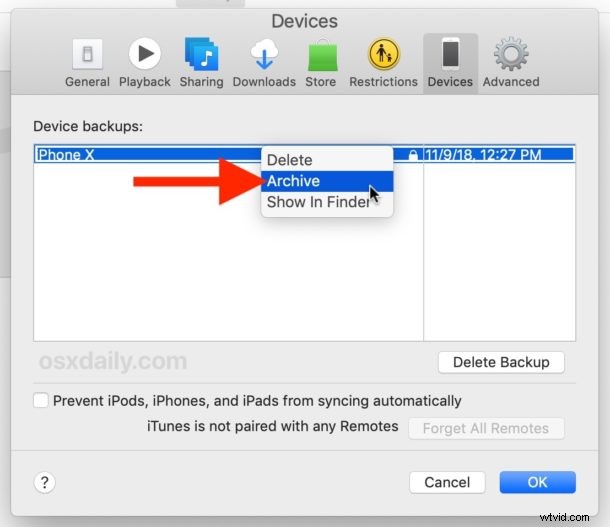
Archiving a backup essentially locks that backup so that it is not overwritten by subsequent device backups made to iTunes.
Again, iCloud has no impact on backups in iTunes. You can backup to both iCloud and iTunes if desired.
Identifying Archived Backups in iTunes
In the device list this is easy to identify because there is a lock icon and a time and date stamp on when the backup was archived.
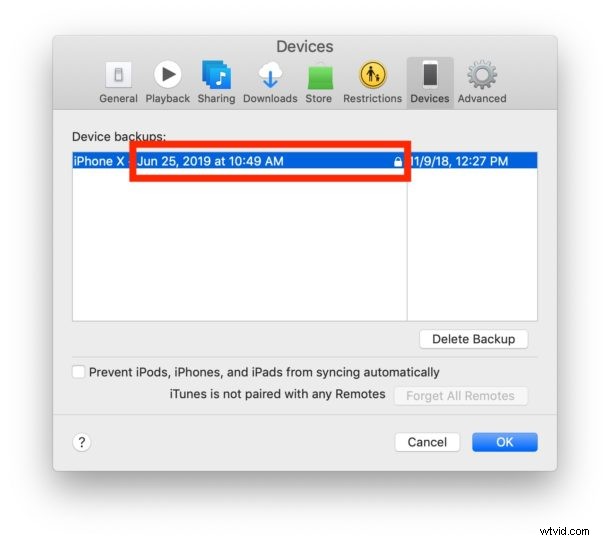
You can un-archive a backup by right-clicking on it from within the same Devices settings list, and of course you can also delete backups from iTunes there as well.
Remember that in iTunes it’s important to encrypt backups so that all Health data and sensitive data is also backed up, because without the backup encryption feature enabled that data will not be backed up to iTunes. Backing up iPhone or iPad to iCloud is encrypted by default and does not require the manual encryption setting.
Note you can not currently archive iCloud backups, so if you wish to preserve an iPhone or iPad backup you must use iTunes and archive the backup there, or a Mac with at least Catalina and archive the backup there.