
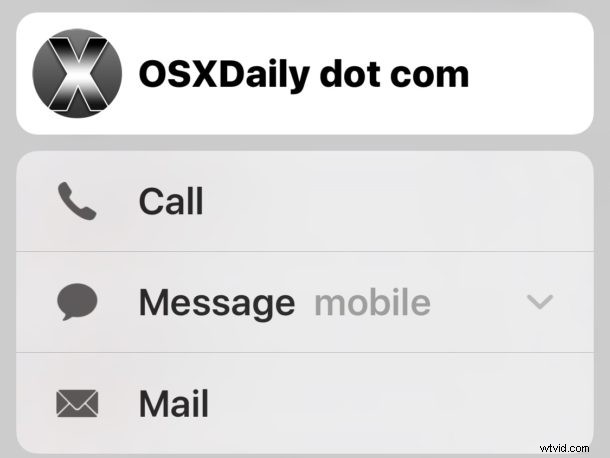
Most iPhone users who are communicating in the Messages app will leave the application and then launch Mail or the Phone app if they wish to continue a conversation through a phone call, FaceTime, or email. For modern iPhones with 3D Touch screens, there’s another option that’s even quicker to jump to a different communication method.
Here’s how this handy 3D Touch Messages trick works:
- From the Messages app in iOS, 3D Touch on the contact picture of the person*
- Choose your alternate contact method to immediately initiate:
- Call (a menu will appear if multiple numbers are available for the contact)
- Message (again, a menu will appear if there are multiple messaging options)
- FaceTime (if applicable)
- Mail (a menu will appear if multiple email addresses are available for the person)
- Tap any of the choices to immediately initiate a phone call, message a different number, a FaceTime chat, or an email with the person
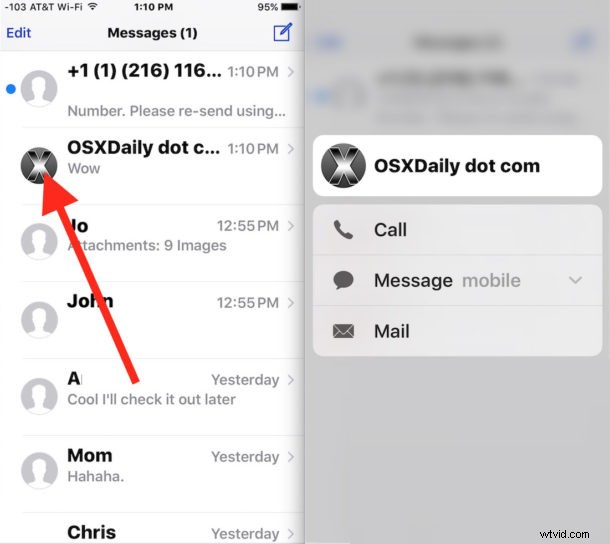
This is a pretty handy trick that I came across inadvertently, offering a nice little shortcuts menu for different contact methods. The same 3D Touch contact picture trick works in the Phone app too, which results in the menu with different communication options.
* Be sure to 3D Touch on the contact picture and not the contact name, if you 3D Touch on the latter you will preview the message instead, which allows you to read messages without sending Read Receipts, which is a neat trick too but not what we’re looking to accomplish here.
Whether or not this is as useful as some other 3D Touch tricks is really up to you and your iPhone workflow, but I find myself using it fairly often when in the Messages app in particular.