
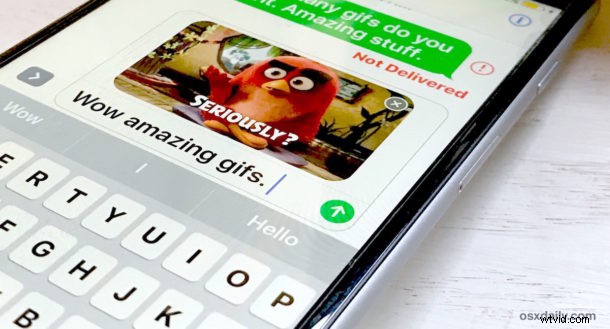
If you send and receive a lot of picture messages from an iPhone or iPad but you don’t have the most generous data plan in the world, you might want to consider enabling an optional setting which reduces the image quality of pictures sent from iOS Messages. The end result of enabling Low Quality Image Mode is that, aside from having dramatically reduced picture quality for sent messages, you’ll also be using much less data.
The Low Quality Image Mode filter setting is only possible in modern versions of iOS for iPhone, you’ll want iOS 10 or later to have this feature available to you.
How to Enable “Low Quality Image Mode” in Messages for iPhone
- Open the “Settings” app and go to “Messages”
- Scroll all the way down to the bottom of the Messages Settings and toggle the switch for “Low Quality Image Mode” to the ON position
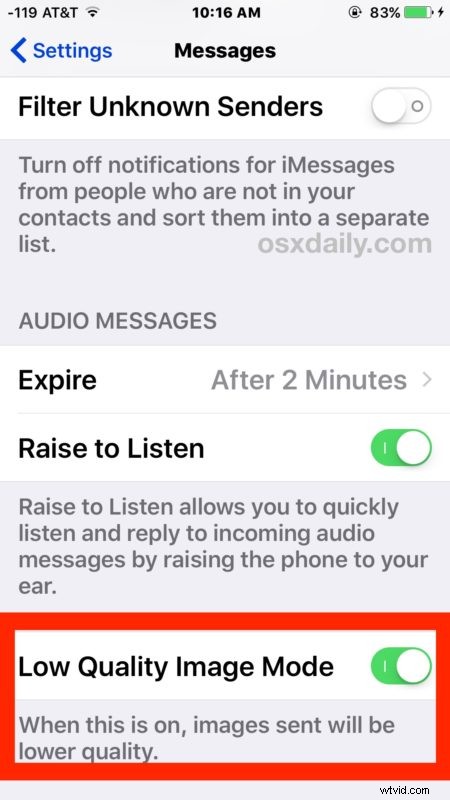
With Low Quality Image Mode enabled the images sent from the Messages app will be notably lower quality, aiming to reduce the data usage of the device.
Each picture sent with Low Quality Image Mode enabled is compressed to around 100kb, which is significantly smaller than a 5mb iPhone camera image or a sizable animated gif sent from Messages app.
This can be a great trick for when you’re bumping up against your data plan limit and want to minimize overage, and it can be helpful when trying to send pictures with low cellular signal as well, since the total size is much smaller. In the latter scenario, if a picture message repeatedly fails to send due to low cellular coverage or a poor network connection, sometimes toggling this setting on pass the message through.
If you decide after the fact that the picture quality is just too low to be reasonable and you don’t mind going back to the default data usage, simply toggling the Low Quality Image Mode setting off will allow messages app to send the regular sized pictures.
Note that this feature can interfere with some animated gifs found in the Messages GIF search, so if you’re a big user of animated gifs you might not want to use the feature either. Currently it seems to have no impact on Stickers, however, so you might want to manually reduce your usage of those.