
Worried about using cellular data to stream Netflix content on your iPhone? Want to make sure you’re not burning through your allocated data within minutes? Well, Netflix allows you to do so with a dedicated low-data mode.
A lot of people use Netflix to enjoy shows or kill time while they’re traveling. However, most of the time when you’re traveling, you’re not connected to Wi-Fi, using cellular data instead, which can be pretty expensive if you have a limited data plan or go over a bandwidth quota. Netflix uses approximately 3 GB of your data for streaming an hour of HD content and 7 GB for 4K, for example. For a lot of people, that’s their monthly data allocation. Therefore, unless you’re on an unlimited cellular data plan (that is truly unlimited), you wouldn’t want to exhaust all your data in a day or after a few episodes.
By using Netflix’s low data mode, you can minimize the usage and watch for way longer. So, if you’re interested, read on below to learn how to use the low data mode in the Netflix app for iPhone.
How to Reduce Netflix Data Usage with Low Data Mode on iPhone
First and foremost, make sure your Netflix app is updated since your device may be running a very old version and you wouldn’t find the necessary setting. Once you’re done, here’s what you need to do:
- Launch the Netflix app on your iPhone and enter the home page after selecting your profile.

- Tap on your profile icon located at the top-right corner of your screen to access the app menu.
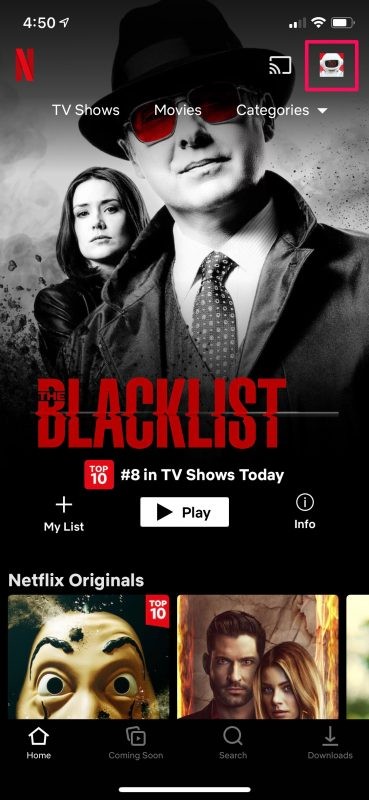
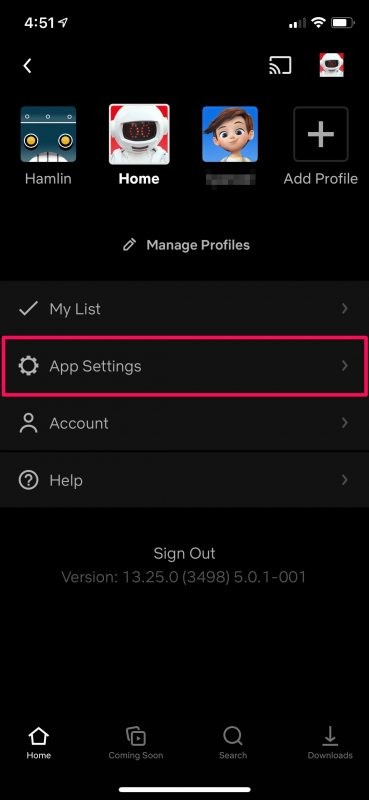
- Next, choose “App Settings” from the list of available options.
- Here, select “Mobile Data Usage” located under the Video Playbck section at the top.
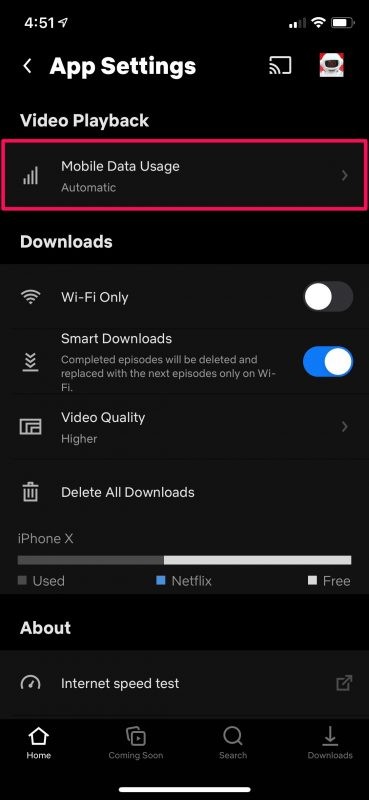
- Now, you’ll find that the data usage is set to automatic and every other setting is grayed out. Disable the Automatic toggle and then select “Save Data”.
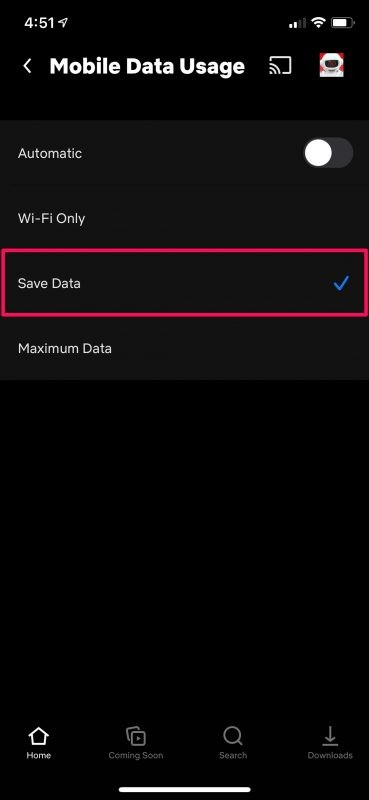
That’s pretty much everything you have to do. Your app settings will automatically be saved.
From now on, when you stream Netflix content over a cellular connection, you’ll notice the lower video quality confirming that you’re using low-data mode.
Of course, you’ll need to sacrifice the video quality if you want to watch for hours without consuming a lot of data. In low-data mode, you’ll be streaming at SD quality even if you’re on the most expensive plan. However, Netflix will only use 1 GB of data for an hour of streaming, which is a fraction of the data consumed while streaming in 4K.
A smarter way to minimize cellular data use or avoid it altogether would be by making use of the app’s offline viewing feature. Before you head out, you can download all your favorite Netflix content and access them without relying on internet connectivity.
Hopefully, you were able to keep cellular data use to a minimum despite binging shows on Netflix. How often do you watch Netflix while you’re on the move? Would you rather download the episodes and watch at a higher quality offline rather than stream them in SD over cellular? Share with us your personal thoughts and opinions in the comments section down below. Don’t forget to drop your valuable feedback as well.