
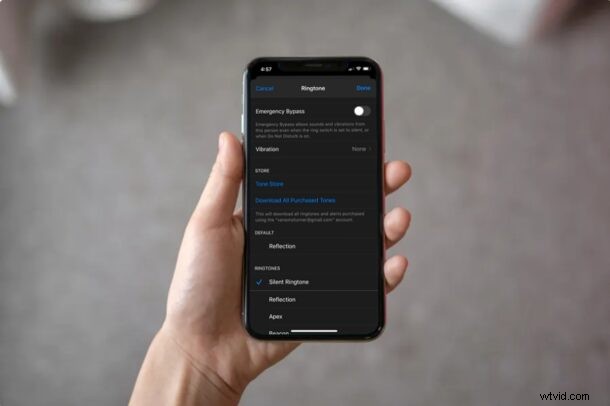
Want to mute all inbound calls, messages, and alerts from a contact that is pestering your iPhone? Whether you’re getting annoyed by spamming phone calls or text messages, you’ll be pleased to know that it’s fairly easy to mute a specific contact on your iPhone to silence calls and mute notifications from them. And yes, silencing someone this way is different from blocking them.
Although blocking the contact may be considered as the easier option, you may not want to necessarily block someone just to get some peace.So instead, you can choose to mute the contact instead. They will have no idea that you’ve muted them, unless they grab your iPhone and check for themselves anyway.
So, do you want to mute the contact or person who’s pestering you? If you follow along you’ll silence their phone calls, messages, and notifications on your iPhone.
How to Mute an iPhone Contact to Silence Calls
Apart from blocking, there’s no direct option to mute a specific contact on an iPhone. However, you can set a custom silent ringtone to the contacts you want to mute. Simply follow the steps below to get started.
- To buy a silent ringtone, open “iTunes Store” on your iPhone. (Or, if you don’t want to spend any money, you can make your own silent ringtone or find one online like this m4r).

- Head over to the “Search” section and look for “silent ringtone” as shown below. You could purchase any of the silent ringtones here for a dollar or two.

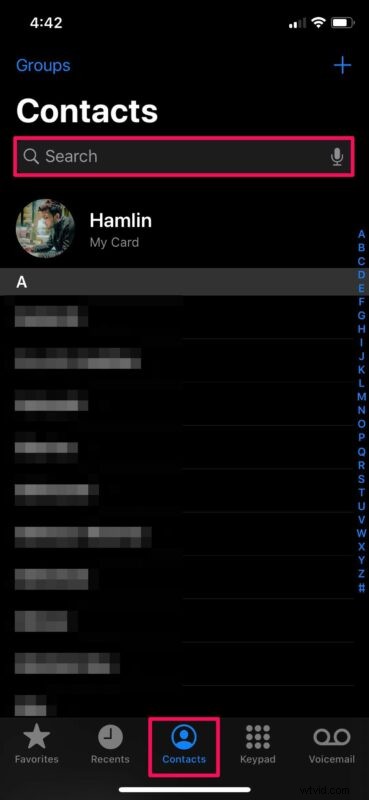
- Next, open the “Phone” app on your iPhone and head over to the Contacts section. Use the search bar to find and select the contact you want to mute.
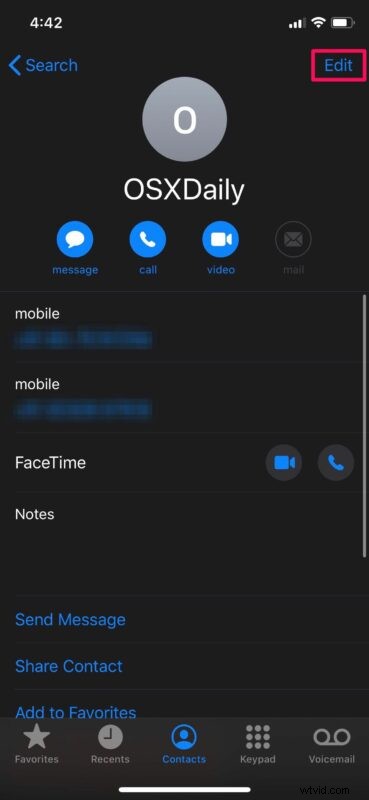
- Here, tap on “Edit” located at the top-right corner of the screen.
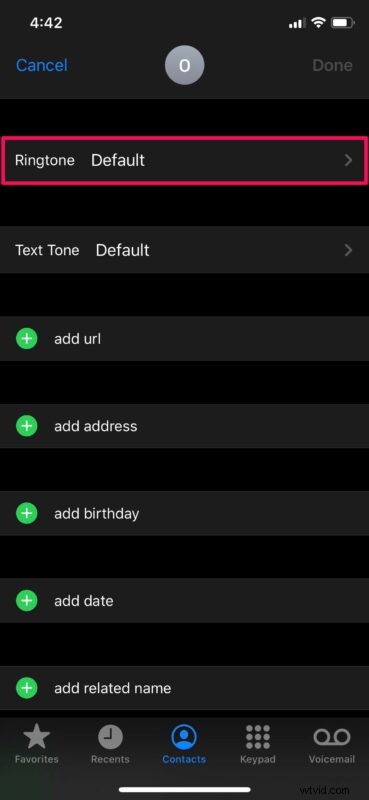
- Now, scroll down and tap on “Ringtone” to set a custom ringtone for the contact.
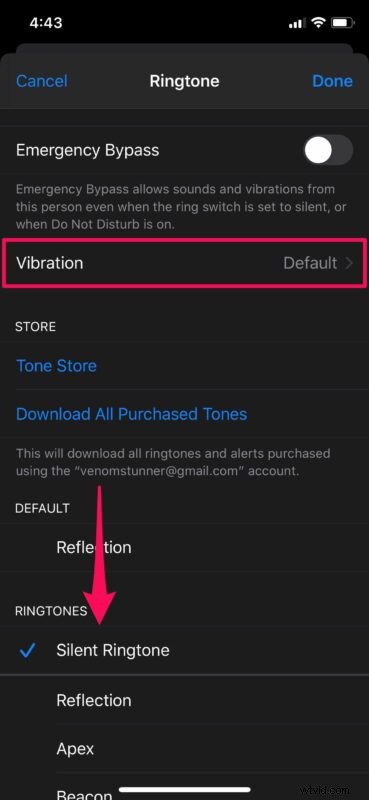
- Here, select the “Silent Ringtone” you just added to your iPhone. By default, vibration is enabled even if you choose the silent ringtone. To change this, tap on “Vibration”.
- Now, scroll to the bottom and choose “None” to disable vibration.
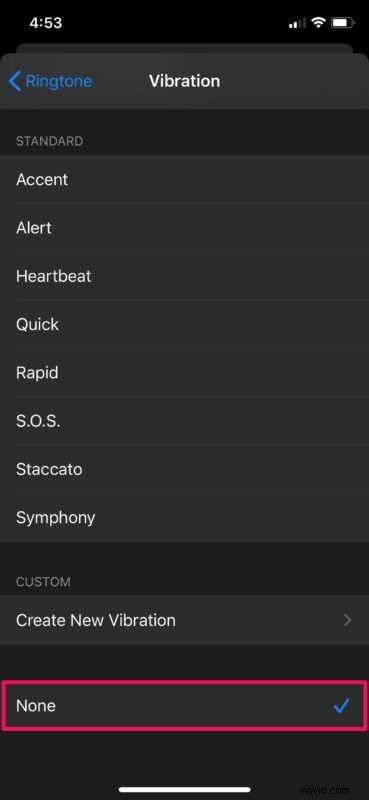
- As for the last step, go back to the previous menu and make sure you tap on “Done” to save all the changes.
That’s it. You’ve successfully managed to silence all phone calls from this contact. But that’s just their calls, now you’ll want to mute their messages and the notifications from those messages too.
How to Mute an iPhone Contact to Silence Messages & Notifications
Muting message alerts for a specific contact is a lot more easier and straightforward than silencing phone calls. Let’s take a look at the necessary steps.
- Open the default Messages app on your iPhone.

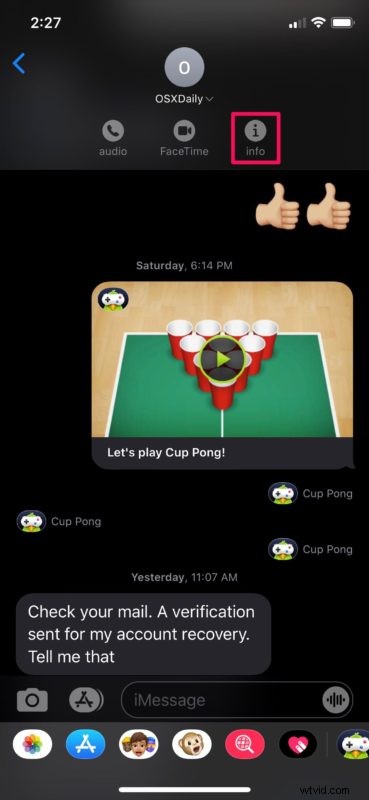
- Open any SMS/iMessage thread and tap on the contact’s name located at the top to access more options.
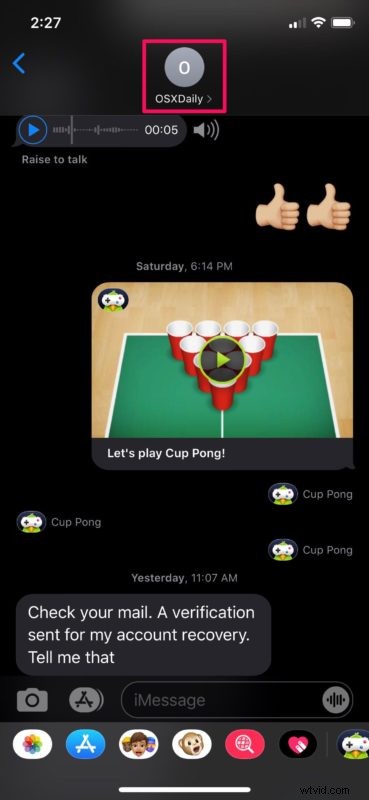
- Now, tap on “Info” to access settings for this particular thread.
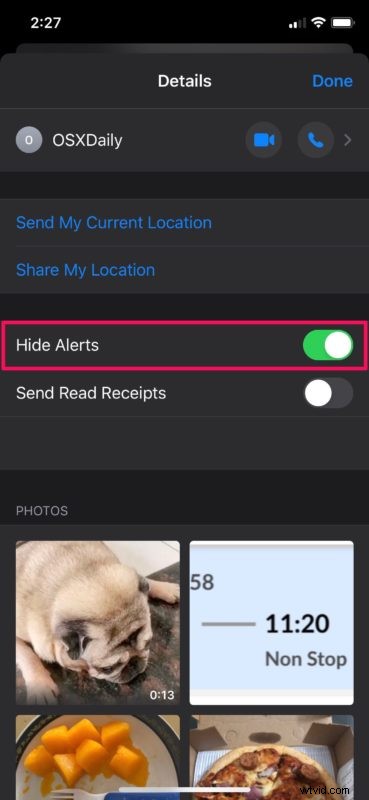
- Here, you’ll see the option to “Hide Alerts”. Simply use the toggle to disable notifications from this sender.
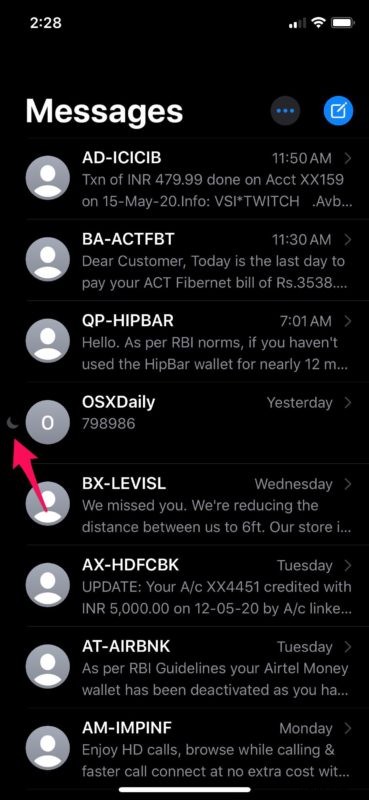
- Now, if you go back to your list of conversations in the Messages app, the muted thread or conversation will be indicated by a “crescent” icon, as shown in the screenshot below. This helps you easily distinguish the muted threads if you have many.
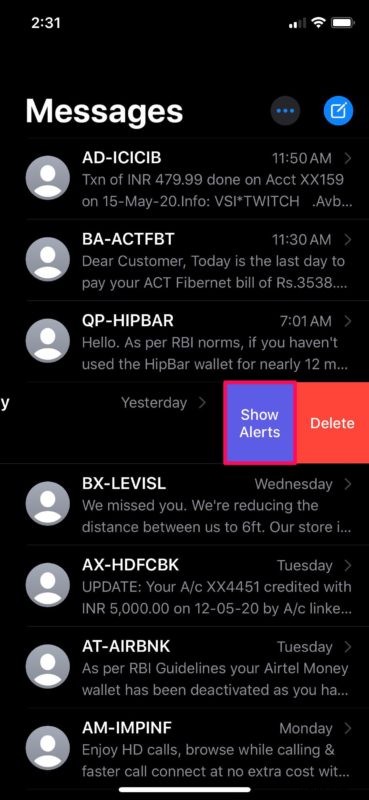
- If you want to unmute the conversation, simply swipe left on the thread and tap on “Show Alerts”.
There you go. Now you can see how easy it is to mute messages and alerts on your iPhone.
Although we were focusing solely on the iPhone, you could follow the same steps to hide and unhide alerts for iMessages on your iPad too. Or, if you use iMessage on a Mac, you can mute specific contacts in a similar way with ease.
Muted contacts can still send you message notifications, if you’re sharing a group conversation with them. Therefore, if you want to ignore these alerts, you’ll need to mute group messages on your iPhone or iPad.
If you’re getting spammed with text messages from people who’re not in your contacts, you can easily filter out unknown senders in Messages and make sure their messages are automatically sorted into a separate list. You can also filter out and mute calls from unknown phone numbers, by heading over to Settings -> Phone -> Silence Unknown Callers on your iPhone.
Apart from that, if you want to temporarily mute all phone calls, messages and alerts to your device, just turn on Do Not Disturb on your iPhone or iPad, which is a very handy feature if you want some downtime, focus, or peace and quiet.
So there you have it, you’ve learned multiple ways to mute contacts on your iPhone, be it their calls or their messages. Perhaps in the future Apple will offer a simple solution to mute all contact attempts from a single person including their calls, but for the time being this works well, and it doesn’t require the block feature.
Have any thoughts or experiences or other tips? Let us know in the comments!