

Read Receipts offer a way for a message sender to know you have viewed their message, and vice versa. This can be a nice messaging feature in iOS and iPadOS, but it has obvious privacy implications and can become problematic in other situations. Fortunately the latest versions of iOS and ipadOS offer more granular controls and allow you to enable Read Receipts for individual contacts on a person by person basis, while still turning off all Read Receipts in Messages for iOS for everyone else. Or, conversely, you can enable Read Receipts for everyone, but turn the feature off for specific individual contacts too.
Per contact Read Receipts is an excellent feature for iPhone and iPad users, and it’s easy to enable and to customize to specific contacts.
You will need an iPhone or iPad running iOS 10 or later to have access to the individual Send Read Receipt feature.
How to Selectively Enable Read Receipts for Individual Contacts in Messages for iOS
This allows you to turn read receipts on or off on a per-contact and per-conversation basis. You can enable read receipts per contact on any iOS device, whether iPhone or iPad.
- Open the “Messages” app in iOS and go to an individual message conversation thread
- Tap the “(i)” button in the upper right corner of the message
- Look for “Send Read Receipts” and toggle this to ON to set that specific contact to see read receipts from you, or toggle this to OFF to set that individual contact to not see read receipts from you
- Repeat with other message threads and individual contacts as desired
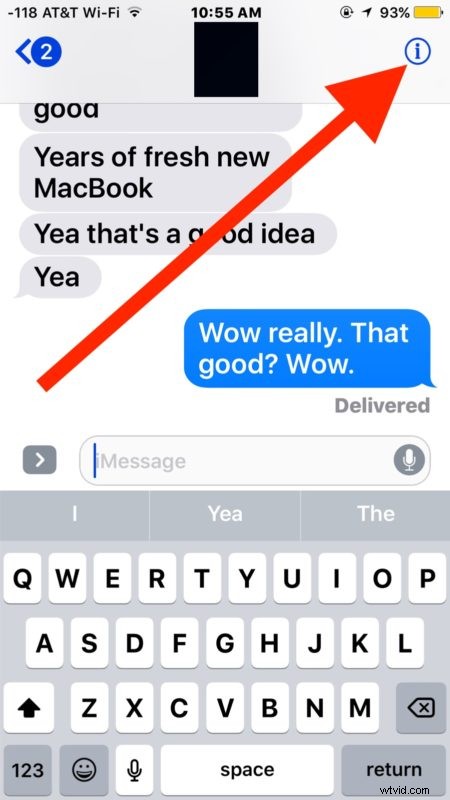
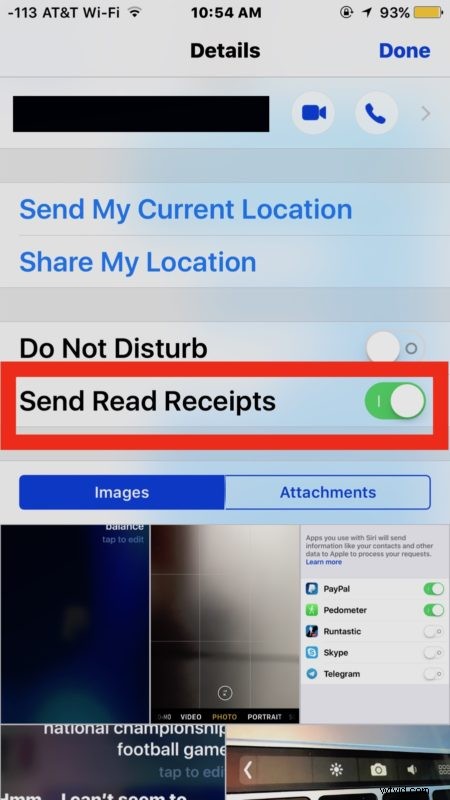
Once you have enabled “Send Read Receipts” for an individual contact, they will see the little grey “Read” indicator after you have viewed their message, rather than the generic “Delivered” indicator under any messages sent to you.
My personal method of using this feature is to opt to disable all Read Receipts in Messages on iPhone but then selectively enable Read Receipts per contact for just a few important people, while leaving the feature off for everyone else. This can be an excellent tool for family, spouses, partners, or anyone particularly close to you that you want to reveal the “Read” receipt to when you have viewed their messages, while still retaining the privacy of having the feature off for everyone else.
Individual contact read receipts are really useful, so if you don’t like the general Read Receipts feature and would rather most people see the “Delivered” message but you want a select few people to see “Read” when you have seen their messages, try it out, it’s a great feature with many thoughtful and potentially important benefits.