
One of the more helpful features of the Maps apps for iPhone is the ability to get directions to your home or directions to your work, from your current location. This is a great feature for the directionally challenged in particular, but it’s also helpful if you’re exploring a new part of a city or state, or if you just want to go on auto-pilot and don’t want to overthink which turns to make to get home or to the office.
The directions home or work are offered through Apple Maps, and the directions home feature works with Google Maps too. One thing to note is that in order for directions home to work you must have your own personal contact information set in iOS, including your home address, and if you want directions to your work, you’d need your work address included as well.
Getting Directions Home or Directions to Work with 3D Touch on iPhone
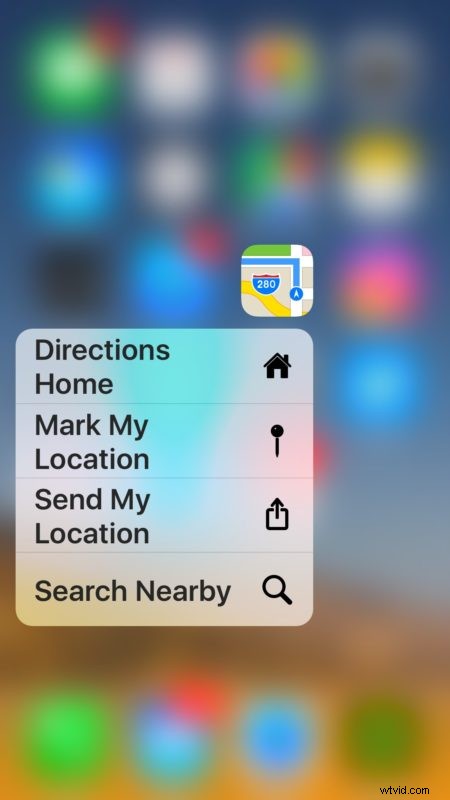
- From the iOS home screen, 3D Touch on the Apple Maps icon (you can also 3D Touch on Google Maps if you prefer)
- Choose “Directions Home” from the selection list (choose “Directions to Work” if you want that instead)
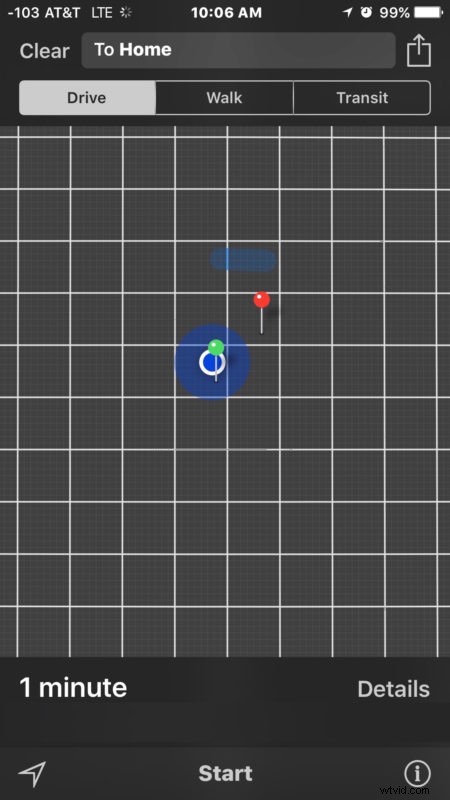
- The Maps app will now open, choose “Start” as usual to get directions from your current location to Home (or Work)
As mentioned, this works basically the same with Apple Maps and Google Maps, so use whichever app you prefer to use to navigate. If you use Google Maps you may need to set your home and work address separately within the apps settings to get directions to there, depending on what you have set in your broader iOS Contacts.
The default directions will be to use roads and vehicles, but if you’re in an area the public infrastructure to support it, you can also get public transit directions home or to work as well.
Try this out the next time you’re on the road somewhere and need to get home, or if you took a wrong turn on the way to the office and you want some simple directions to work. The feature is quite nice and is undoubtedly helpful.
If you don’t have an iPhone with 3D Touch then this feature is less useful to you, but you can still get directions home and directions to work by simply using the Maps apps built-in search features. Simply search for “Home” or “Work”, and, assuming you have the appropriate address information filled out, you can select either location as a destination and get directions started there as well.
Of course you can also start directions home or directions to work with iPhone by using Siri, simply ask Siri to get directions but specify to home and the assistant will summon the Maps and get you started on your way, an option which is available to any modern device with Siri.