

Do you use a bike or cycle for leisure or commuting? Whatever the case, bicyclists will be pleased to know that you can now access cycling directions on your iPhone using Apple Maps.
Cycling directions are often different from vehicle routes, as they include bike paths and cycle-friendly lanes which don’t show up normally when you navigate. Apple has updated the Maps app to support cycling directions to assist bicyclists in finding the best, safest and shortest routes for their commute.
How to View Bike Directions in Apple Maps on iPhone
Accessing cycling directions is actually pretty easy and similar to how you would access any other transit options. However, make sure your device is running iOS 14/iPadOS 14 or later since earlier versions of system software don’t have bike directions.
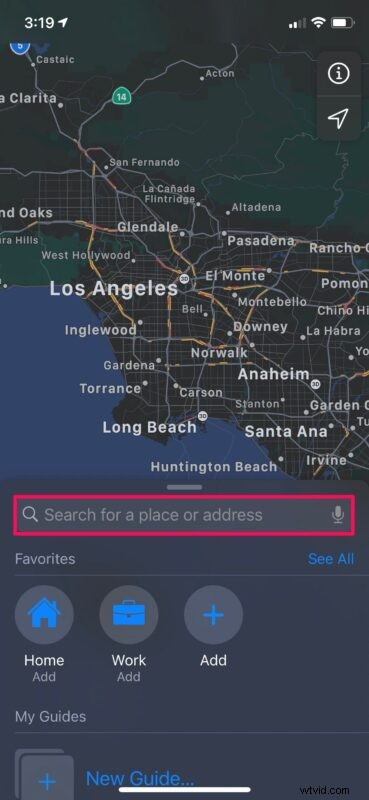
- Launch the native “Maps” app from the home screen of your iPhone.

- Use the search field to find and locate the destination you want routes for.
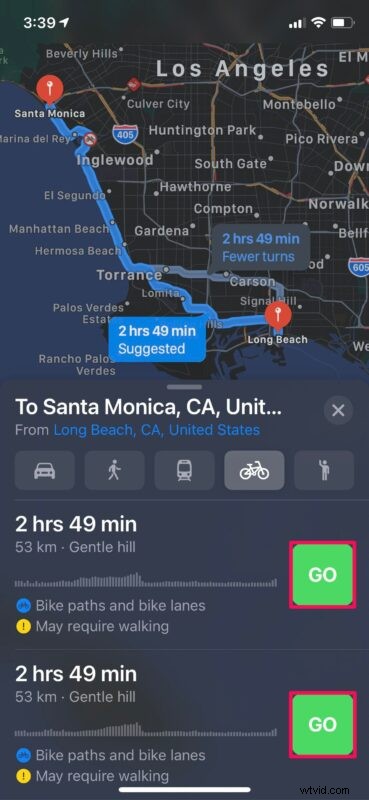
- As usual, you will be shown the routes for a car drive. However, in the list of transit options, you will find a new cycle icon. Tap on it to get cycling routes.

- You’ll likely have multiple cycling routes to choose from. Choose your preferred route and tap on “Go” to enter navigation mode.
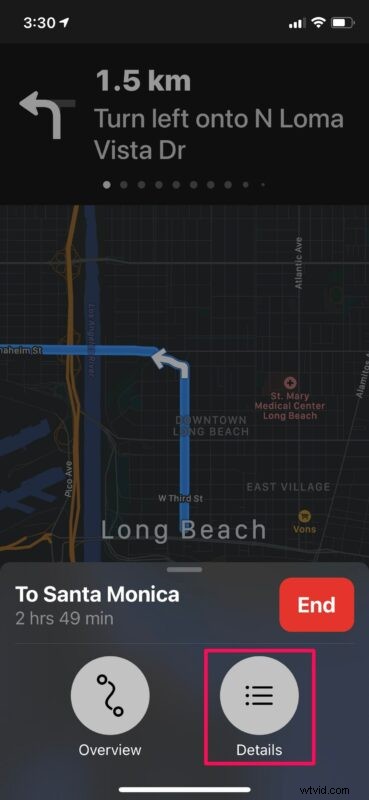
- Once you enter navigation mode, you can swipe up on the destination card at the bottom to access more options.

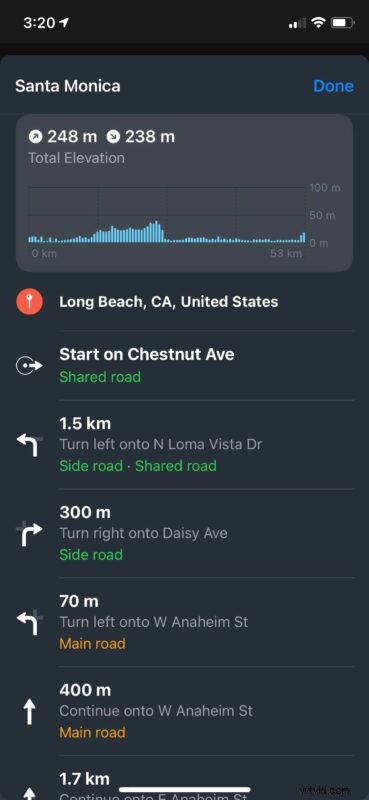
- Now, tap on “Details” to get all the information on the route.
- As you can see here, you can see the total elevation for your ride, check if you’re headed to a side road or main road, and so on.
There you go. Now you know how to take advantage of cyclic directions on your iPhone with Apple Maps.
This feature could help you to find new routes for your daily commute. If you have an Apple Watch running watchOS 7 or later, you can select the directions on your iPhone and the information will be sent right to your wrist. This way, you don’t have to take your iPhone out of the pocket every time you want to check the route.
Apple Maps also offers custom voice guidance for cycling directions. Therefore, if you own a pair of AirPods or AirPods Pro, you can listen to the directions conveniently while your iPhone stays in the pocket.
Of course, if you own an iPad running iPadOS 14 or later, you can access cycling directions on it as well. However, practically speaking, we don’t really expect anyone to use an iPad while biking around, but there are probably some people who do.
This is just one of the many features that Apple has added to Maps in latter updates. Maps can now display Guides for select locations which could be useful for travelers, show EV charging stations on your route, and even let you know when you’re approaching speed cameras.
Are you using bike directions in Apple Maps to discover new bike routes and cycle-friendly road? What do you think of this feature? Let us know your thoughts in the comments.