

Do you take advantage of Safari’s Reader View on iPhone or iPad? If so, you may be excited to know that you can further improve the reading experience by changing the text font, as well as the background color of the Reader View in Safari.
Reader View makes it really comfortable to read web content with its neat minimalistic user-interface and it almost feels like you’re reading an e-book. One of the major advantages of using Safari’s Reader View is that it gets rid of all the unnecessary screen elements, ads, and clutter while reading an article. Thus, Safari Reader View can help you to minimize distractions so that you can stay focused on what you’re reading. So, let’s get to customizing Safari’s Reader View on iPhone and iPad so that your font and background color are more suited to your liking.
How to Change Reader View Font & Background on iPhone & iPad
The following steps are applicable to iPhones and iPad running iOS 13/iPadOS 13 or later.
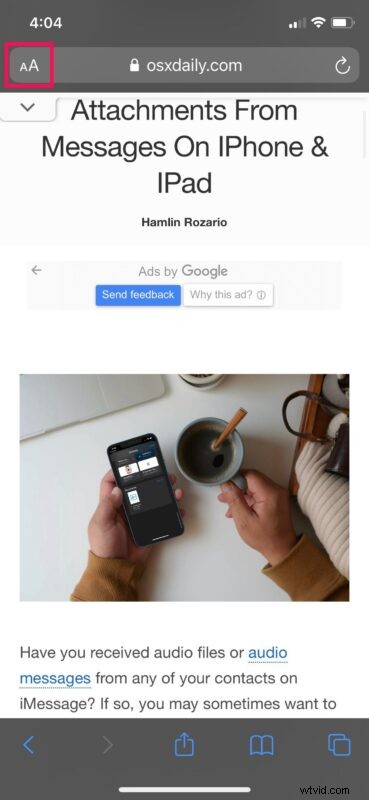
- Launch Safari on your iPhone or iPad and head over to the webpage where you want to use Reader View. Simply tap on the “aA” icon next to the address bar to access a pop-up menu.
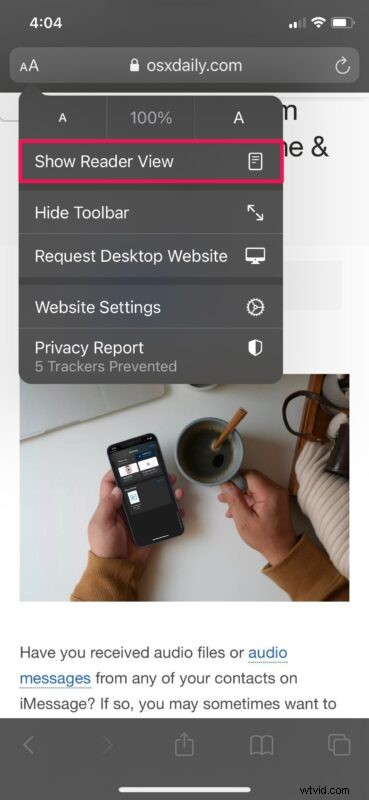
- Next, tap on “Show Reader View” to load the page in Reader View mode.
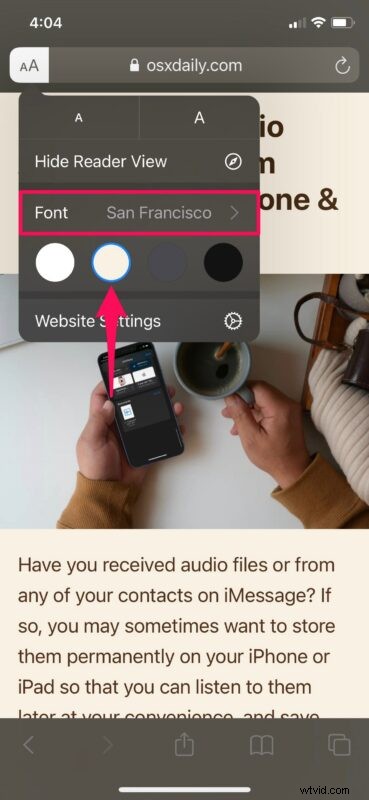
- At this point, you’ll be able to customize Reader View. Tap on the highlighted “aA” option at the top-left corner.

- Now, you’ll be able to manually select your desired background, but you’re limited to four options. To use a different Reader View font, tap on “Font”.
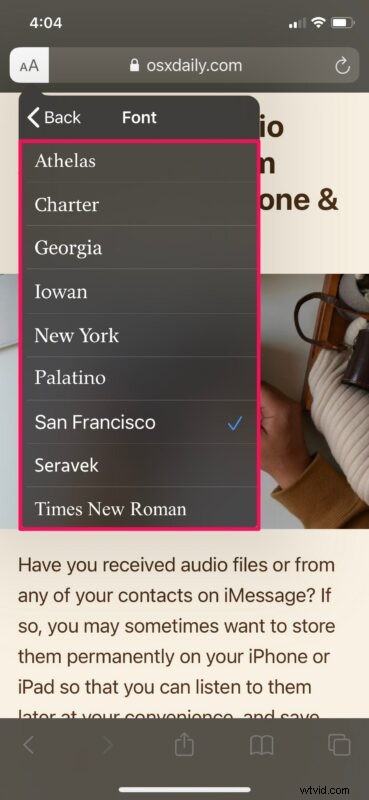
- Now, switch between other fonts to find what you like and select your favorite one. You have nine different options to choose from.
That’s pretty much all you need to do to personalize Reader View on your iPhone or iPad.
By default, Safari’s Reader View uses the San Francisco font for displaying text content. As for the background, Reader View switches between light and dark backgrounds depending on your iPhone or iPad’s system-wide appearance setting. For instance, if you’re using Dark Mode, Reader View will display a black background with white text.
Once you’ve made changes to Safari’s Reader View according to your liking, your preferences will be saved and every time you enter Reader View from a webpage, your preferred font style and background will be used. You don’t have to worry about personalizing it every time you visit a new webpage.
It goes without saying that some webpages may not support Safari’s Reader View feature. If you notice that the “aA” option is grayed out, it means that Reader View isn’t available for the current webpage. If you find the text hard to read, you can also increase the font size while you’re in Reader View from the same menu.
What do you think of Reader View and the ability to customize it’s appearance? Do you use this feature on your iPhone or iPad?