

Do you want to switch to a different background color while writing down information in the stock Notes app on iPhone or iPad? Similar to how you can change the Notes appearance of the background to blank, grid, or lines, you can also change the background color of notes too.
The default Notes app that comes preinstalled on iPadOS and iOS devices uses the background based on your system-wide setting. For example, if you use Dark Mode on your iPhone, the Notes app will use the dark background for all of the notes. However, some people may prefer using a light background while composing notes on their devices. Or, some people using light mode may want to use a dark background for their notes. Either way, if you’d like to use a background color that doesn’t rely on your system-wide settings, you can do so easily on your iPhone and iPad.
We’ll walk through how to change background color of specific notes, as well as for all notes, regardless of if the iPhone or iPad is using dark mode or light mode.
How to Change the Background Color of a Specific Note on iPhone & iPad
Before you go ahead with the following procedure, you’ll need to make sure that your device is running a modern system software version at iOS 13/iPadOS 13 or later.
- Launch the stock “Notes” app from the home screen of your iPhone or iPad.

- Find and tap on the note you want to change the background for. It cannot be a blank note, since you’ll not find the option to change the background for it unless you type something in it.

- Once you’ve opened the note, tap on the triple-dot icon located at the top-right corner of your screen.

- Now, you’ll get a pop-up menu from the bottom. Scroll down and choose “Use Light Background” as shown below.
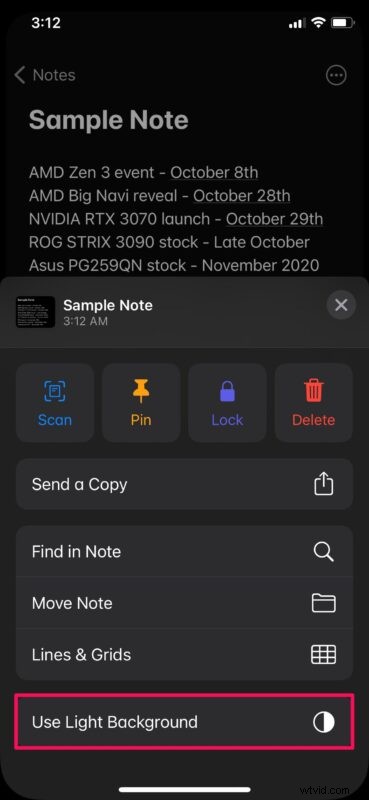
- As you can see here, the background for the note immediately changes.

How to Change the Background Color for All Notes on iPhone & iPad
We get that some of you may want to change the background for all of your notes without having to do it one by one. In that case, you may want to check out the steps below.
- Head over to “Settings” from the home screen of your iPhone or iPad.

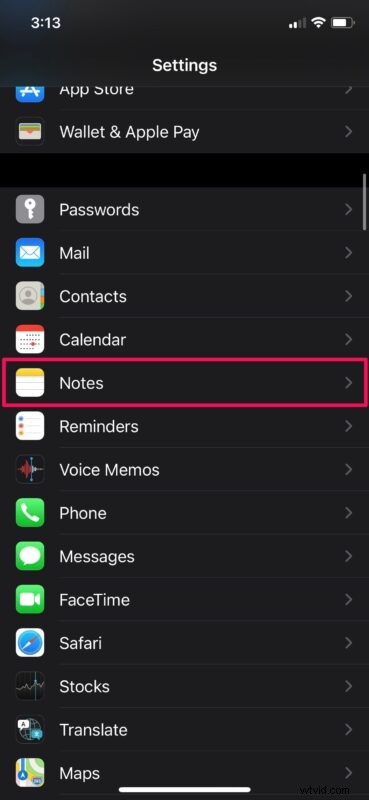
- In the settings menu, scroll down and tap on “Notes”.
- Now, scroll down to the bottom and you’ll find the option to change Note Backgrounds. Tap on it to continue.
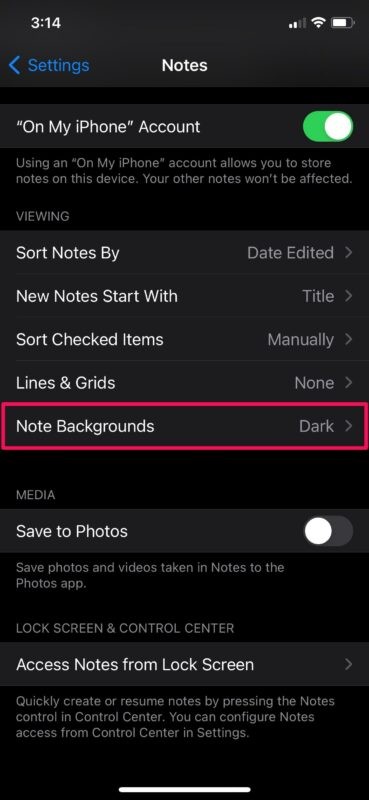
- Here, you can easily select Light or Dark background for all of your notes.

There you go. Now you’ve learned how easy it is to change the background color for notes on your iPhone and iPad.
From now on, you don’t have to switch between light and dark modes on your iPhone every time you make checklists or write down important information using the default Notes app. Just set a background of your choice for once and you’re good to go.
It’s worth pointing out that regardless of what background you choose for your notes, the app’s main menu will still use your system-wide appearance setting. So, if you use Dark Mode, the main menu of Notes will have a dark appearance but it’ll switch to light once you open the note.
In addition to being able to set light and dark backgrounds for notes, the stock Notes app also allows you to change the paper appearance style to better suit your needs. Students who use Apple Pencils to take handwritten notes on iPads may prefer the lines style, while artists who draw with their Apple Pencils might appreciate the grid layout.
We hope you were able to switch to a background color better suits your note taking preferences on your iPhone and iPad. What are your reasons for preferring one background over the other? Do share your valuable thoughts and opinions in the comments.