
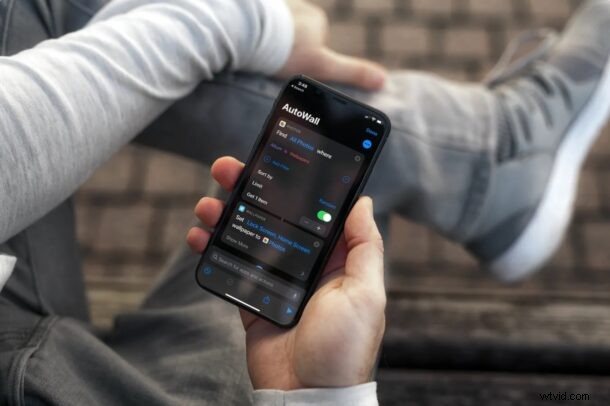
Have you ever want to set your iPhone to automatically switch between different wallpapers? You probably already know how to change wallpaper on an iPhone or iPad, but thanks to the built-in Shortcuts app on iOS and iPadOS devices, you can now set up dynamically changing wallpapers within a matter of minutes.
The Shortcuts app that comes preinstalled on iPhones and iPads is capable of doing heavily customized tasks if you aren’t aware. One prime example would be using Shortcuts to personalize your home screen with custom app icons. Since the iOS 14.3 update, Apple brought back the “Set Wallpaper” shortcut action after removing it over a year ago. This opens up to more possibilities for wallpaper customization and third-party shortcut developers have already jumped on board to make it easier for inexperienced users.
Interested in setting this up on your device? We’re here to help. In this article, we’ll be walking you through the step by step instructions that will allow the Shortcuts app to automatically change your iPhone or iPad wallpaper.
How to Automatically Change iPhone / iPad Wallpaper with Shortcuts
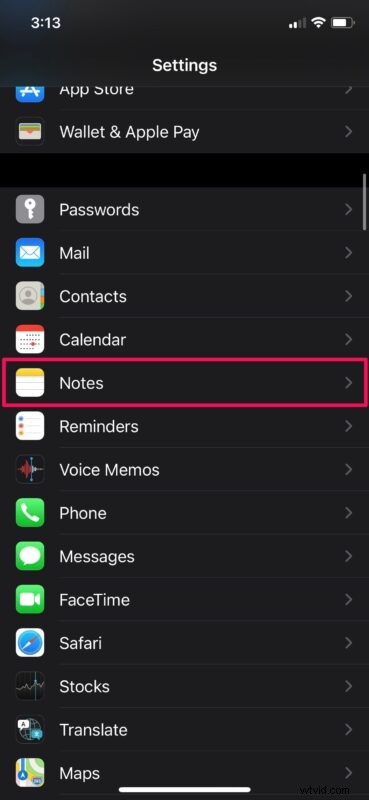
Before you get started with this detailed procedure, there are two things that you need to do. First, create a new photo album on your iPhone or iPad and add all the wallpapers that you want the Shortcuts app to switch between. Next, you need to go to Settings -> Shortcuts and allow “Untrusted Shortcuts”. This setting allows you to install third-party shortcuts on your device. Once you’re done, make sure your device is running iOS 14.3/iPadOS 14.3 or later and follow the steps below carefully to avoid any confusion:
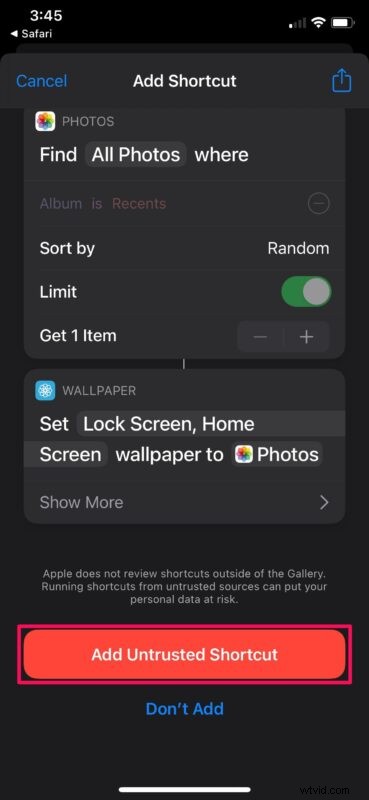
- Install the AutoWall shortcut on your iPhone. Clicking on the link will automatically launch the Shortcuts app and take you to the Add Shortcut screen. Scroll down to the bottom and tap on “Add Untrusted Shortcut” to install it.
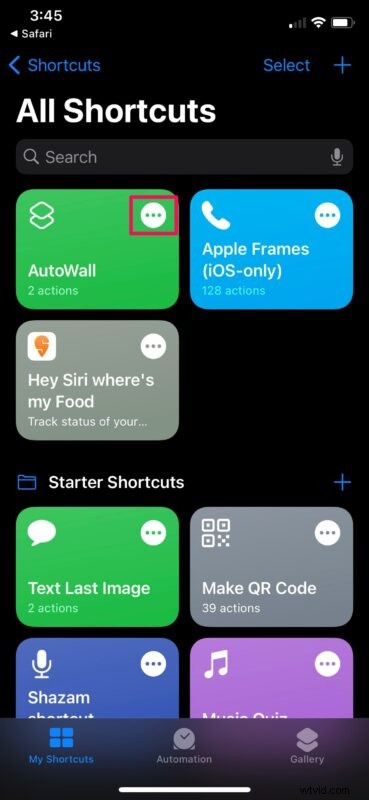
- Once installed, you’ll be taken to the main menu of the Shortcuts app. Here, tap on the triple-dot icon on the AutoWall shortcut to access the Shortcut Edit menu.
- Note that the shortcut although installed doesn’t have the necessary permissions to access your photos. Tap on “Allow Access” to continue.
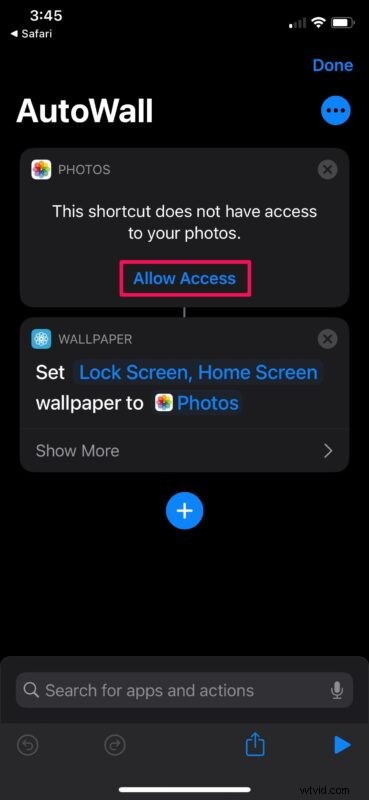
- Now, you’ll be able to see that the Recents album is used by default. Tap on “Recents” to change the album used by the AutoWall shortcut.
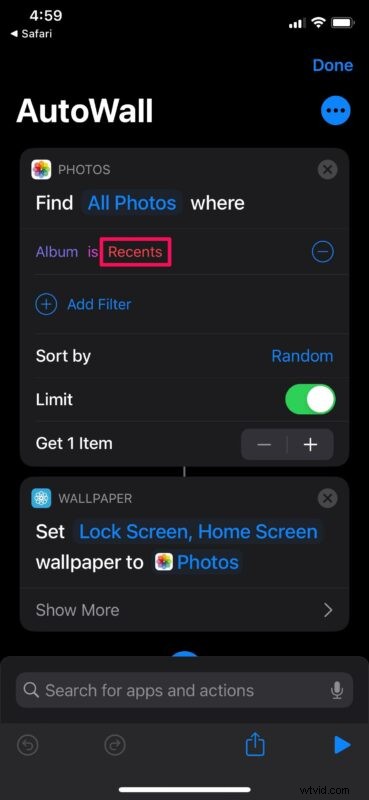
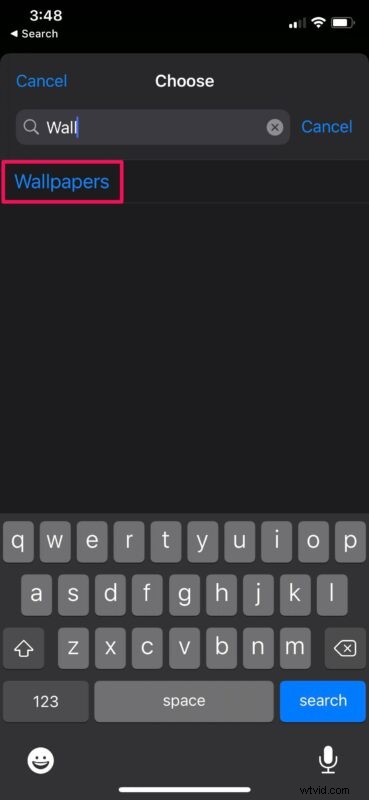
- Next, type in the name of the album you created and select it.
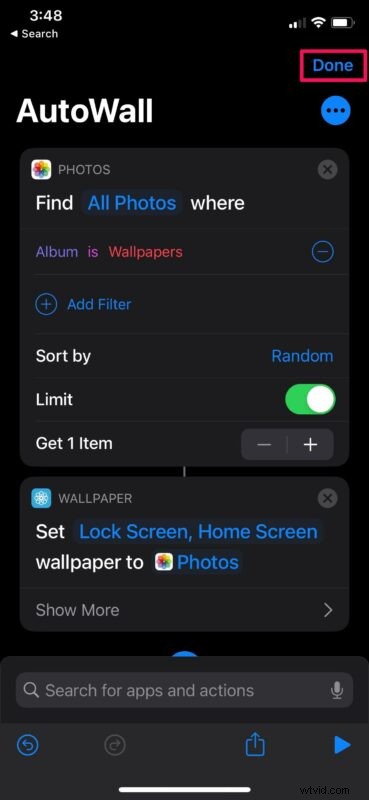
- Tap on “Done” at the top-right corner to stop editing the shortcut.
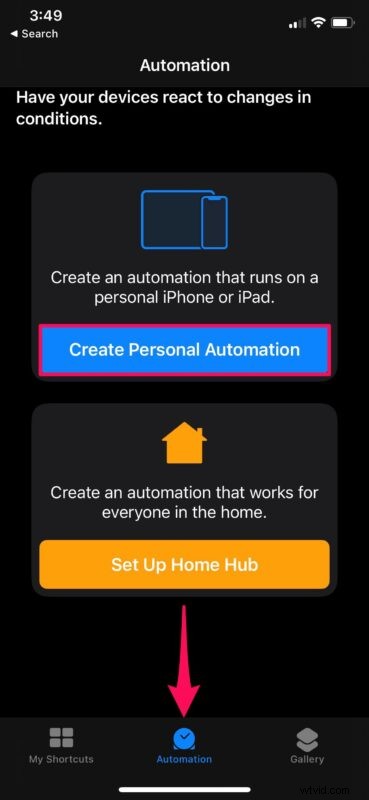
- At this point, the shortcut can be run manually to use a different wallpaper from the album you created. Our aim is to make this a completely automated process. To do this, head over to the “Automation” section of the app and tap on “Create Personal Automation”.
- Now, select the first option which is “Time of Day”. This will allow Shortcuts to automatically change your wallpaper at a specific time.
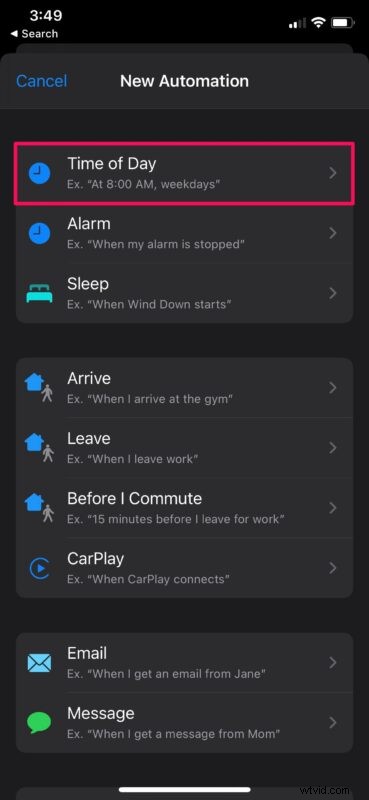
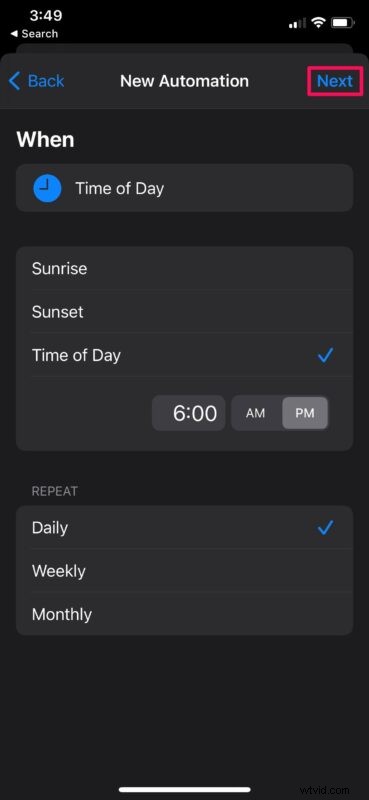
- In this menu, you can specify your preferred time for the wallpaper change. You can even set your wallpaper to change on a daily, weekly, or monthly basis. Once you’ve selected your preferred settings, tap on “Next”.
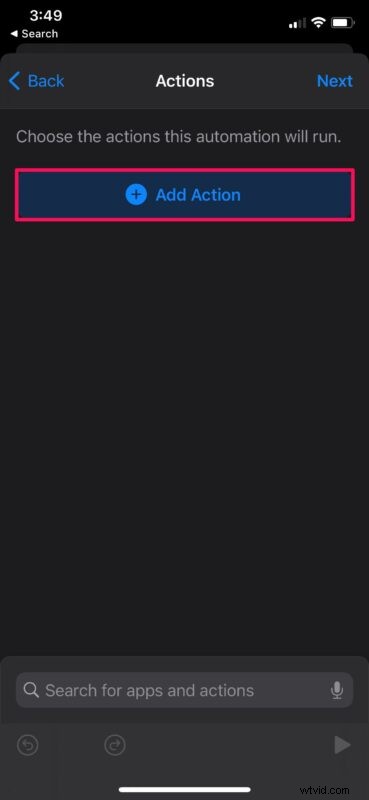
- Next, tap on “Add Action”.
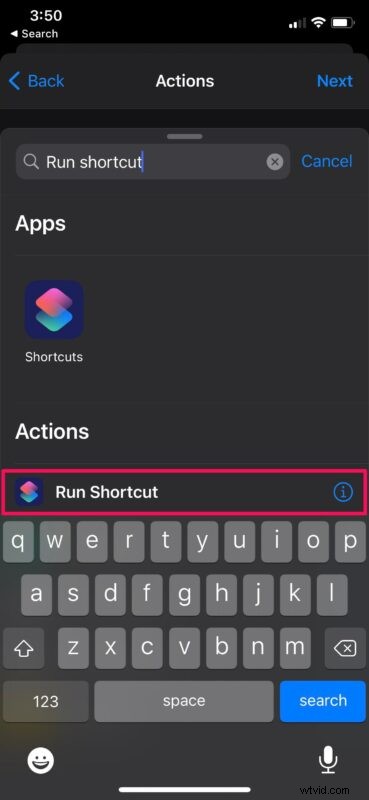
- Type “Run” in the search bar and select “Run Shortcut” from the list of actions that show up as you can see here.
- Now, you need to take on the highlighted “Shortcut” text. This will allow you to choose any of the shortcuts installed on your device. Select the “AutoWall” shortcut that you just installed.
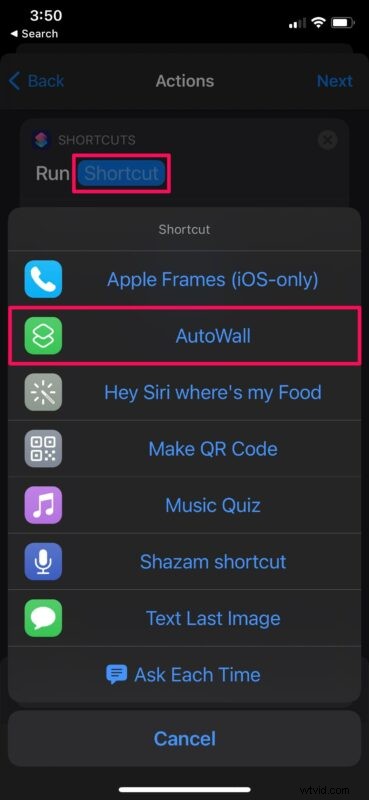
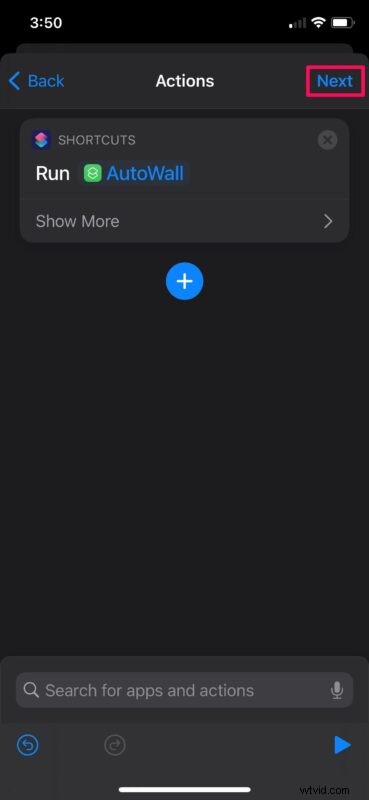
- You’re almost there. Tap on “Next” to proceed to the final step.
- Here, make sure you uncheck “Ask Before Running”. It’s enabled by default, but you need to disable it to make it a completely automated process. Tap on “Done”.
There you go. From now on, the Shortcuts app will run the AutoWall shortcut at the time you set, which means a different image from your new album will be used as your iPhone wallpaper.
Since “Ask Before Running” is disabled, you will not be notified to run the shortcut on your iPhone. Instead, you will get a notification that the automation has been performed. If you don’t want this notification to show up on your device to make the whole experience seamless, you can disable banner notifications for Shortcuts with a tiny workaround.
Here, we were obviously focusing on automatically switching to a different wallpaper at a specific time. However, you can do it differently if you prefer. For example, you can set your iPhone to automatically change the wallpaper when connected to the charger, or when you arrive at a set location, or even when a specific app is opened. All you need to do is select your desired automation from the list of available ones in the Shortcuts app.
This is just one of the many things that you can do with the Shortcuts app. Plus, if you’re having a hard time creating shortcuts on your own, there are multiple third-party sources for downloading popular shortcuts that are created by other users in the community. You can also check out the Apple-approved trusted shortcuts from the Gallery section of the app. And of course we’ve covered some interesting Shortcuts stuff too so check those articles out.
Assuming you followed along, you should now have your iPhone (or iPad) to automatically use a new wallpaper. What’s your take on this unique shortcut and automation? How many different wallpapers have you stored in the new album? What other shortcuts have you tried? Do share your personal experiences and feel free to drop your valuable opinions in the comments section down below.