
Have you ever been using Apple Maps for directions on a long car ride and wanted to know where you could easily stop for gas or for food along the route? The latest versions of Apple Maps for iPhone allow exactly that, offering a simple way to find gas stations, fast food, and coffee along your journey, while still maintaining the directions to the originally planned destination.
The next time you’re using Apple Maps for directions on your iPhone, try this out, it’s really quite nice.
You’ll need a modern version of iOS to have this feature, if you haven’t updated to a recent version you’d need to do so to gain support for the quick convenience stops in Maps app.
Add Quick Stops for Gas, Food, Coffee to Maps Directions on iPhone
- Open Maps on iPhone and input your destination and start the directions as usual
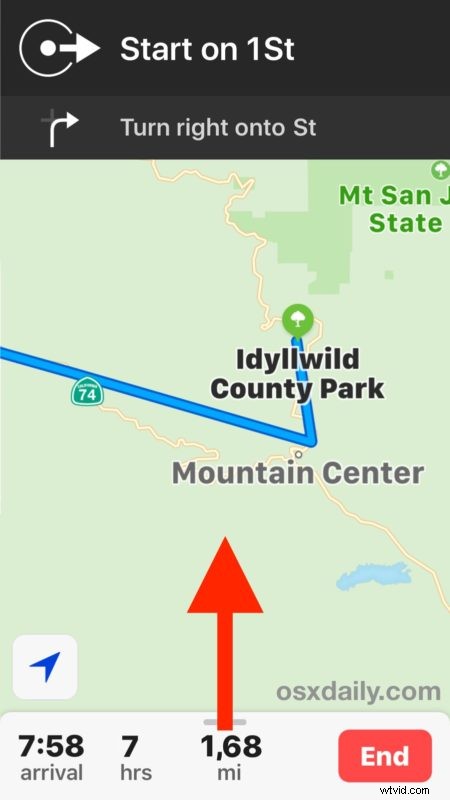
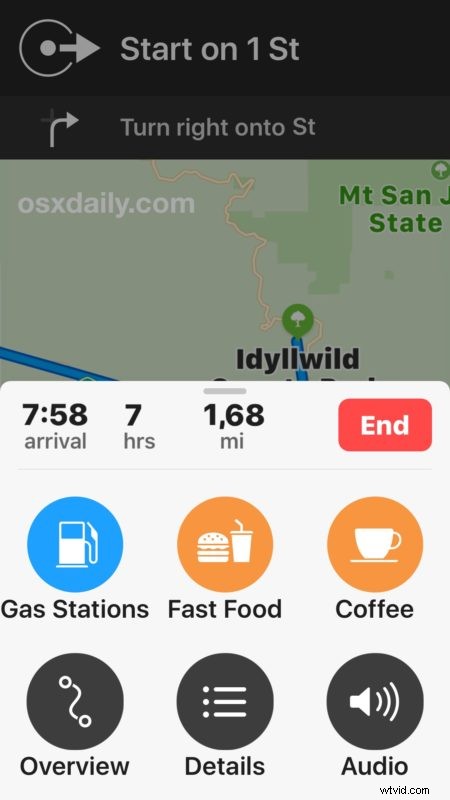
- After the Maps directions have begun, pull up from the bottom of the Maps screen (there’s a little handlebar type indicator near the “End” button) to reveal additional options
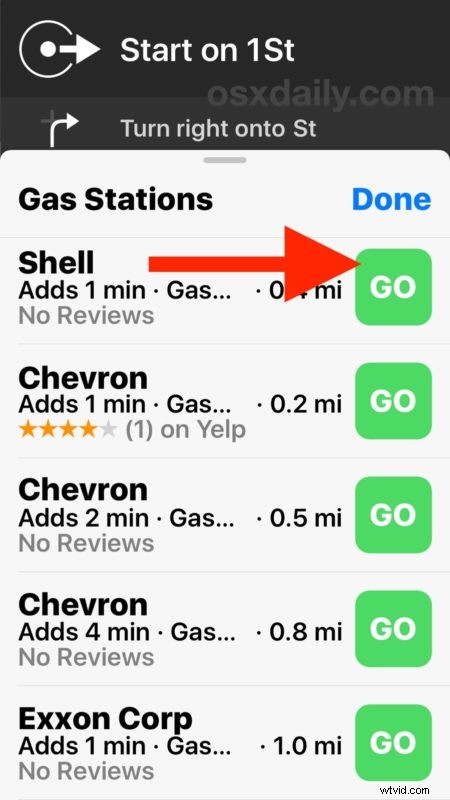
- Tap on “Gas Stations”, “Fast Food”, or “Coffee” to show available stops along the route
- To add a stop for gas, food, or coffee to your route, tap the “Go” button
This is a really great feature for road trips, drives through unfamiliar territory, or long journeys where you don’t want to think too much about where to stop for gas and a quick bite to eat, and you don’t want to mess up your original directions. By tapping on one of the options, it just gets added to your route as you go. Of course it also works on local journeys through familiar territory too, so even if you’re getting directions to work or home with Maps app you can easily add a stop for gas or something to munch.
You can access the pit stops ability (not sure what this feature is officially called) from anywhere on your directions journey through the Maps app on iPhone, give it a go on your next road trip!