
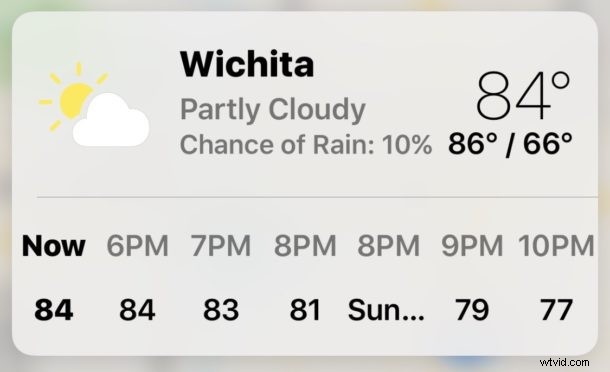
Did you know you can get the weather in the Maps app of iOS? Obviously the Weather app on iPhone will tell you the temperature and forecast of locations, and with a little exploration you can also view detailed weather info too. That’s great, but it’s in the Weather app. What if you’re driving or exploring the in Maps application in iOS, and want to get the weather report of your destination or of a specific location, directly from the Maps app on iPhone?
The latest versions of Apple Maps for iOS include a little weather report widget that will give you the temperature and weather info of a particular location in Maps. Going further, if you have an iPhone with 3D Touch, then you can use a little 3D Touch trick to get a weather forecast directly from the Maps app in iOS and even add that destination to your Weather app too.
How to View the Weather in Maps for iOS on iPhone
- Open the Maps app on the iPhone and enter any location as usual
- Once the location has loaded in Maps app, look in the lower right corner of the Maps app for a little tiny weather widget – this will show you the temperature and a weather icon for that destination
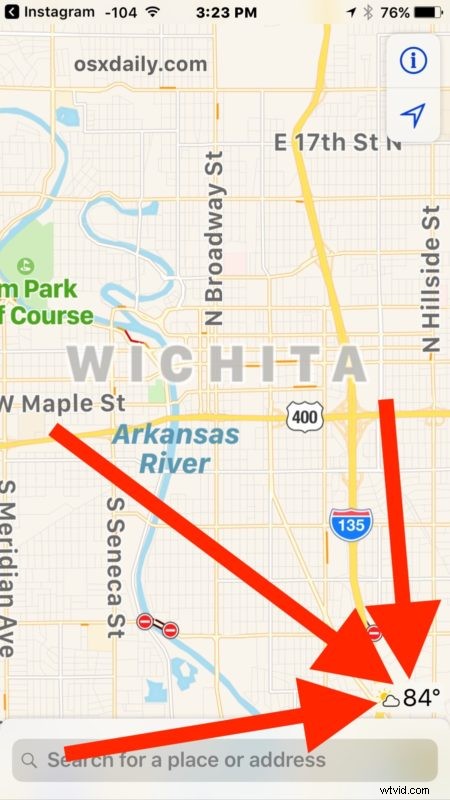
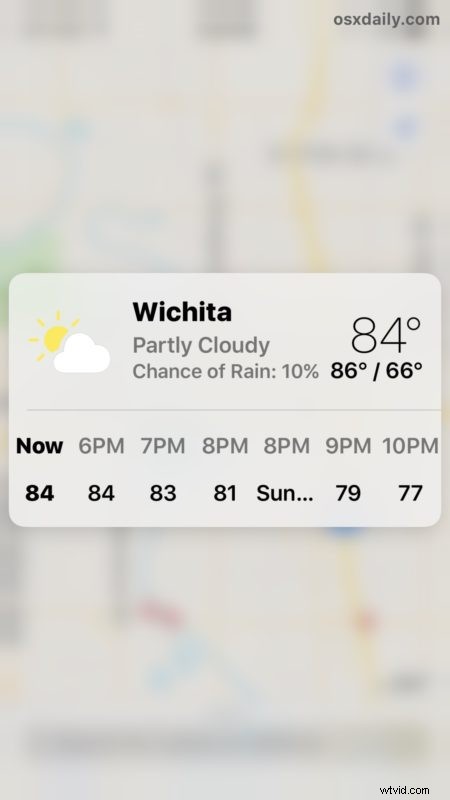
- Bonus trick for 3D Touch equipped iPhone models: now 3D Touch on that weather icon to reveal a forecast and expanded weather info
This works with any location that Maps or Weather can gather weather data for, even seemingly in the middle of nowhere it usually will pull weather data from a nearby weather station, so give it a try with cities, towns, or even rural spots that are off the beaten path.
3D Touch Maps Weather Tricks
If you soft press with 3D Touch, you will see a forecast and more detailed weather information.
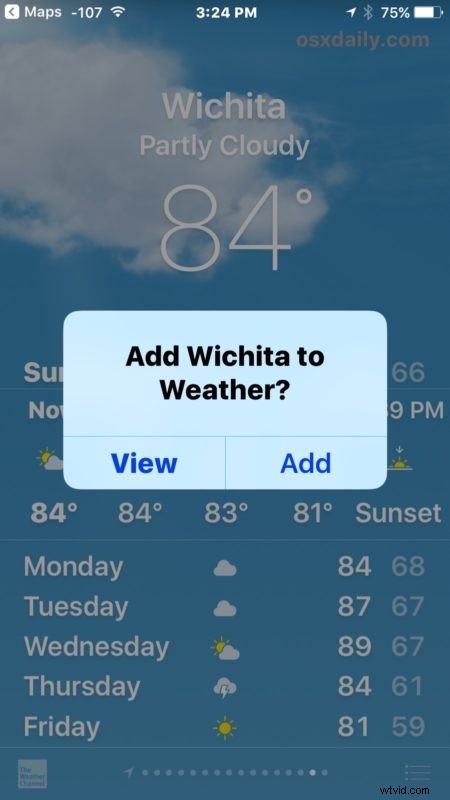
If you firm press with 3D Touch, the Maps app will redirect that location to the Weather app and ask if you’d like to add it to the Weather app, or just view that location in Weather app for more specific weather information like wind speed, humidity, heat index, chance of rain, and extended forecasts.
Of course if you don’t have 3D Touch, don’t feel too left out, you will still see the weather widget in the corner of the Maps app.
If you don’t see the weather details in the corner of Maps app when browsing destinations and locations, you may have an older version of iOS and need to update your system software to gain this ability in the Maps app for iPhone.
Remember, you an also retrieve weather information from Spotlight in iOS or even get weather info from Siri too, from either iPhone or iPad.