
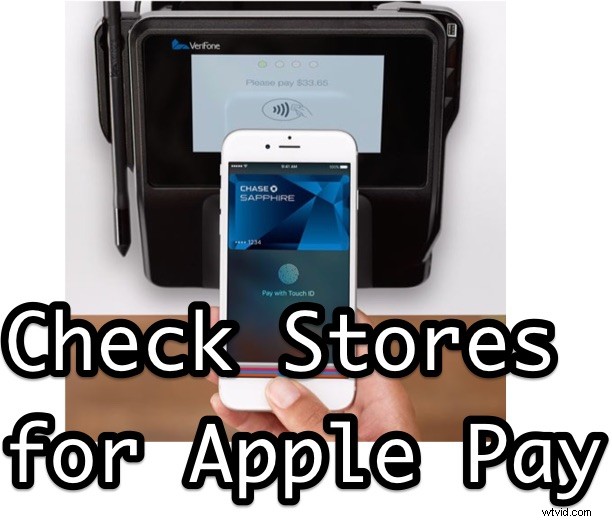
Apple Pay is undeniably convenient, allowing you to make quick and secure purchases right from your iOS devices. So, you setup Apple Pay on your iPhone and on the Apple Watch and now you want to put it to use, right?
While many popular stores are known to support Apple Pay, there is no reason to be stuck wondering if a particular location, store, or shop supports Apple Pay purchases, because you can actually check for Apple Pay compatibility at most retail locations by using the Maps application.
How to Check Retail Store Locations for Apple Pay Support from iOS
This is a really easy trick, it’s just a matter of looking in the right place of a maps listing. In this example here, let’s pretend we want to spend an entire paycheck at Whole Foods buying a few organic vegetables:
- Open the iOS Maps application on the iPhone (or iPad or iPod touch, but iPhone is most useful since you’ll likely be on the go when using this)
- Search for the store or shop you wish to check Apple Pay support for
- Tap on the listing when it appears in the Maps app, then scroll down to find the “Category” and “Price” section, alongside that information you will see an “ Pay” Apple Pay indicator if that specific store or retail location supports Apple Pay for payments
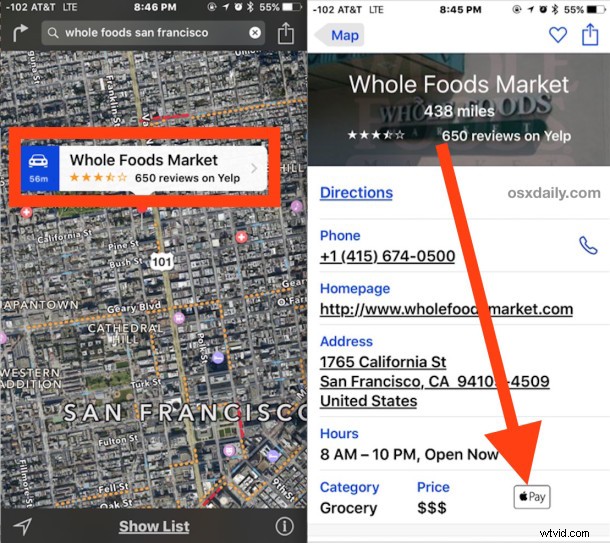
Simple and easy. These listings are updated often in Maps so if a store doesn’t currently support Apple Pay but later adds the ability, it should make an appearance rather quickly.
Check Store Locations for Apple Pay Support from Mac OS X
Equally as simple is to check for Apple Pay support for any store location from the Maps app in Mac OS X:
- Open Maps and search for the store you wish to check Apple Pay support for, then click on the listing info button (i)
- Look for the Pay indicator, if it exists, it means the store supports Apple Pay
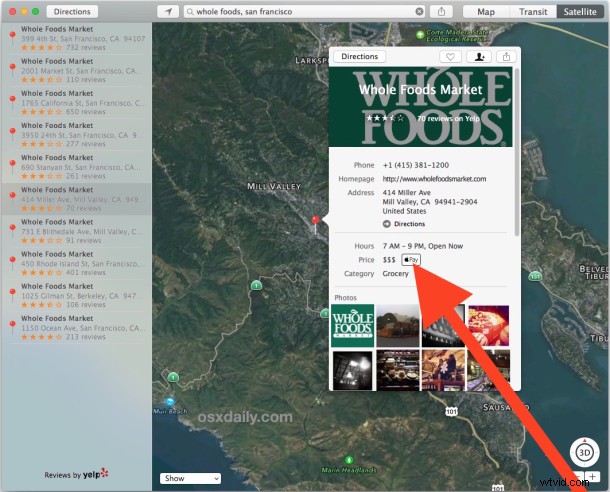
Many popular stores support the Apple Pay payment service, but it’s still nice to be able to check beforehand. Now you can determine ahead of time if a store supports Apple Pay so that you can make payments with your iPhone or Apple Watch, or if you’ll have to bring along a credit card or that funny paper stuff known as cash to make a purchase.