
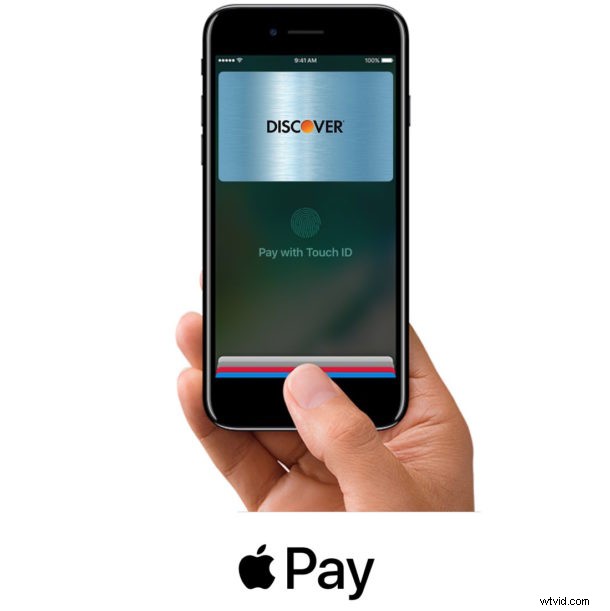
Most iPhone users setup Apple Pay once with a single card, but you can add multiple credit cards and debit cards to the iPhone for use with Apple Pay if desired. This is nice if you want both a credit and debit card on the iPhone, or if you have multiple rewards cards you use for various purchases at different stores. It’s also nice just to have a backup card on Apple Pay, in the odd event the first one fails for some reason or another.
Adding new cards to Apple Pay is really easy on iPhone, this tutorial will walk through the process. You can add cards manually, or, as we’ll emphasize here, by using the iPhones camera to expedite the process.
How to Add a New Credit Card or Debit Card to Apple Pay on iPhone
You will need an iPhone that supports Apple Pay (all modern iPhones do), and a credit card or debit card that is compatible with Apple Pay. Be sure you have the card handy, because you will be referencing the physical card during the card adding process.
- Open the “Settings” app
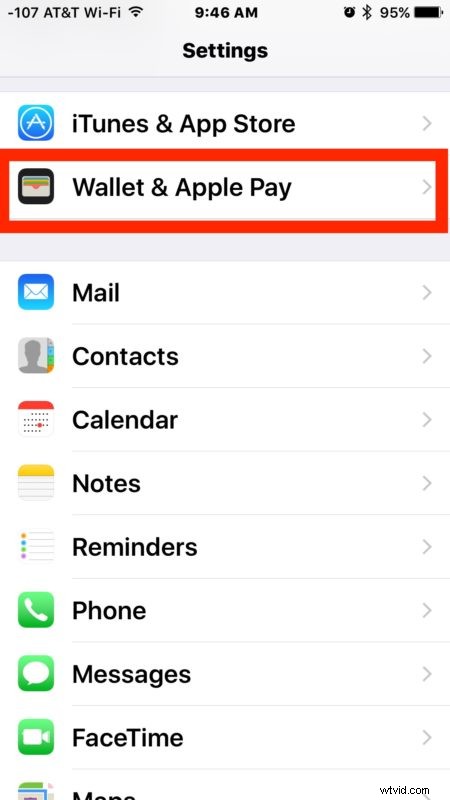
- Go to “Wallet & Apple Pay”
- Tap on “Add Credit or Debit Card”, then choose Next
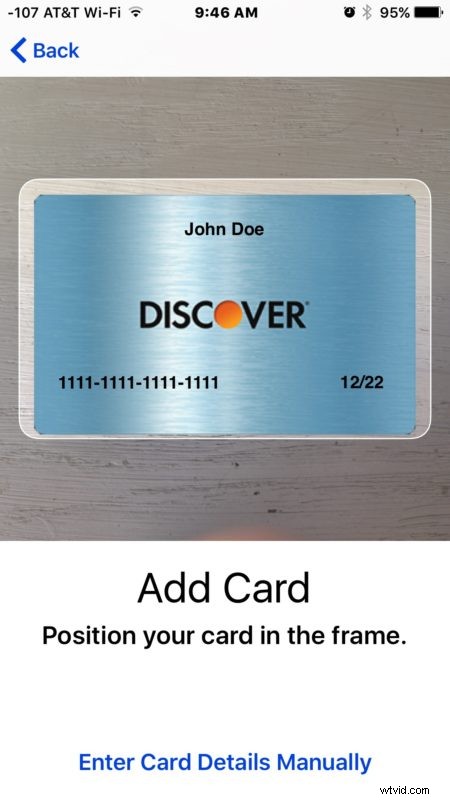
- Place the credit card or debit card on a flat surface, then use the viewfinder on the iPhone to center the card and capture the cards details (alternatively you can tap “Enter Card Details Manually”)
- Confirm the Card Details align with your credit card or debit card, then tap “Next”
- Agree to any Terms and Conditions, which you will certainly read carefully and completely
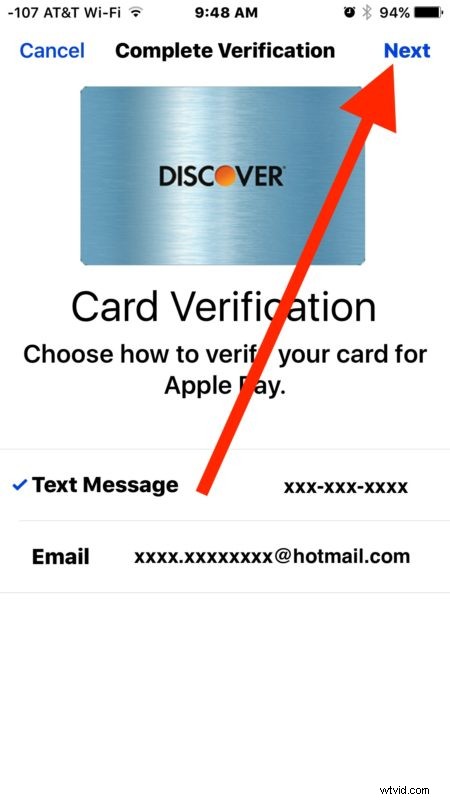
- At the Card Verification screen, choose a Text Message or Email to verify your card to use with Apple Pay, then tap Next and verify the card with a code sent to you
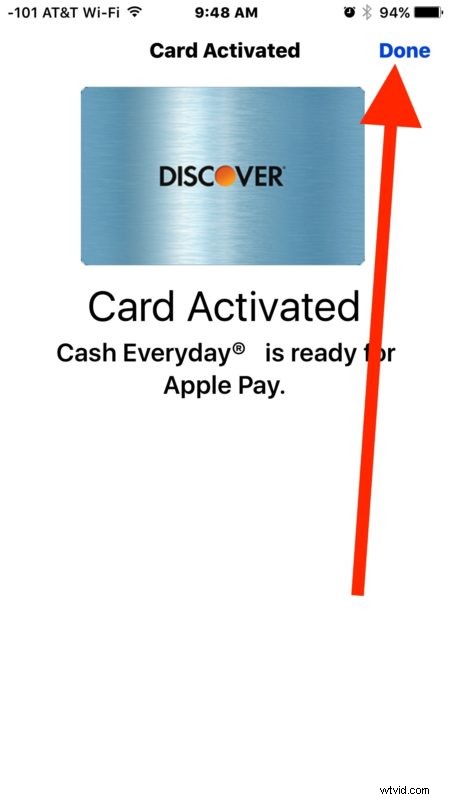
- When you see the “Card Activated” screen choose “Done” to complete the process
- You’ll be back at the Settings app with the card list shown on screen, repeat with other credit cards or debit cards if desired to add more cards to Apple Pay

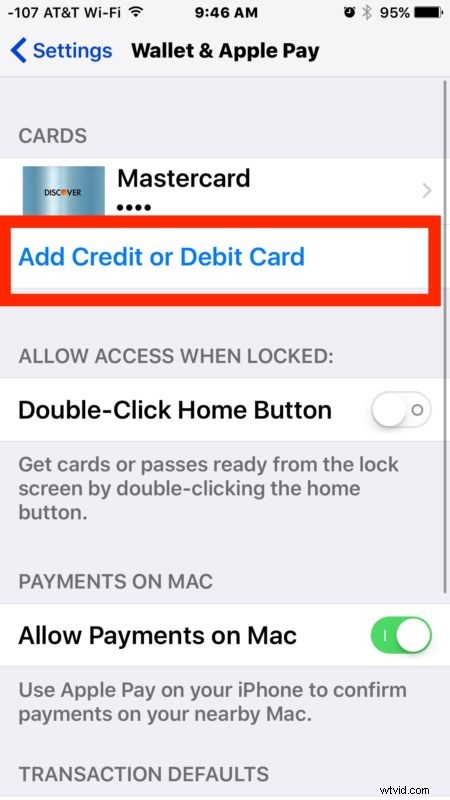

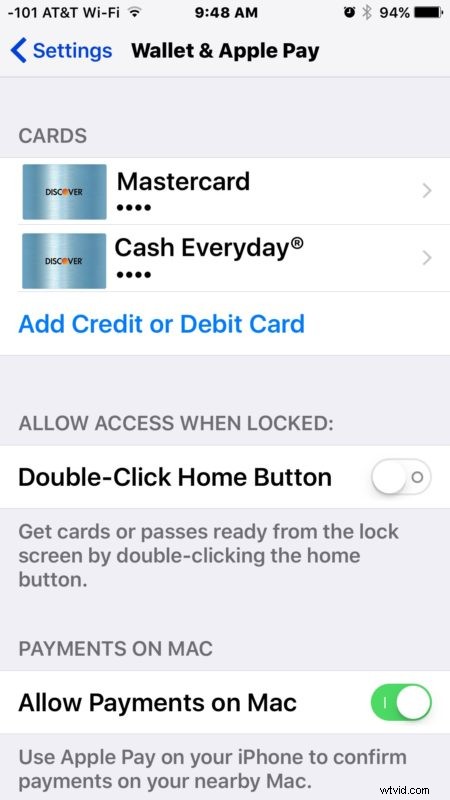
(Optionally but recommended for Mac users, be sure you have the ability to allow payments from a Mac enabled. This allows for quick check-out using Safari and Apple Pay on the Mac.)
You can add multiple credit cards or debit cards this way to use with Apple Pay on your iPhone.
If you use multiple cards, you will probably want to set the default card for Apple Pay to whichever you prefer to use as the primary card. And of course if you have an Apple Watch, you’ll want to setup Apple Pay on Apple Watch too, which currently also requires using the Apple Watch app on the paired iPhone.
You can add many credit cards or debit cards to Apple Pay, there may be a limit but I have not reached it with several. Of course you can also delete cards from Apple Pay on iPhone too if you no longer use a particular card, or if one expired.
Apple Pay is undeniably convenient, whether you’re shopping online, or at Apple Pay participating stores, which you can check directly from an iPhone with this trick. Don’t forget you can access the feature from the locked iPhone screen with the Apple Pay home button shortcut, that can also help speed up the process of checking out with the feature a bit, otherwise you will need to refer to the Wallet app on the iPhone.
And if you’ve read this far but haven’t bothered to setup Apple Pay on iPhone yet, perhaps you should do so, it’s certainly useful to have the feature. Even if you don’t use it primarily for purchases, but having it as a backup option when you’re on the go is very nice as it can possibly prevent the frustrating scenario when you forget a wallet or purse at home but don’t realize it until you’re in the check out stand…. well rather than abandoning the shopping trip, you may be able to use Apple Pay to complete the purchase instead.