
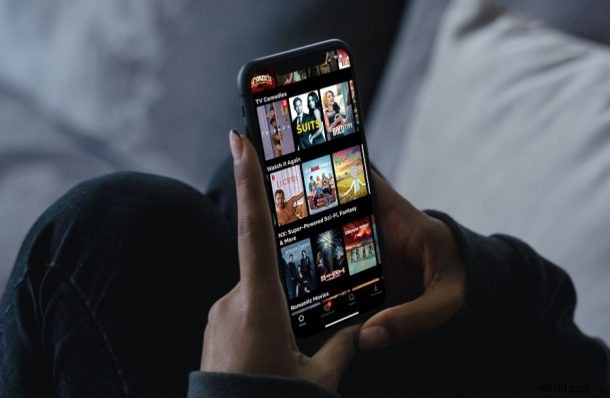
Are you looking to breeze through a lot of episodes on Netflix? Many people love to bingewatch, wanting to watch the most number of episodes in the shortest amount of time, and if you’re one of them, you may be interested in the playback speed feature that Netflix has to offer. This can help you get caught up on a show quicker. Or if you want to really savor a Netflix show, you can slow down playback too.
Time is money for a lot of people and not everyone has the time to binge their favorite shows on Netflix at a snails pace. However, what you can do is make the most of the time on your hands. Speeding up shows may seem weird at first, but at the end of the day, you’d end up saving a lot of time that can be spent on more important things, like reading this excellent website where you learn all sorts of amazing things about your Apple stuff and technology.
Let’s run through the steps on how to change the Netflix playback speed on your iPhone and iPad.
How to Change Netflix Playback Speed on iPhone & iPad
This feature was introduced somewhat recently, so as long as you’re running a fairly recent version of Netflix on your device, you’re ready to go. Here’s what you need to do:
- Launch the Netflix app on your iPhone or iPad and start watching the desired content first.
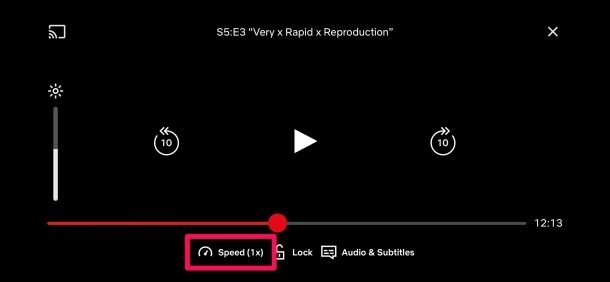
- Tap anywhere on the screen while you’re watching content to bring up the playback controls. Here, you’ll find the “Speed” option with the current playback speed indicated in brackets. Tap on it to proceed.
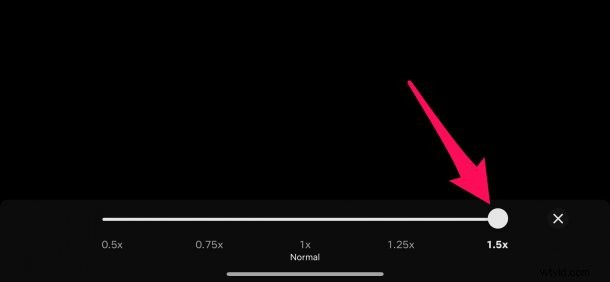
- Now, just use the slider to adjust the playback speed. Moving the slider to the right would increase the speed, whereas moving it to the left would slow the video down.
That’s pretty much all you had to learn about the playback speed feature that’s available on Netflix.
By default, the playback speed is set to 1x just as you’d expect. You can increase the playback speed up to 1.5x and decrease it up to 0.5x.
It’s worth pointing out that your playback speed settings may get reset if you exit whatever content you’re watching. That’s right. When you try to re-launch the same video, it’ll default to the 1x speed again.
If you’re someone who prefers to watch things fast, you may also be interested in learning how to speed up or slow down YouTube videos or just about any video in Safari using an iOS shortcut.
Did you change Netflix’s playback speed? Are you using it for saving your valuable time and speed things up, or to slow things down and enjoy the moments? Or perhaps you’re using it for another reason entirely? What’s your take on this handy option? Where else do you increase the video speed while watching content? Do share your personal experiences and voice out your opinions in the comments section down below.