
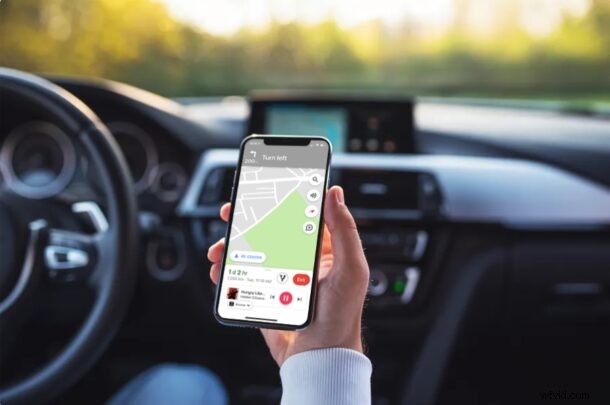
Do you often listen to music while you’re driving? You’re not alone. Well, if you use Google Maps for navigation, you’re in for a treat, as you can now control your music without having to switch between apps on iPhone.
Most of us listen to songs while we keep our hands on the wheel. Some of us also rely on maps for directions to where we’re headed. If you’re the kind of person who mounts your iPhone or iPad on to the car’s dashboard for navigation, you’d know how inconvenient it is to skip a song or repeat it while driving. Thankfully, Google now allows users to add music controls to the Google Maps app to make things easier.
Interested in taking advantage of this valuable addition? Look no further because, in this article, we’ll be guiding you through the necessary steps to access music controls in Google Maps on both the iPhone and iPad.
How to Access Music Controls in Google Maps on iPhone & iPad
Setting up music controls in Google Maps is a fairly easy and straightforward procedure, regardless of the iOS device you’re using. Simply follow the steps below to get started.
- Open “Google Maps” on your iPhone or iPad.

- Tap on the profile location located right next to the search bar to access the Google Maps menu.
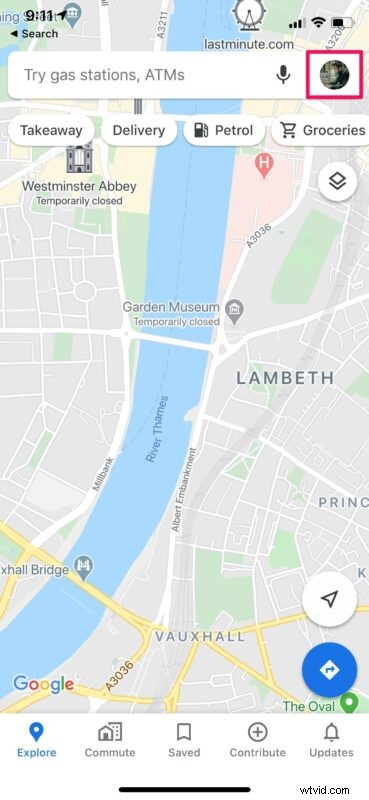
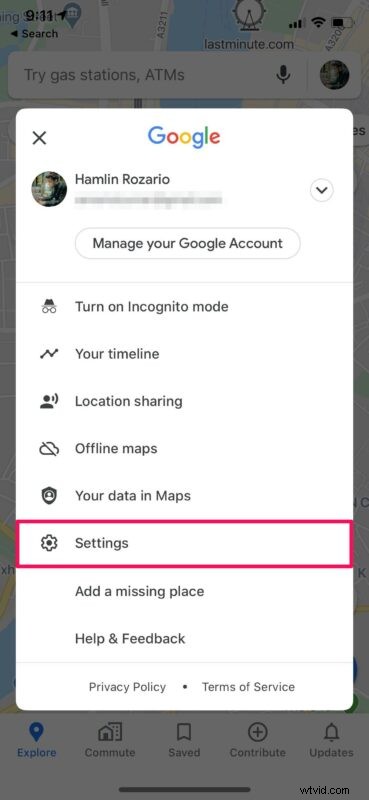
- In this menu, tap on “Settings” as shown in the screenshot below.
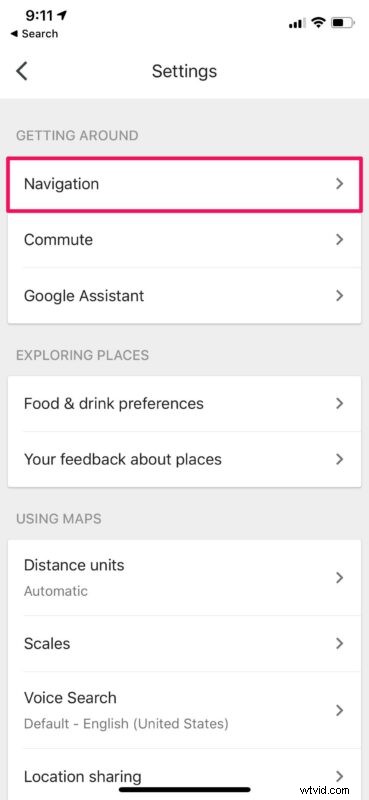
- Next, tap on “Navigation” to access navigation settings for Google Maps.
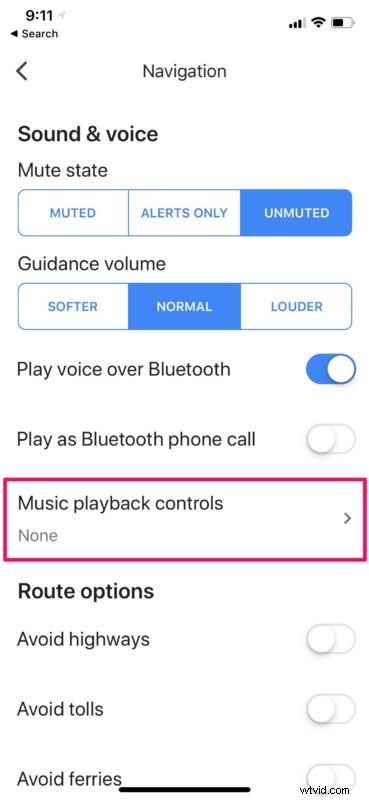
- Here, select “Music playback controls” located just above Route options.
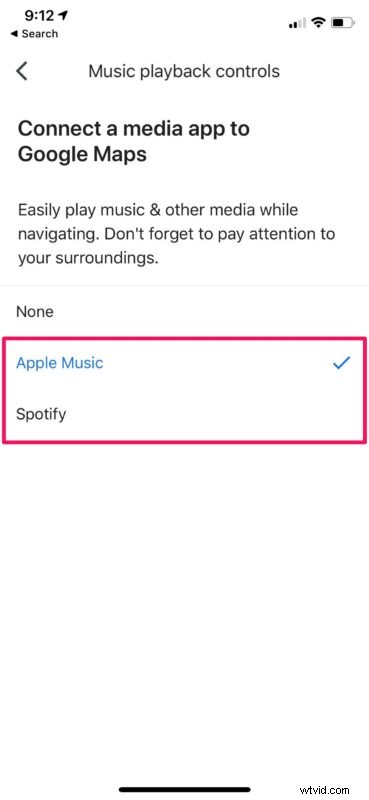
- Now, just choose the streaming service or music app that you use for listening to songs on your iOS device.
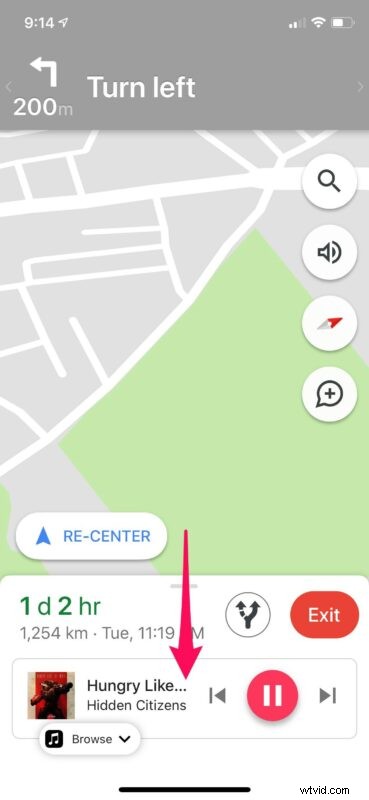
- From now on, when you enter navigation mode in Google Maps, you’ll see music controls as shown here.
There you go. Now you’ve learned how to control music without leaving Google Maps on your iPhone and iPad.
It’s important to note that you’re limited to Apple Music and Spotify for controlling music playback. Therefore, if you rely on other music streaming services like Google Play Music or Audiomack, you won’t find the option to use it in Google Maps. Hopefully, that changes down the line with an update, but who knows?
If you happen to also own an Android smartphone, you can use the above steps to add music controls to Google Maps on your Android device too. However, instead of Apple Music, you’ll find the option to use Google Play Music and Spotify for controlling music playback on your device.
In addition to this, Google Maps also offers some key features that help you stay focused on the road. For example, you can share trip progress with any of your contacts and give them real-time location details while your hands are on the wheel. That being said, unlike most other Google Maps features, you don’t need to be signed in with a Google account to access music playback controls in the app.
We hope you were able to add music controls to the Google Maps app on your iPhone and iPad. Is this a feature you’ll be using on a regular basis while you’re navigating? If so, does it help you stay more focused on the road? Do share your valuable thoughts and experience in the comments section down below.