

Unlike most other apps on the iPhone, the Google Maps application allows users to manually clear the apps cache. Doing so will remove the Google Maps app specific Documents and Data on iOS, including all local application caches, app data, offline stored maps, and reset any cookies within the Google Maps application.
This is a handy feature for Google Maps users, particularly since the Google Maps application can often take up a considerable amount of local storage with map caching and offline maps.
How to Empty Google Maps Local Cache on iPhone Manually
We’re focusing on the iPhone but this ability exists in the Google Maps app for iOS on any device.
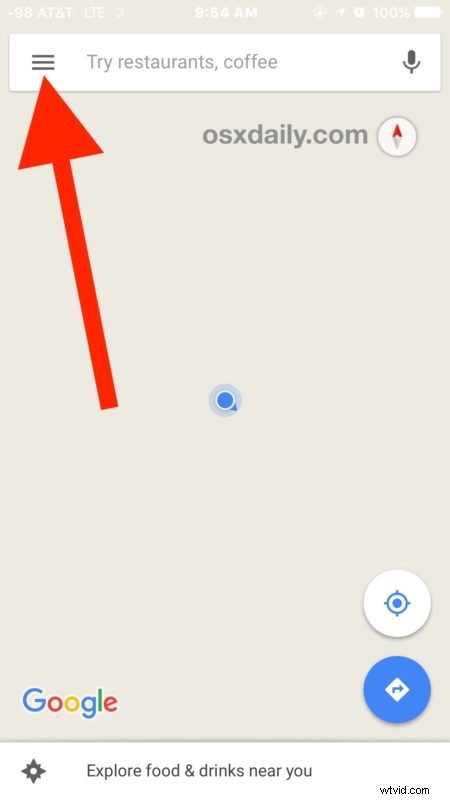
- Open Google Maps and tap on the burger menu in the upper left corner (it looks like a series of lines atop one another)
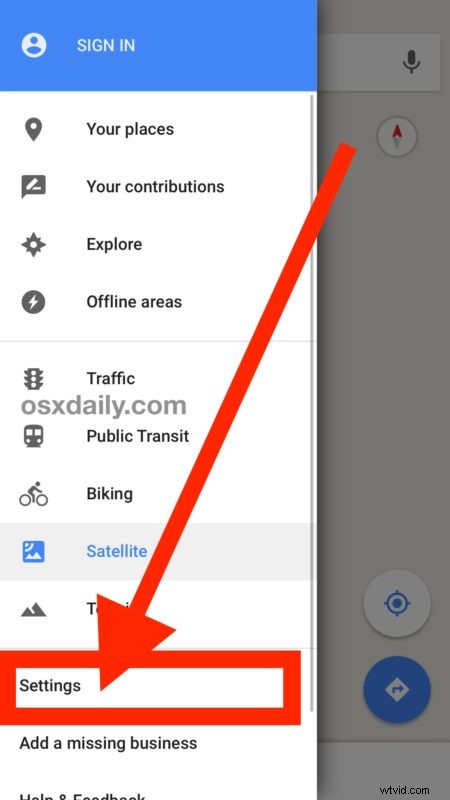
- Go to “Settings” and then choose ‘About, terms & privacy’
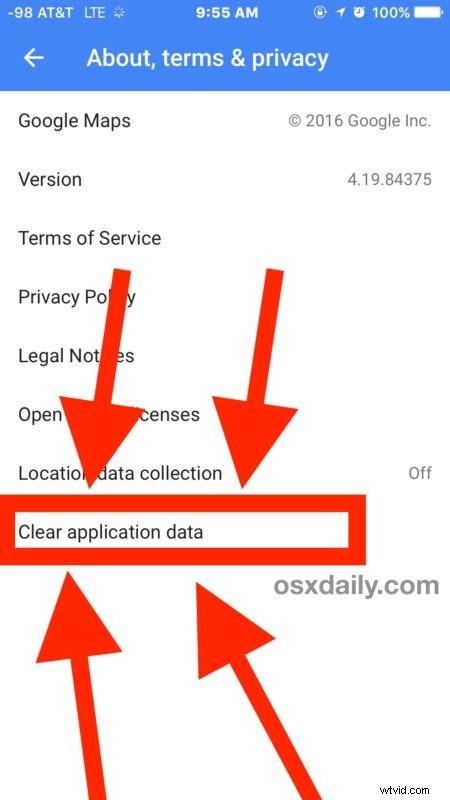
- Choose “Clear application data”
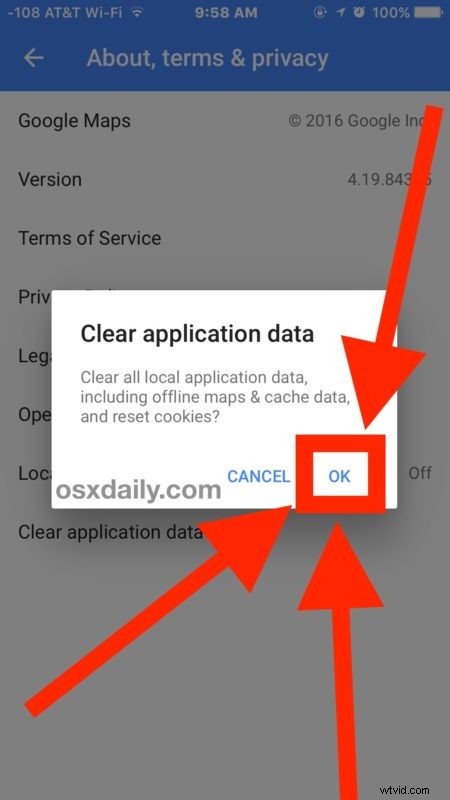
- Tap on “OK” to confirm you want to delete Google Maps app data and app caches
- Exit Google Maps settings and use the app as usual, or just quit the app
The application data and caches will be removed, freeing up the space that is taken up by the Google Maps app.
This can easily free up several hundred MB of storage, and perhaps even more if you’re a frequent Google Maps user, or if you use the Offline Maps feature in Google Maps.
There is no similar feature available in the Apple Maps app that comes installed by default on iPhone.
Considering how bloated Documents and Data often are in iOS apps, this is a really nice feature, and one that should be included in more apps, if not iOS settings itself. Instead, for the time being anyway, if you want to delete the Documents and Data on iPhone or iPad for other apps, you need to perform a bit of a circus act and manually go through and delete the application then re-download it again, or if you’re targeting iCloud documents rather than caches, remove them from iCloud directly.
If you know of any other handy methods to clear caches and data from apps, share in the comments!