

Is your iPhone not connecting to your network provider automatically? Perhaps, you just off an international flight and your iPhone is simply not detecting any available networks? In such cases, manual network selection may be required to access cellular services once again.
By default, network selection is completely automatic on iPhones and it works just fine most of the time. However, sometimes when you exit Airplane mode, your iPhone may show “No Service” after looking for a cellular signal. Moreover, if you’re traveling to a foreign country, you may need to first check the network providers that your carrier has partnered with for international roaming and then manually switch to that network upon arrival.
How to Manually Select Cellular Carrier Network on iPhone
Regardless of the iOS software that your iPhone is running, you can follow the steps below to manually choose your network provider on your iPhone.
- Head over to “Settings” from the home screen of your iPhone.

- In the settings menu, scroll down and tap on “Cellular” to proceed.
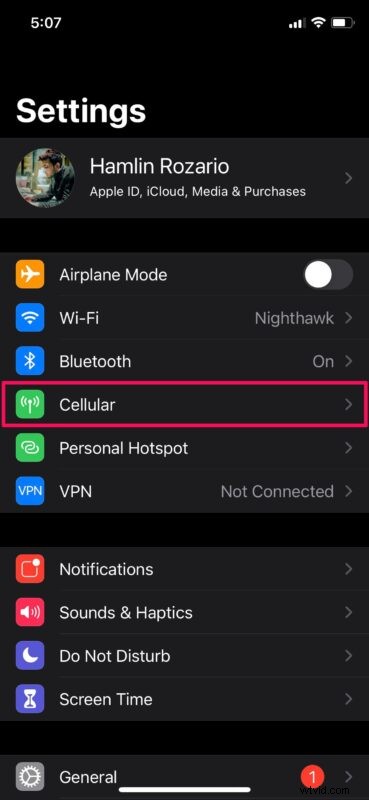
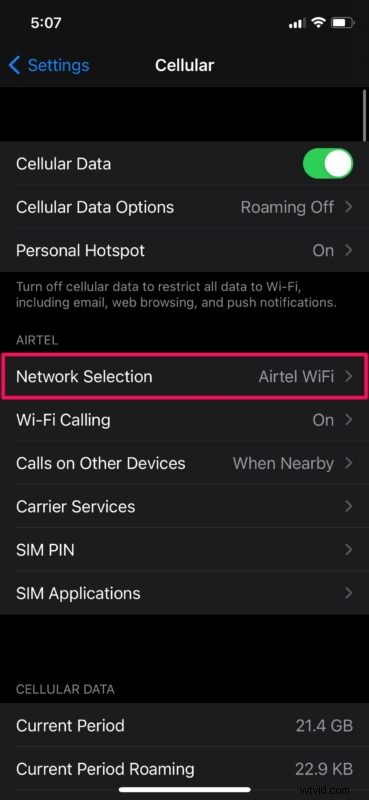
- Next, choose the “Network Selection” option located below the Personal Hotspot setting as shown in the screenshot below.
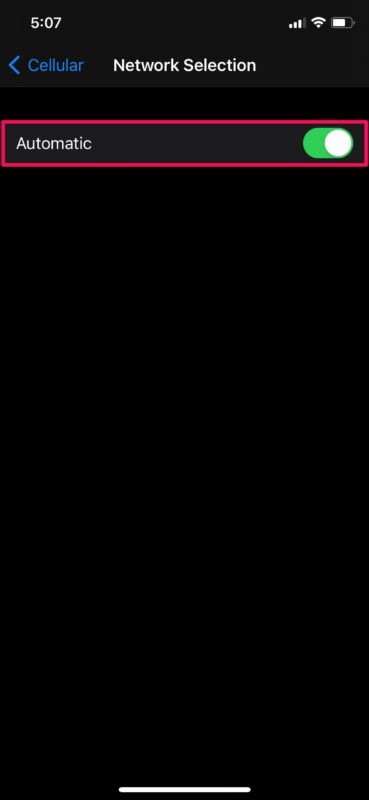
- Here, you’ll see that network selection is set to Automatic. Tap once on the toggle to change it to manual.
- You’ll need to wait for a few seconds for all the available networks to show up. Now, simply select your carrier or partnered network provider for international roaming and you’re good to go.
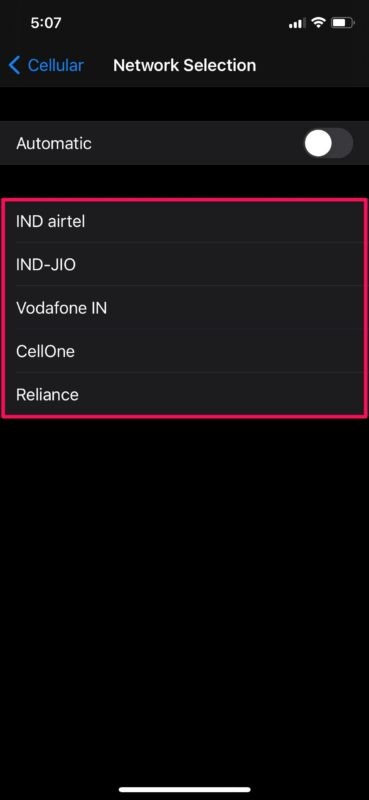
There you go. You’ve successfully managed to access cellular services again, thanks to manual selection.
Once you’ve manually selected the network provider using the above steps, you can tap the toggle to re-enable automatic selection again. You won’t be disconnected from your connected network by doing this.
It’s important to note that you can only successfully connect to your SIM card’s network or the carrier that your provider has partnered with for roaming. If you select any other networks from the manual selection menu, your iPhone will try connecting and end up showing “No Service” again.
The network providers that your carrier may have partnered with may vary based on the country you’re traveling to, so it’s best to check those details while you plan for your trip. For example, EE, one of UK’s biggest network providers is partnered with AT&T in the USA for LTE connectivity. The easiest way would be to contact your carrier’s customer service regarding all this information.
We hope you were able to successfully connect to your carrier network using manual selection without any trouble. What are your thoughts on this alternate method for selecting your network provider? Do share your personal experiences and voice out your opinions in the comments section down below.