

Apple Maps has a potentially useful feature called Guides, which shows you some of the best points of interest in a selected city. This makes it a lot easier for you to explore a new destination whether you’re with friends, family, or colleagues. These recommendations are provided by Apple’s trusted partners which include The Washington Post, Lonely Planet, AllTrails, The Infatuation, and more
Interested to see how this works so you can use it for your next trip? Read along and you’ll see how to use Maps Guides in Apple Maps on your iPhone.
How to Use Guides in Apple Maps on iPhone
Accessing Guides for a particular city in Apple Maps is a pretty simple and straightforward procedure. Make sure your iPhone is running iOS 14 or later and just follow the steps below to get started.
- Launch the stock Maps app from the home screen of your iPhone.

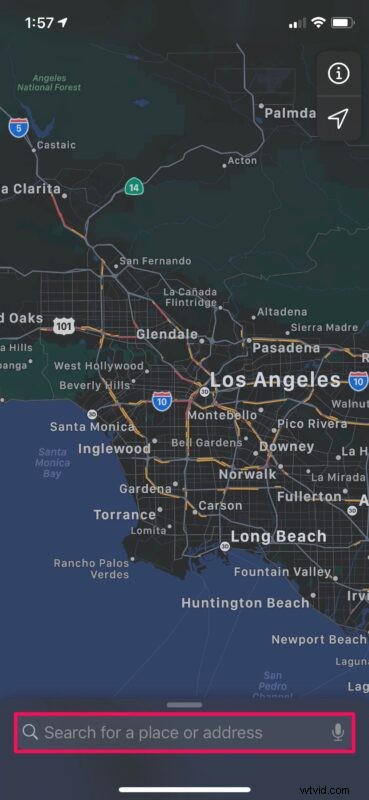
- Use the search field to type in the city or destination you want to access guides for.
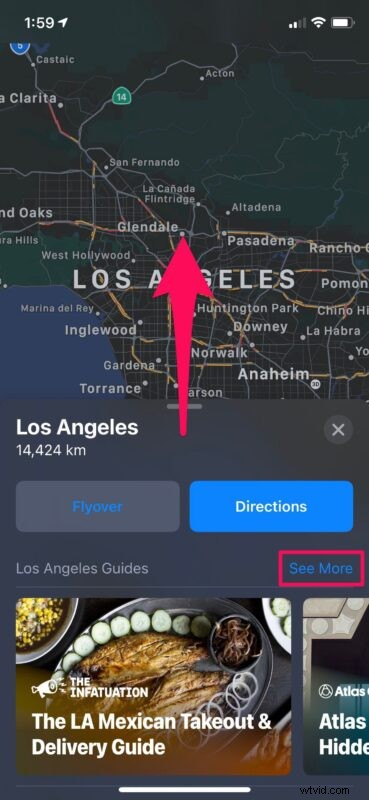
- Once Maps fetches the result, swipe up the city information card and tap on “See More” next to Guides, as shown in the screenshot below.
- Now, you’ll be taken to the dedicated Guides section where you have access to a bunch of guides from different brands that Apple has partnered with. Tap on any of them.

- Now, Apple Maps will automatically mark some points of interest that are relevant to the particular guide. In addition to this, you can swipe up on the panel below to get more information on the guide.
- Here, you’ll find the option to save the guide for later, or share it with someone else. Keep scrolling down to get a description of all the points of interest that were marked on the map.

As of this writing, Guides are only available for select major cities like San Francisco, Los Angeles, New York, and London. Apple’s partners will make sure to keep these guides updated as new places are added, so you’ll always have access to the latest recommendations. Over time more cities and destinations will be included too, of course.
Although we were primarily focusing on the iPhone in this article, you can use the stock Maps app on your iPad to access guides for supported cities too, provided it’s running iPadOS 14 or later.
What’s your take on this new Apple Maps Guides feature? Are guides available for the city you’re planning to travel to? Have you been enjoying the new iOS 14 update? Do share your valuable thoughts and opinions in the comments section down below.