
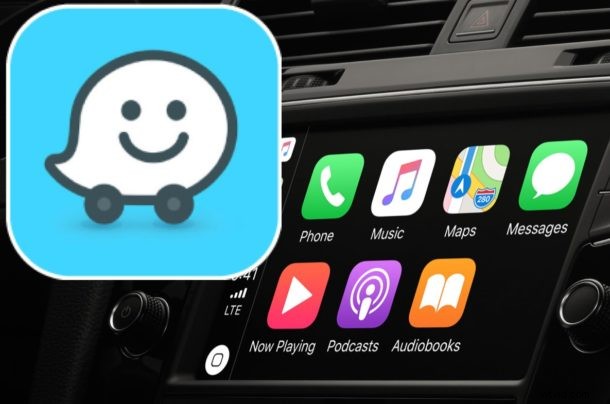
If you use Waze to navigate you may appreciate having the Waze app be front and center on CarPlay while you’re driving with iPhone. You might even be interested in replacing Apple Maps with Waze if you use the Waze app more than Apple Maps on your CarPlay vehicle.
This article will show you how to use Waze on Apple CarPlay with iPhone as your mapping and driving navigation app.
Requirements for using Waze on CarPlay: the car must have CarPlay compatibility, the iPhone must be running iOS 12 or later, you must have iPhone setup with CarPlay, and the Waze app must be updated to a recent version.
If you don’t yet have the Waze app on iPhone you can download it from the App Store here.
How to Use Waze on CarPlay Instead of Apple Maps
- Connect iPhone to CarPlay if you haven’t done so already
- Open “Settings” app on iPhone
- Go to “General” and then choose “CarPlay”
- Select the car with CarPlay
- Locate Waze and then tap and hold on the Waze icon to drag it to the primary CarPlay Home screen for fast access
- Optional: replace Apple Maps with Waze on CarPlay, by moving the Apple Maps icon to another screen to make Waze icon more prominent on CarPlay display
- Exit out of CarPlay settings on iPhone for changes to take effect
- Use Waze on CarPlay in the vehicle as usual by tapping on the Waze app on the CarPlay display
With Waze prominently on the CarPlay display, you can easily launch Waze and use it as your preferred mapping application in your vehicle.
If you want multiple maps options to use with CarPlay, you can also use Google Maps with CarPlay, and you can also always use the built-in Apple Maps application.
You might be wondering if it’s possible to make Waze the default maps application on CarPlay or with iPhone, but that is not currently available as a feature. Instead, you’ll have to launch Waze and use it through CarPlay that way.
You can also ask Siri to find you directions somewhere with Waze by summoning Siri and then saying “Get me directions to Apple Store with Waze” or a similar command, of course specifying your intended destination.
If you know of any other method of approach to using Waze with CarPlay or you have some fancy workaround to get Waze to be the default mapping application on iPhone or CarPlay, share it with us in the comments below!