
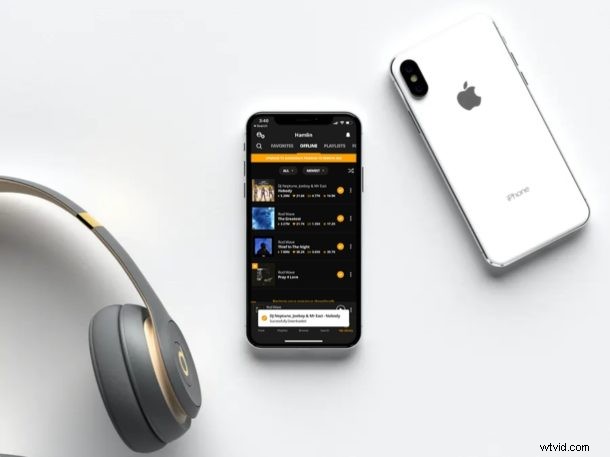
Do you want to download free music on to your iPhone, iPad or iPod Touch for listening offline when you’re not connected to the internet? You’re not alone, but you’ll be pleased to know that there are multiple ways to go about downloading free music to iPhone.
We’re living in the age of streaming services, but not everyone can staying connected to the internet at all times. In such cases, offline listening is key as you don’t have to rely on a stable cellular or Wi-Fi network to playback your favorite music. If you were under the opinion that downloading free music to an iOS device isn’t really a thing, you’re clearly mistaken.
Today, there are multiple apps that lets you to not just download and play music offline, but also manage your music library, free of cost. In this article, we’ll be discussing not one, but two methods that you can utilize to download free music to your iPhone for offline listening.
How to Download Free Music to iPhone with AudioMack
AudioMack is a music streaming application that lets you download any song on their database for free, so that you can listen offline without relying on an internet connection. Download AudioMack from the App Store and simply follow the steps below to start downloading free music.
- Open “AudioMack” on your iPhone, iPad or iPod Touch.
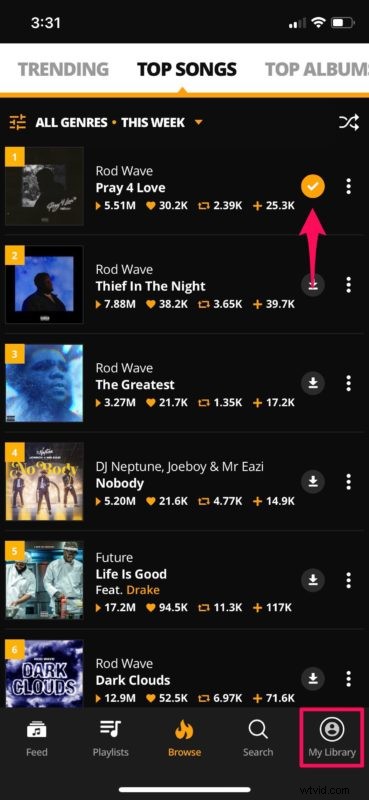
- Once you’ve selected your favorite artists and you’re in the main menu, head over to the “Browse” section to see a list of trending, top songs and top albums. Right next to each song, you’ll see a “download” icon. Tap on it to begin the download. You’ll be asked to log in to AudioMack to access this feature.
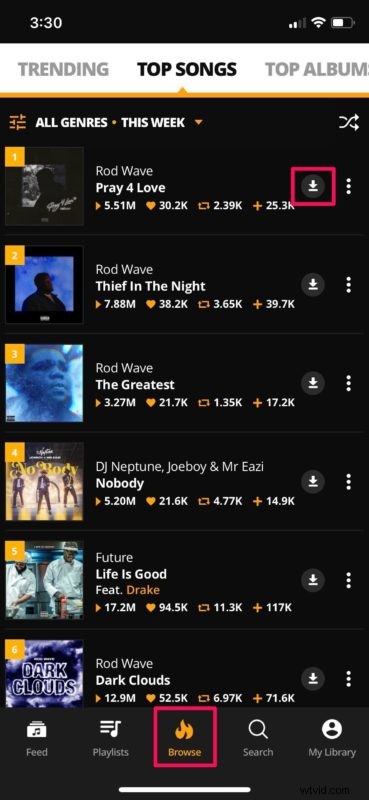
- Once the download is complete, you’ll see a “tick” icon next to the song title, indicating that the song has been added to your AudioMack library. In order to view it, tap on “My Library” as shown below.
- Here, under the “Offline” category, you’ll be able to see all the songs that you’ve downloaded for offline listening. In order to remove any song from your downloads, tap on the “triple-dot” icon.
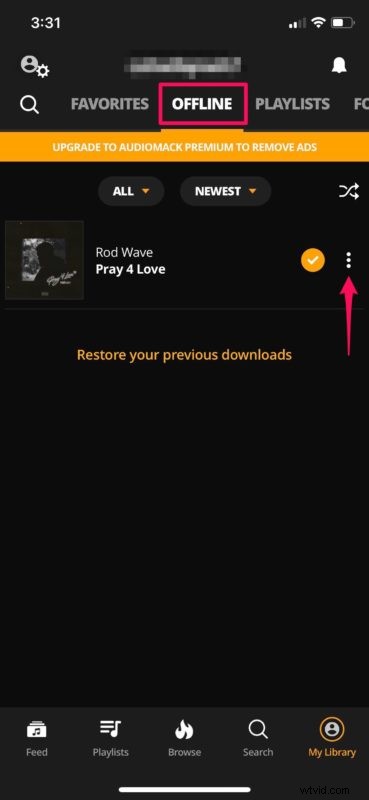
- Now, tap on “Remove from downloads” to delete the downloaded song. With AudioMack, managing your music library is fairly easy.
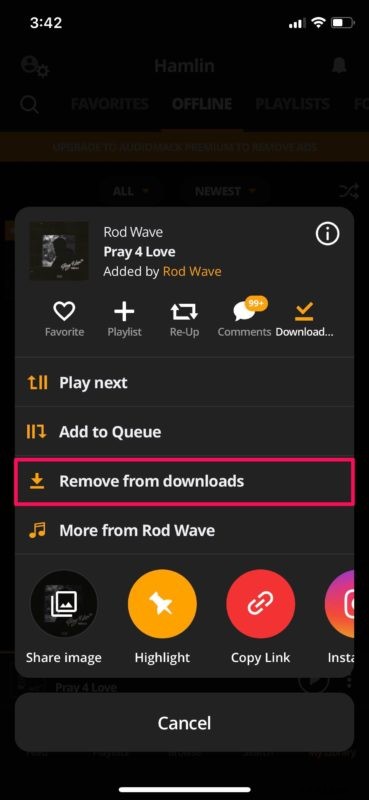
There you go. Now you know how to download free music and listen to them offline on your iPhone.
How to Download Free Music to iPhone with Free Music Archive
Free Music Archive is a non-profit digital library that offers free and legal mp3 downloads. You can access all the songs on their database and download them with just your web browser. That being said, your device needs to be running iOS 13 or later to take advantage of this method.
- Open “Safari” from the home screen of your iPhone, iPad or iPod Touch.
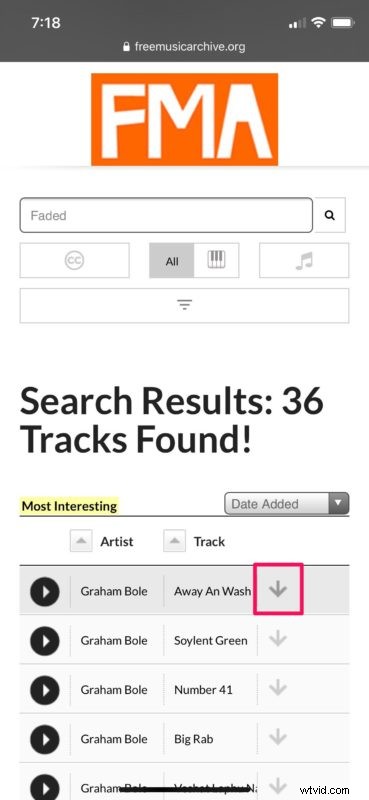
- Type freemusicarchive.org in the address bar to visit their website. Now, you can use the search menu on the website to find free music that’s available on their database. You’ll see a “download” icon next to each song. Long-press on it.
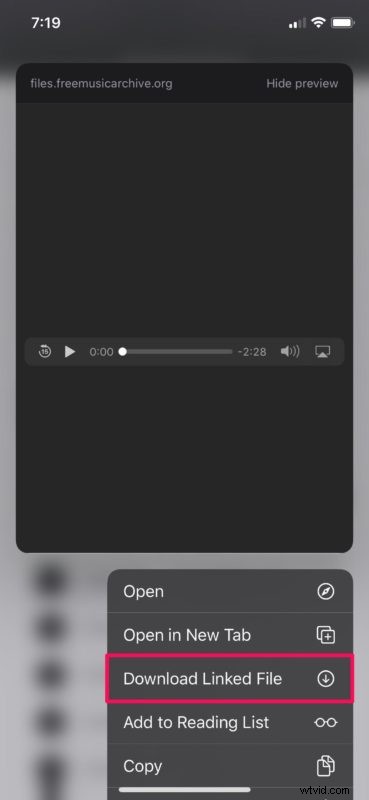
- Now, tap on “Download Linked File” to begin downloading the song.
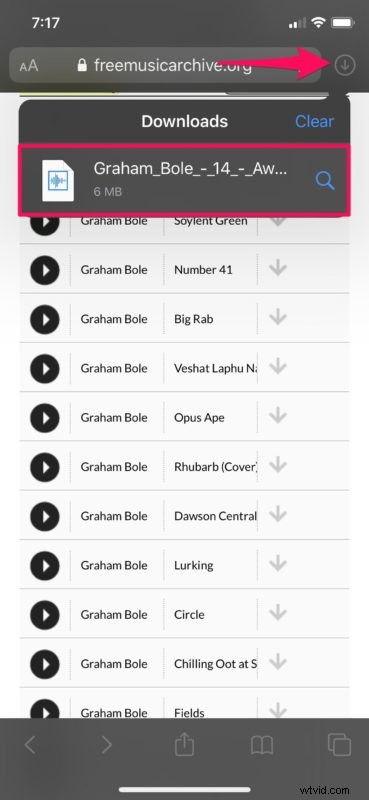
- Once the download is complete, it will be indicated as shown in the screenshot below.
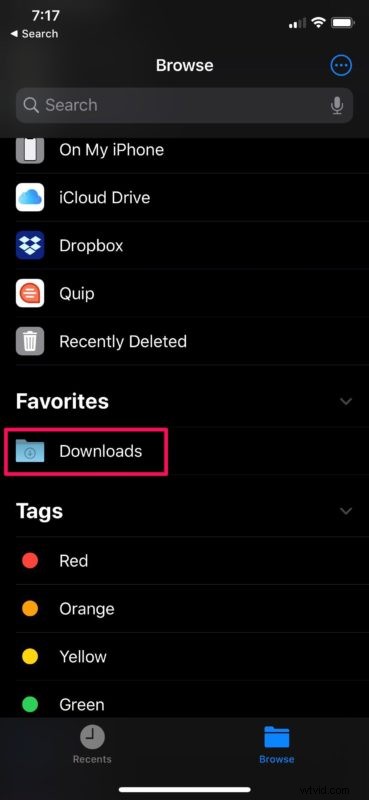
- Now, open the Files app on your device and head over to the “Downloads” folder for playing it offline.
That’s all there is to it. As you can see here, you have multiple options to download free music to your iPhone.
AudioMack isn’t the only app that lets you download free music for offline listening, if you were wondering. You can also check out other apps like Cloud Music Offline and eSound Music to download and manage your free music library.
Popular music streaming services like Spotify lets you stream music for free on the ad-supported free tier. However, in order to download songs for offline listening, you’ll have to subscribe to Spotify Premium for $9.99/month. They do provide a free 30-day trial however, before you decide to spend money on it.
Similarly, Amazon Music offers a free ad-supported tier for streaming music too, but it’s currently limited to US, UK and Germany with more countries to follow in the near future. Pandora is another compelling alternative for listening to music and podcasts for free (with ads, of course).
Did you download free music to your iPhone for listening offline? Did you use AudioMack or Free Music Archive? Have you tried any other music streaming services before? Do let us know your thoughts and opinions in the comments section down below.