

Are you getting “iCloud Storage is Full” notifications on your iPhone or iPad? This is not too unusual, particularly for users of the free 5GB iCloud plan. If you’re running low on iCloud storage, one option instead of upgrading to a higher-tier plan, is to delete some of the iCloud data that you don’t really use, and free up some valuable storage space on the service.
Apple’s iCloud service comes with 5 GB of free storage space, which is not nearly enough for the vast majority of people who own iPhones, iPads, and other Apple devices. Even the 50 GB base plan that requires a fee of $0.99 per month might not make the cut for many users, which is why Apple offers 1TB plans too. Nonetheless, with proper storage management, you can try to make the 5GB tier work.
If you’re unable to upload photos, videos, or back up your data to iCloud due to lack of enough space, don’t fret. In this article, we’ll be walking you through various steps to free up iCloud storage space, and you can use this approach from either an iPhone or iPad.
How to Free Up iCloud Storage Space from iPhone or iPad
Accessing and organizing your iCloud storage space is a fairly easy and straightforward procedure on any iOS or iPadOS device. Make sure you’re logged into the device with your Apple account and simply follow the steps below to get started.
- Head over to “Settings” on your iPhone or iPad.

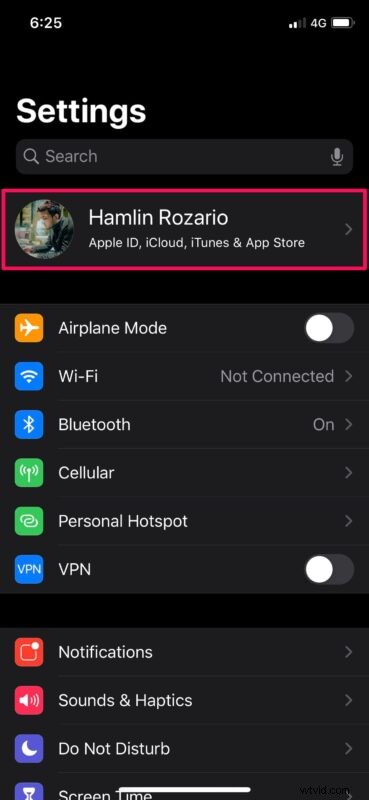
- In the settings menu, tap on your Apple ID name located at the top.
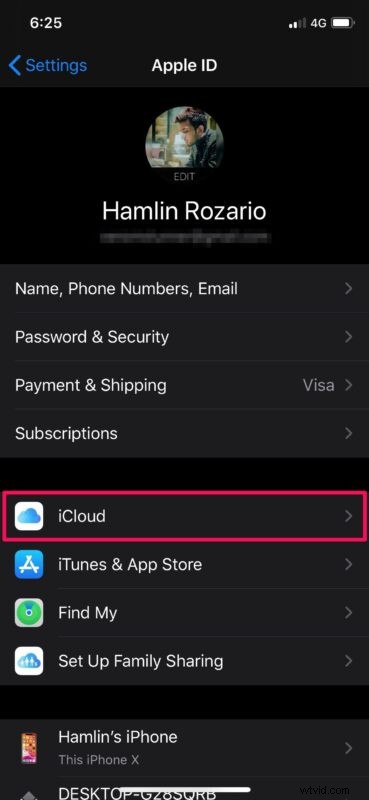
- Next, tap on “iCloud” to view your storage details.
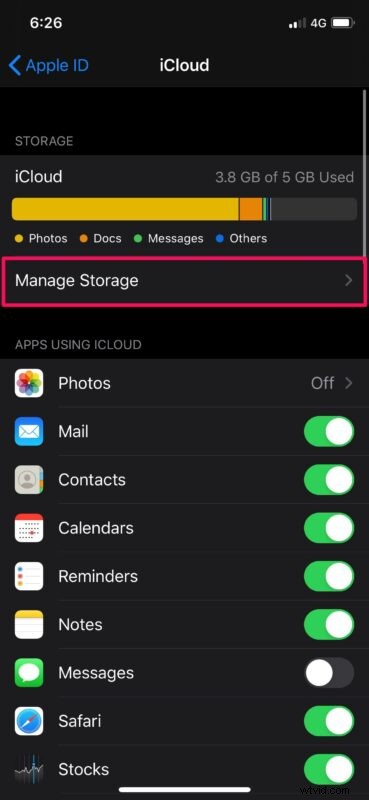
- Here, you’ll be able to see how much iCloud storage space you’ve used up overall. Tap on “Manage Storage” to proceed further.
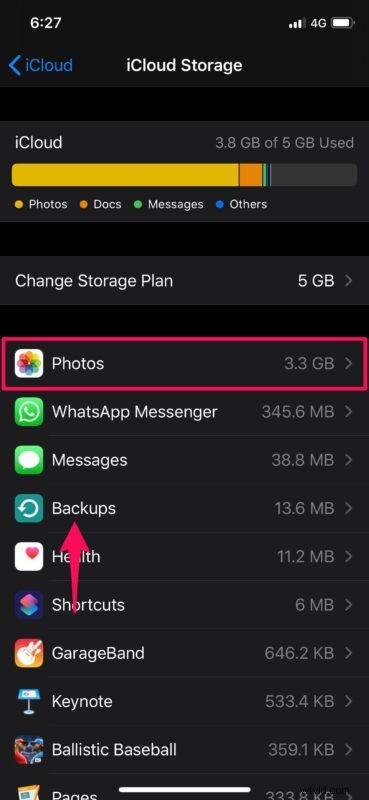
- Here, you’ll see a list of apps that are using iCloud, neatly sorted by the space each of the app takes up.
- Go through apps with unneeded iCloud storage and choose to “Delete” the data from iCloud as desired
- In many cases, either Photos or Backups use most of the iCloud storage space. If you choose Photos, deleting the data will also disable iCloud Photos. (you’ll want to backup your photos before deleting any of them from iCloud, to prevent any unintentional loss of your pictures)
- After you’ve selected an app, tap on “Delete” to remove the app’s data from iCloud and free up space.

- Repeat with other apps or iCloud data to clear their space as well
That’s the simplest way to free up iCloud storage space, right from your iPhone and iPad.
Some additional tips can help to relieve iCloud storage constraints too, including getting rid of old backups, and considering an upgrade of the iCloud data plan.
If you plan on using iCloud photos then it’s a good idea to upgrade to the paid tiers so that you don’t have to worry about space so much.
If you take advantage of iCloud to frequently back up your iPhone or iPad, chances are, you have backups that you don’t actually need anymore. These could be iCloud backups from older devices that you’ve sold or just outdated backups in general. So, make sure you delete the old iCloud backups from your device every now and then too, to free up a considerable amount of storage space. By the way, aside from iCloud storage errors, you may also encounter iCloud backup failed errors, which can be resolved through a variety of troubleshooting steps that are not always associated with data capacity.
Managing your available iCloud storage space properly is key to getting the most out of your money. You don’t always have to upgrade to a 200 GB or 1 TB plan unless you’re sure that you’re going to need it, but doing so certainly makes managing iCloud storage less necessary since you’ll have more capacity available, as long as you don’t mind paying Apple a monthly fee. The larger storage plans are mostly targeted towards people who own multiple Apple devices, and people with tons of data, but if you’re frequently encountering the annoying “”iCloud Storage is Full”” message when trying to backup iPhone or iPad, or put other data into iCloud, it can be a worthwhile purchase.
Remember iCloud data is different from on-device storage. Are you running low on physical storage space on your iPhone or iPad? If so, you can offload some of the apps that you don’t use often to free up space. Or, you can set your iOS device to automatically offload unused apps to save storage space in the long run. And you can always delete apps too. Removing photos and videos from the device is another great way to free up storage if you have tons of pictures and movies on your iPhone or iPad.
We hope you were able to resolve the frustrating “iCloud Storage is Full” notifications on iPhone or iPad by clearing up storage space on iCloud to make room. If not, consider upgrading to a larger iCloud storage plan.
If you have any thoughts, suggestions, tricks, or relevant experiences, feel free to share in the comments!