REC

Recommended: Video Production, Editing & Gear Maintenance Guide

 WTVID >> WTVID >  >> Filming equipment >> Cell phones

Instantly Open New Tabs in Safari on iPhone: Fast Hidden Shortcut

Instantly Open New Tabs in Safari on iPhone: Fast Hidden Shortcut

The latest versions of Safari for iPhone have an even faster way to open a new Safari tab, without having to enter into the broader tab view window. It’s a great trick, but it’s a little hidden and less than obvious, but nonetheless offers the quickest way possible to open a new browser tab in Safari for iOS.

How to Instantly Open a New Tab in Safari for iPhone

  1. Open Safari in iOS if you haven’t done so already
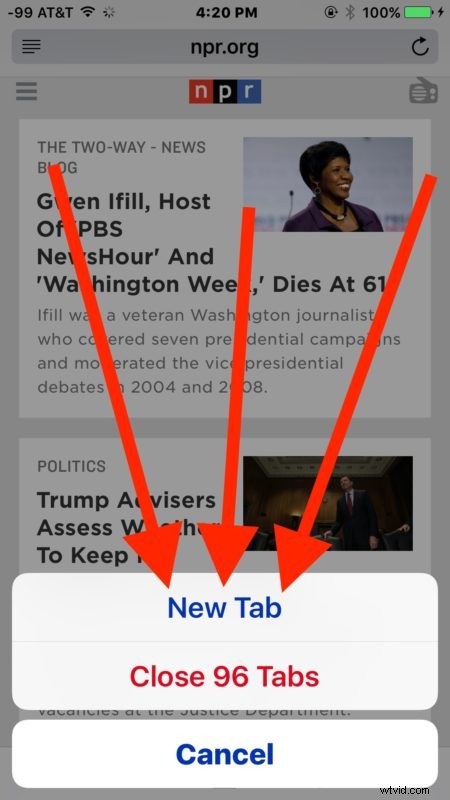
  2. Tap and hold on the two overlapping square icons in the iOS Safari navigation bar
  3. Instantly Open New Tabs in Safari on iPhone: Fast Hidden Shortcut

  4. Tap on “New Tab” to immediately open a new browsing tab

  5. Instantly Open New Tabs in Safari on iPhone: Fast Hidden Shortcut

Simple, fast, and easy. Even if the feature is a little hidden behind a long tap and hold, it’s still easy to remember once you get the swing of things.

Note this feature is primarily aimed at iPhone (and iPod touch users), as it’s less important on an iPad, since the iPad version of Safari in iOS always has the new tab “+” plus button in the navigation bar.

You can open as many new tabs as you want in the latest versions of Safari for iOS. Since it can quickly get overwhelming to have many dozens of tabs open, you can then narrow things down with the wonderfully helpful search tabs feature of Safari in iOS, which allow you to narrow down your tabs by search terms.


  1. Download 15 Stunning New Default iOS 9 Wallpapers for iPhone

  2. How to Disable Frequently Visited Sites in Safari on iPhone and iPad – Privacy Guide

  3. Apple's September 12 Event: iPhone 8 Launch and New Apple Watch Expected

  4. How to Enable Website Favicons in Safari Tabs on iPhone and iPad

  5. Apple Announces October 13 Event: iPhone 12 with 5G and Flat-Edge Design Expected

Cell phones
  1. iPhone vs. Android: Which Smartphone Excels in Photography?

  2. How to Request Desktop Site in Safari on iPhone: Guide for iOS 13, 12, and 11

  3. How to Disable Pop-Up Blocker in Safari on iPhone and iPad: Quick Steps

  4. 2 Simple Ways to Close Tabs in Safari on iPhone

  5. Maximize iPhone 7 Battery Life: Proven Tips & Tricks

  6. Apple Releases iOS 12.3.2 for iPhone 8 Plus – Fixes Portrait Mode Depth Effect

  7. How to Easily Increase Font Size in Safari on iPhone & iPad (iOS 13/iPadOS 13+)

  8. How to Disable Safari Address Bar Color Tint on iPhone and iPad: Easy Steps