
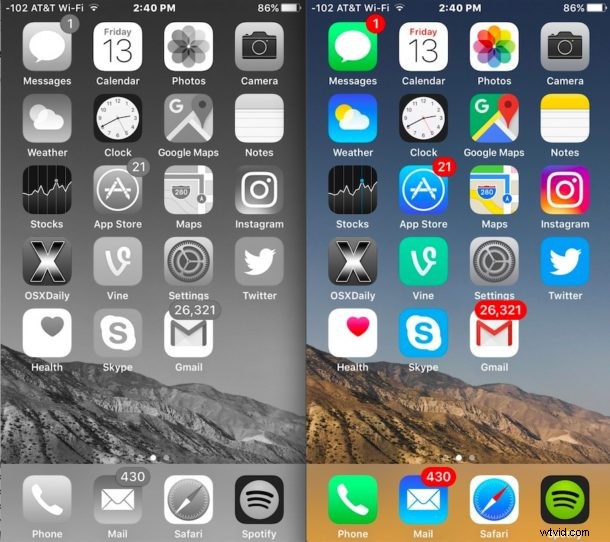
Have you ever discovered your iPhone to suddenly be black and white display? If this has happened to you, then seemingly out of the blue, the iPhone screen is no longer showing color, and instead everything is stuck in black and white mode. This is fairly unusual circumstance, but it can happen, and I recently resolved this exact issue for a relative. So, if your iPhone screen has turned black and white, we’ll show you what happened and how to fix it.
First, let’s understand what’s going on: Your iPhone screen is showing as black and white because the grayscale setting has been turned on, whether intentionally or not. Grayscale mode in iOS strips the colors out of the display, it’s an accessibility option and has many valid uses for users particularly who are color blind or have vision difficulties. In the case that I experienced where grayscale mode was inadvertently turned on, the setting was somehow toggled on in the persons pocket, much like how people can often accidentally get stuck in zoom mode on iPhone. In the case of the phone getting stuck in black and white, that zoom mode gesture usually has a filter set for grayscale mode. We’ll get around to changing that in just a moment.
Fixing an iPhone Stuck in Black & White Mode
Let’s turn off black and white mode to return to the color display you expect to see:
- Open the Settings app and go to “General” and then to “Accessibility”
- Toggle the switch for “Grayscale” to the OFF position
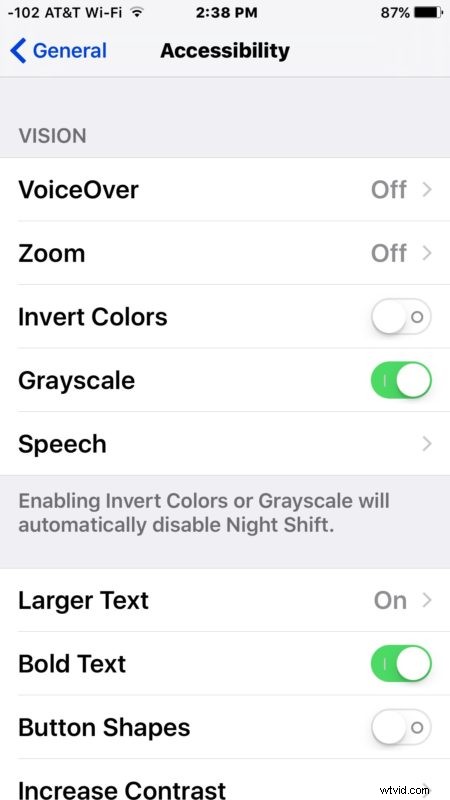
That change will be instant, with grayscale off the iPhone will exit out of black and white mode and you’ll be back to a color display.
Checking Grayscale Zoom Filters
To quickly check if the zoom filter is the cause; double-tap on the screen with three fingers. If the iPhone zoom grayscale filter is enabled, that will exit out of zoom mode and exit out of grayscale mode.
Now let’s turn off the Grayscale Zoom Filter:
- Open the Settings app and go to “General” and then to “Accessibility”
- Choose “Zoom” and then tap on “Zoom Filter” and choose “None”
- Exit out of Settings as usual
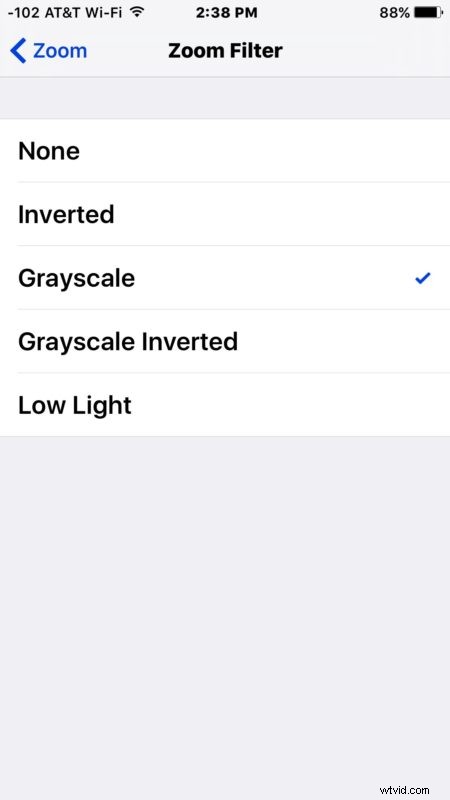
Alternatively, you can just disable Zoom mode and you won’t have to worry about getting stuck in zoom, or accidentally enabling the grayscale filter, but that’s up to you.
If you don’t remember turning on grayscale mode or enabling the filter, you’re probably wondering, how did this happen to begin with? Well, many users just accidentally turn the features on. Maybe it got switched on in their pocket, maybe someone else toggled the setting (like a kid, or a prankster), or maybe you did it yourself when taking sleeping pills and just don’t remember it. Anyway, you’re good to go now, so enjoy the color screen in iOS again.