
Now that iOS 10 public beta is available to install for anyone, users can run the beta system software on any compatible iPhone, iPad, or iPod touch. Of course since it’s beta software, users may encounter bugs, or there may be behavior that is generally unexpected or could be improved upon in the iOS 10 betas.
Rather than just being annoyed, beta testers can do their part to improve iOS 10 by reporting bugs directly to Apple. Additionally, the Feedback app in iOS 10 Public Beta can be used to offer general feedback about iOS 10 to Apple, offering the beta tester the potential to help shape the next major iOS release.
Remember, when filling out bug reports or offering feedback about an operating system or experience in iOS, be as specific as possible.
How to Report Bugs in iOS 10 and Send Feedback to Apple
All users in the iOS 10 Public Beta program will have access to the Feedback feature where bugs and other feedback can be sent to Apple, here is how it works:
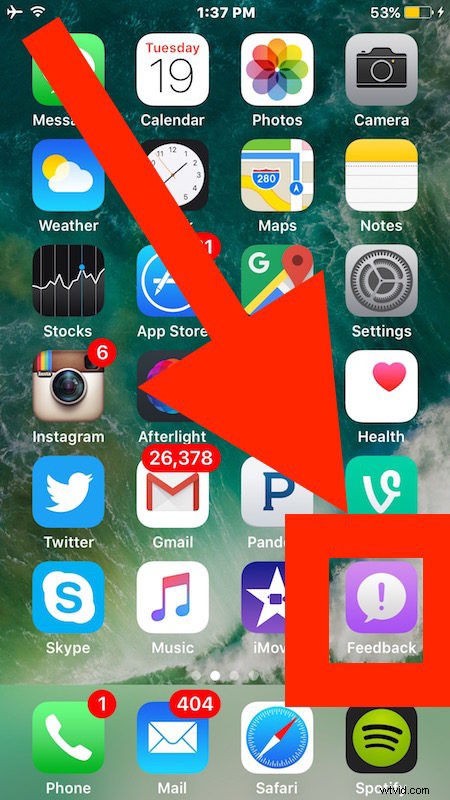
- Open the “Feedback” app on the iOS device, it’s a purple icon with a (!) exclamation point on it and may appear on one of the secondary Home Screens
- Log in with your Apple ID as requested
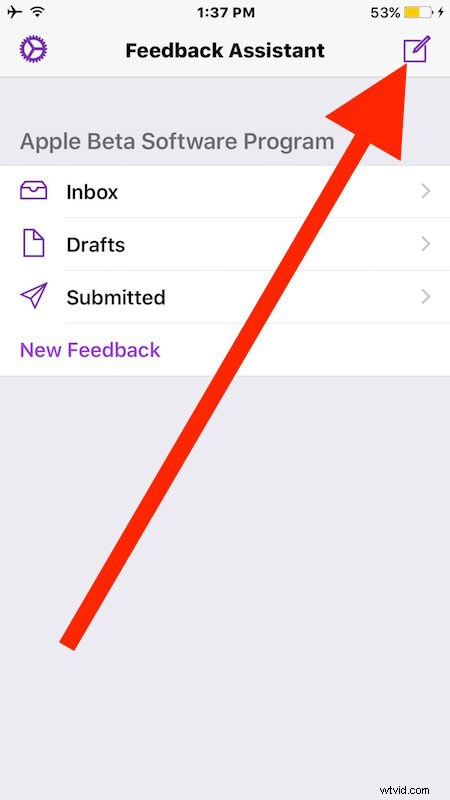
- Click on the “New Feedback” button
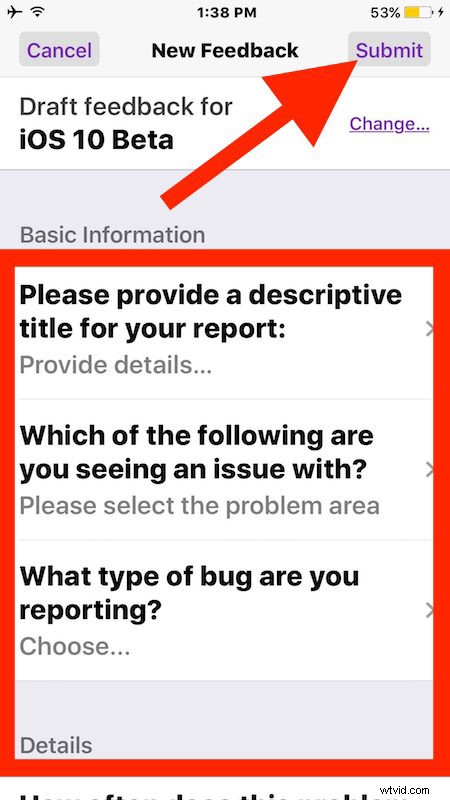
- Fill in each section of the feedback, including basic information about what is being reported, where the issue is happening, what type of issue is occurring, and various other details about the bug or problem – be descriptive and detailed if possible, as more details and information can be beneficial to reproducing the problem and makes the issue more likely to be fixed
- Optionally, attach a screenshot or video that demonstrates or displays the issue, bug, quirk, interface oddity, or whatever else in iOS 10 that you are reporting to Apple
- When finished, tap on the “Submit” button
If you are attaching logs and other details, a confirmation dialog will come up asking you to confirm that you don’t mind submitting some details about the device and potentially other personal information with the bug report. You can remove the logs and re-submit the feedback if you do not wish to include that data.
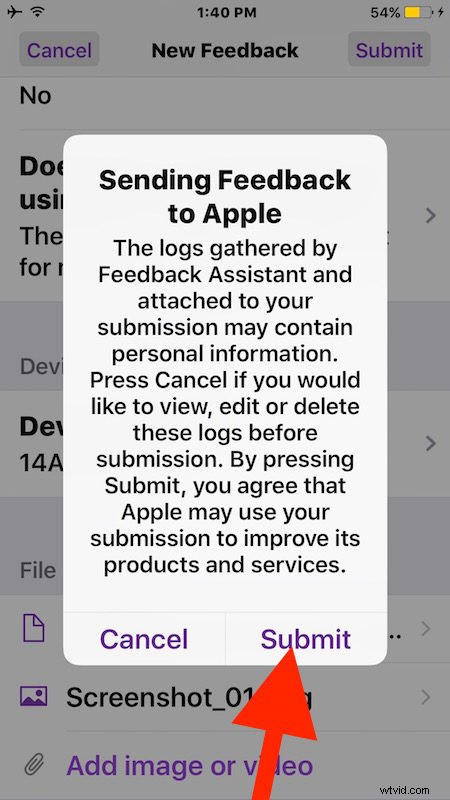
That’s it! Your bug report or general feedback has been sent to Apple, where it may be reviewed and, with any luck, the problem reported will be fixed.
The Feedback Assistant app includes an inbox, drafts, submitted, and outbox folder, where you may get some communication from Apple either about general beta announcements, or perhaps even about a specific issue or feedback you submitted.
Remember, as you participate in the public beta program and use iOS 10, don’t forget to submit feedback to Apple using the Feedback app!
Oh and on a quick side note, if you discover the beta experience is just too buggy to be tolerable for whatever reason, you can downgrade iOS 10 back to iOS 9 as described here.