
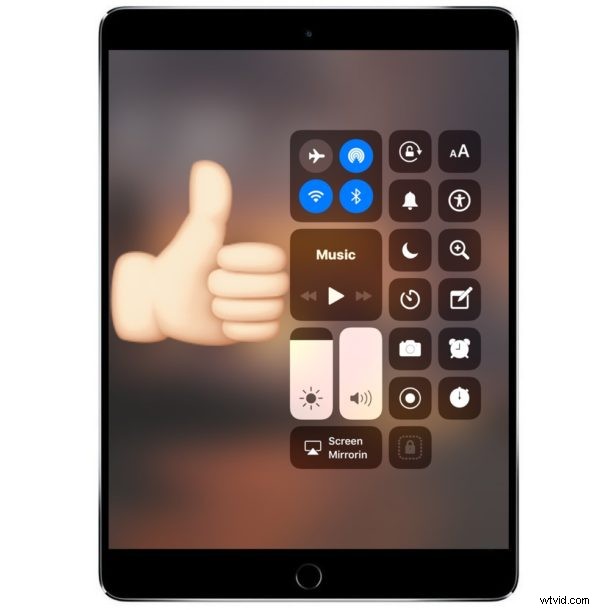
The iOS Control Center is a great feature allowing iPhone and iPad users to quickly access screen brightness controls, volume controls, camera, wi-fi and bluetooth toggles, Do Not Disturb mode, and so much more thanks to the ability to customize it. But many iPad users, and some iPhone users too, may discover that Control Center is not working from the locked screen of their devices. Try as you might, swiping up from the bottom of the iPad or iPhone screen, Control Center just won’t swipe up to show itself. Don’t worry, it’s probably a simple fix.
The reason most iPad and iPhone devices can’t access the Control Center from the lock screen is usually a setting. While the swipe gesture to reveal Control Center from the Lock Screen is often enabled by default on the iPhone, for whatever reason on the iPad the lock screen Control Center access is often disabled by default – at least on several newer iPad models I have encountered lately. So if you can’t open Control Center on the lock screen of an iPad or iPhone, read on to enable the feature and check your settings for iOS.
How to Enable Control Center Access at Lock Screen on iPad and iPhone
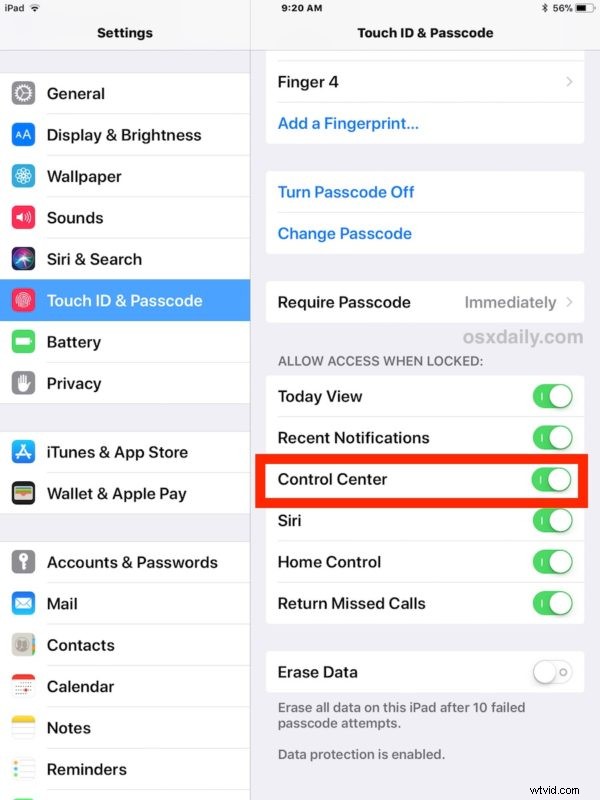
- Open the “Settings” app of iOS
- Go to “Touch ID & Passcode”
- Scroll down to the “Allow Access When Locked” section and find “Control Center” then toggle the switch nest to Control Center to the ON position
- Exit out of Settings

You can test this is working by locking the iPad or iPhone screen and then swiping to access Control Center, it should reveal itself as expected on the Lock Screen of the device.
Remember, that in iOS 12 onward, the iPad and any iPhone models without a Home button will access Control Center through a swipe form the top-down corner of the screen, whereas previous versions of iOS will access Control Center from a swipe from the bottom of the screen upward.
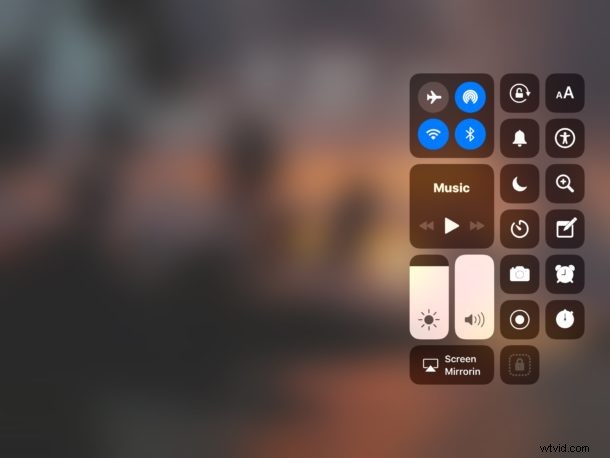
For all iPad models and most iPhone (except for iPhone X), to access Control Center you just swipe up from the very bottom of the screen. For iPhone X and presumably other future iPhones with the screen notch, you swipe down from the right of the notch to access Control Center on iPhone X.
It’s not entirely clear if the Lock Screen Control Center feature is enabled or disabled by default on all devices, or just seemingly at random, but as mentioned before I have personally encountered several new iPad models with Control Center access from the locked screen to be disabled, apparently by default. It’s always possible these users had previously disabled Control Center Lock Screen access in iOS and forgotten about it too, just as users often do to disable in-app Control Center access with swipe-based apps and games and so forth to prevent the screen from appearing when it’s not wanted. In any case, the result was that some people in similar situations think that Control Center is not working at all, when in fact it’s merely the locked screen access that has been disabled for the feature.
The Control Center is a great feature for quickly accessing all sorts of settings toggles, features, and adjustments, and for best results users can customize Control Center on iPhone and iPad to fit specific needs.
Did this fix your problems with accessing Control Center from the lock screen of an iPad or iPhone? Do you have another solution that worked for you to get Control Center working at the locked screen again? Share your experiences with us in the comments below!