
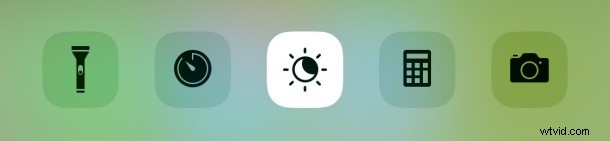
Night Shift in iOS causes the device display to readjust to a warmer color spectrum, thereby reducing the displays output of blue light. This makes the screen of an iPhone or iPad not only more pleasant to look at in the evening and dark hours, but it also is easier on the eyes and potentially offers some health benefits as well.
Using Night Shift is extremely easy and you can quickly toggle the feature on and off anytime in iOS and iPadOS, or you can set it on an automatic timer as well to turn itself on with sunset and sunrise.
Night Shift requires the latest version of iOS to be installed on the iPhone, iPad, or iPod touch, versions earlier than 9.3 do not have the option available.
How to Enable or Disable Night Shift on iPhone & iPad from Control Center
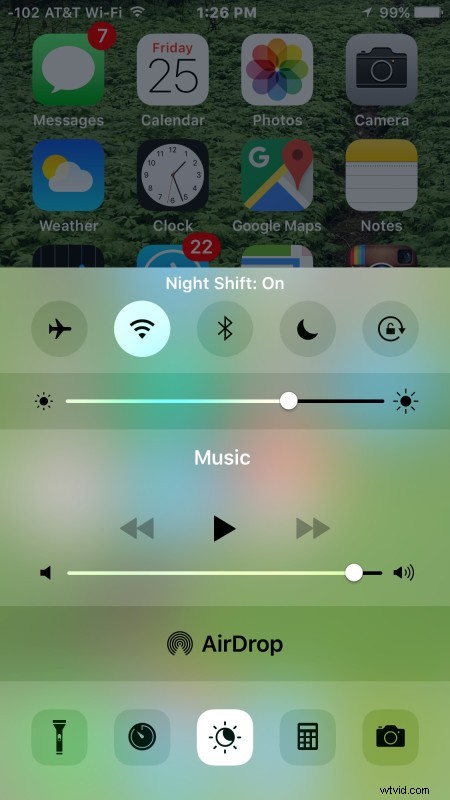
The fastest way to turn on Night Shift, or to turn it off, is to access Control Center on any iOS device:
- Access Control Center on iPhone or iPad, on iPhone X and iPad that means swiping down from the top right corner, on older iPhone models it means swipe up from the very bottom of the device screen to access the Control Center
- Next, what you do depends on what version of iOS you have:
- For iOS 12 and iOS 13: Tap and hold on the Brightness slider to access additional options, then tap on the little sun/moon icon that says Night Shift to toggle the feature off or ON
- For iOS 9.3, iOS 10, iOS 11: Tap on the little sun / moon icon in the middle of Control Center to enable (or disable) Night Shift mode
- Exit out of Control Center as usual for changes to take effect
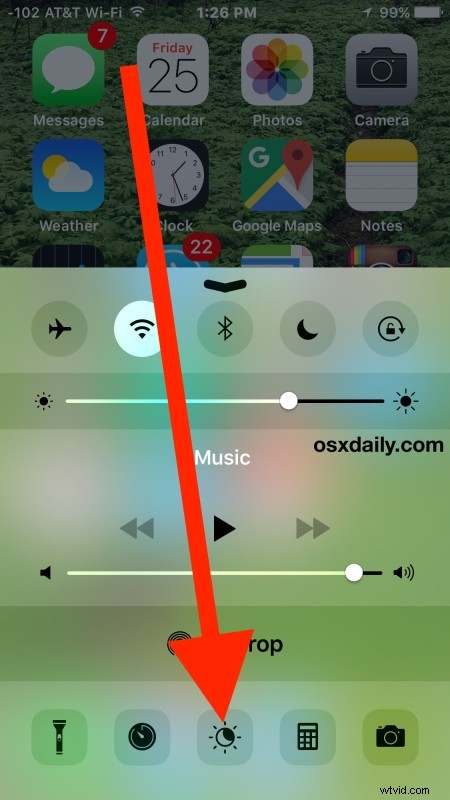
The effect is immediate and you’ll notice the color instantly shift to become warmer if Night Shift is turned on.
If Night Shift was already enabled, turning it off will turn the display back to its default color profile.
What Does Night Shift Look Like?
The animated gif image below demonstrates what an iPhone display toggling between Night Shift and regular mode looks like, with the Night Shift version being significantly warmer with an orange / sepia brown tone to the whites and screen colors.
Night Shit switching between on and off on iPhone:
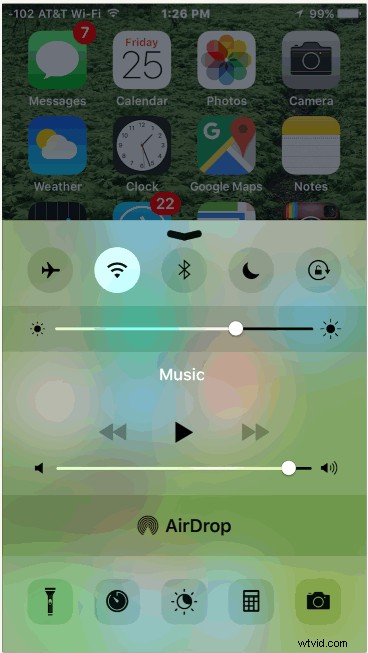
Night Shift on:
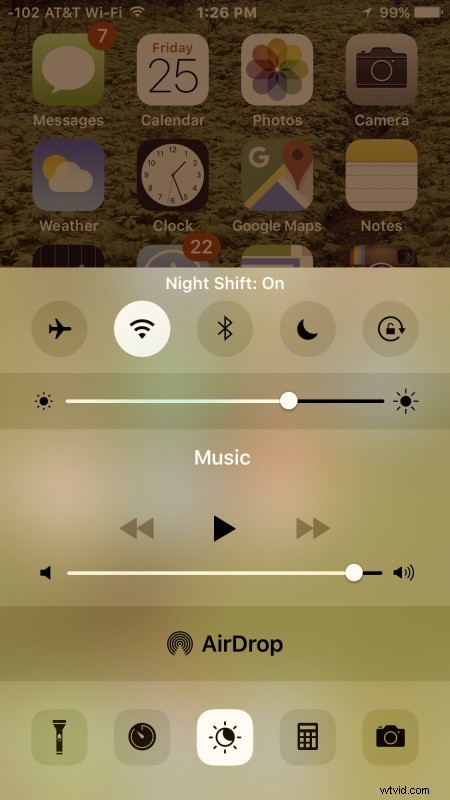
Night Shift off:
You can adjust the warmth of Night Shift by going to Settings > Display & Brightness > Night Shift, generally speaking the stronger the warmth set the better the features impacts on blue light reduction are thought to be, though the display will obviously shift its color profile to be quite a bit different from the default option when it’s enabled.
What is the Point of Night Shift?
There’s a significant amount of science behind the harmful effects of blue light exposure on sleep and health. Aside from the potential health benefits, you’ll likely find it’s just more enjoyable to read and interact with a warmer display setting once the evening rolls around and the ambient lighting is lower.
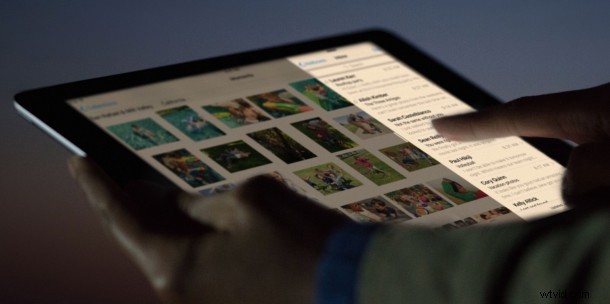
Whether you use Night Shift on the iPhone or iPad manually yourself as night time rolls around, or if you set it up on automatic mode to adjust itself as the day changes, be sure to use and try the feature, it’s really quite nice. Mac users can use Night Shift on macOS with modern versions of system software, while older Macs can achieve a similar effect in Mac OS X by getting Flux for Mac, which adjusts the display color in a similar way based on time of day and user settings.