
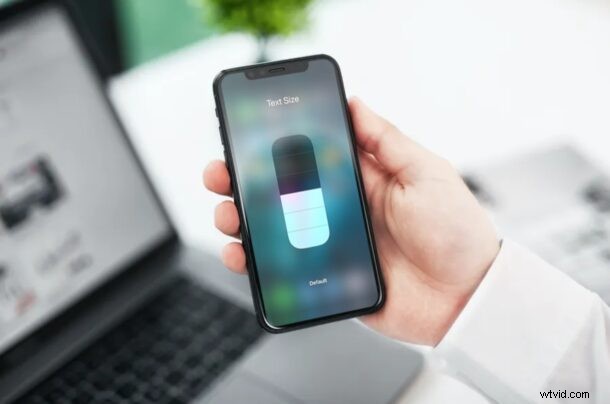
Do you make use of the various accessibility features on your iPhone or iPad? If so, you may be surprised to know that you can add shortcuts and toggles for these features to the iOS and iPadOS Control Center, in order to access them faster.
The Control Center on iOS houses a bunch of toggles to enable/disable key features like Wi-Fi, Bluetooth, adjust brightness, volume, and more. However, you’re not limited to the shortcuts that are already present. In fact, you can customize the Control Center any way you want and add toggles that you find useful. Since accessibility features are not quickly accessible by default, adding them to the Control Center can make things a lot more convenient.
If you’re looking to add some of the accessibility features you use to the Control Center of your iPhone or iPad, read on.
How to Add Accessibility Features to Control Center on iPhone & iPad
Regardless of whether you own an iPhone or iPad, adding accessibility features to the ipadOS or iOS Control Center is a fairly simple and straightforward procedure. Just follow the steps below to get started.
- Head over to “Settings” on your iPhone or iPad.

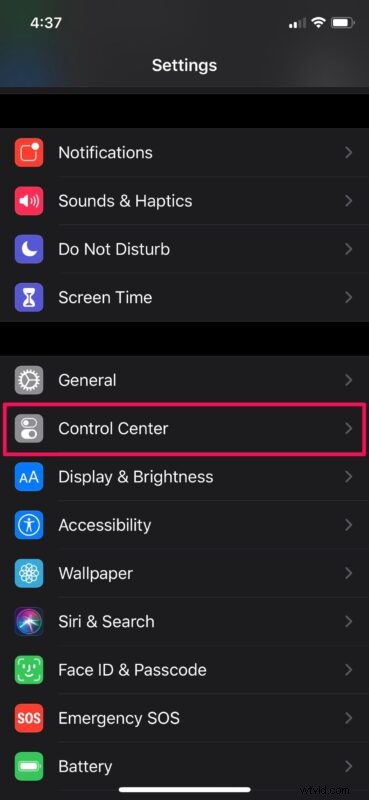
- In the Settings menu, choose “Control Center” located just below General settings.
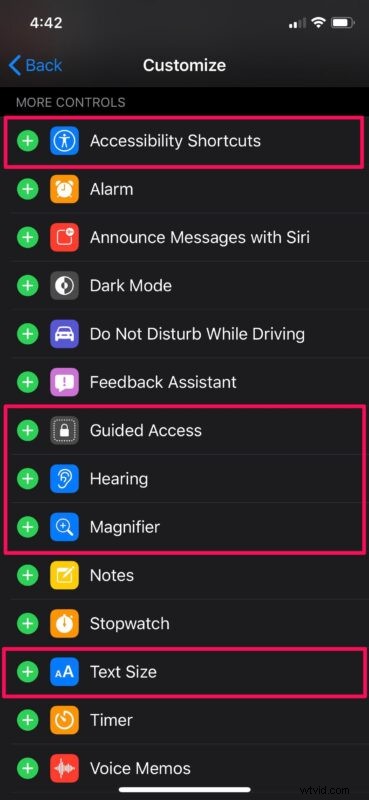
- Here, scroll down to “More Controls”. The various accessibility features that can be added to the Control Center are shown in the screenshot below. Simply tap on the green “+” icon to add the ones you need.
- If you want to remove any of the accessibility features later on, tap on the red “-” icon right next to the shortcut you want to remove.
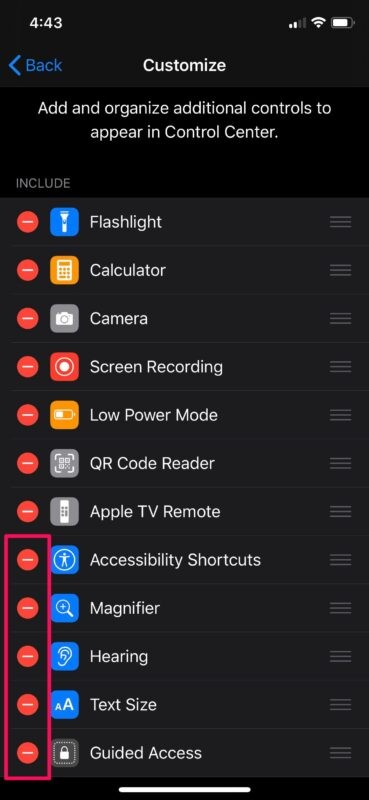
- Now, if you access the Control Center on your iPhone or iPad, you’ll be able to see the shortcuts to some of the accessibility features you use.
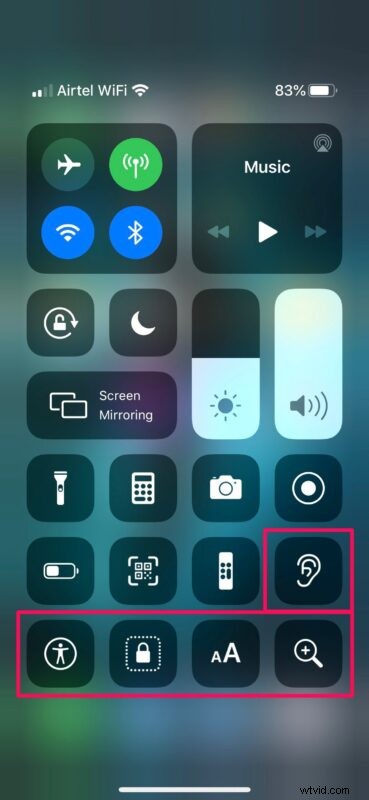
There you go. Now you’ve learned how you can easily use accessibility features right from the iOS or ipadOS Control Center on your device.
It’s worth noting that not every single accessibility feature available on iOS or ipadOS can be added to the Control Center. At the moment, you can add shortcuts for Guided Access, Text Size, Magnifier, and Hearing.
If you own AirPods or AirPods Pro, you can take advantage of the Hearing shortcut to easily use AirPods as hearing aids, which is particularly handy.
In addition to this, if you have accessibility shortcuts enabled on your iOS device, you can use its Control Center toggle to quickly access certain key features like Voice Control, Assistive Touch, Smart Invert, and a lot more.
Thanks to the Control Center, you can access a plethora of features right from the comfort of your home screen or the app that you’re actively using. However, it doesn’t just stop there. By using the long-press access action in the Control Center, you can enable/disable more functions like Dark Mode, Night Shift, AirDrop, etc.
We hope you were able to use the Control Center on your iPhone and iPad to quickly access various accessibility features. Which accessibility feature do you use the most on your iOS or iPadOS device? Make sure to leave your thoughts, experiences, and advice in the comments!