

The Night Shift feature of iOS shifts the display color profile to be warmer, which reduces blue light output, and makes using an iPhone or iPad display much more pleasant in the later hours of the evening (or early morning). While you can toggle Night Shift mode on and off through Control Center anytime in iOS, perhaps a better approach is to set Night Shift to turn on automatically on a schedule, enabling itself as sunset, and turning itself off at sunrise.
This walkthrough will guide you in setting Night Shift to activate automatically on the sun schedule, though you can choose a custom time schedule as well if desired.
How to Set Night Shift to Schedule at Sunset & Sunrise Automatically in iOS
Night Shift scheduling requires a modern version of iOS (9.3 or later) to have the feature, otherwise it’s the same on any iPhone, iPad, or iPod touch. Here’s how it works:
- Open the ‘Settings’ app in iOS and go to “Display & Brightness”
- Tap on the “Night Shift” option underneath the Brightness section
- Now in the ‘Night Shift’ settings, flip the switch for “Scheduled” to the ON position
- In the “From / To” section, choose “Sunset to Sunrise” (you can set a custom schedule as well if desired)
- Return back to the Night Shift screen, and, optionally but highly recommended, set the “Color Temperature” to the “More Warm” setting furthest on the right
- Exit Settings and enjoy your automatic Night Shifting display
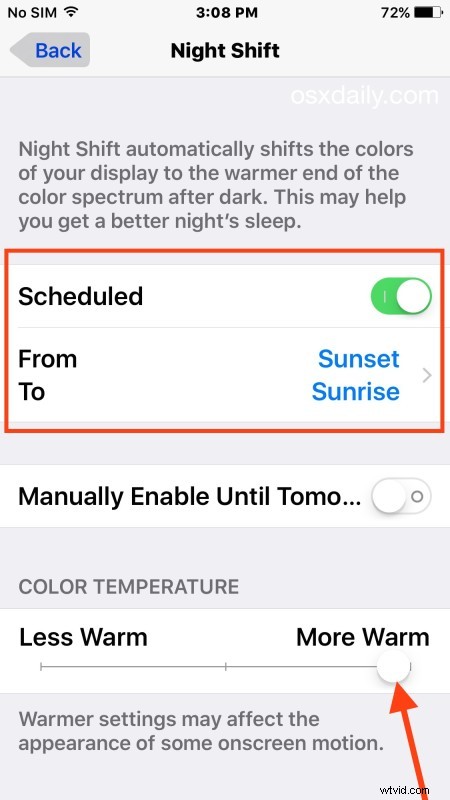
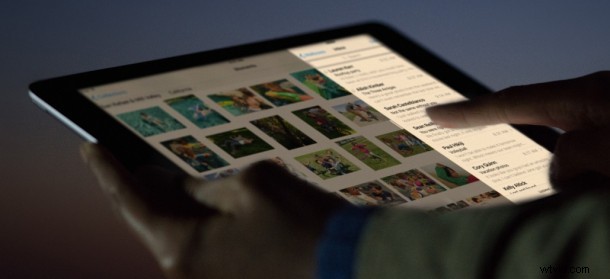
Now when sunset or sunrise comes, the iPhone / iPad display will automatically shift to be warmer, or back to the regular blue-light heavy display.
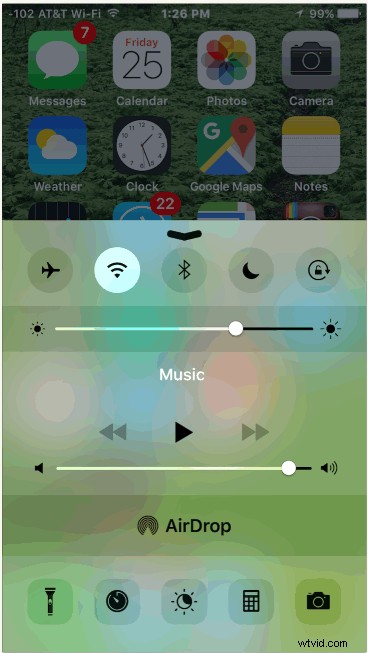
Even with Night Shift set on a schedule, you can continue to temporarily turn off or on Night Shift from Control Center in iOS as well, as shown in this gif:
Fix Night Shift Not Working, Scheduling Missing or Inaccessible
Some users may go to enable Night Shift only to discover the excellent scheduling feature is missing or inaccessible and grayed out. This is almost always due to a setting elsewhere on the device that determines if the Time Zone can be set by location services or not.
- Open the Settings app and go to “General” and then to “Location Services”
- Locate the switch for “Setting Time Zone” and be sure this is set to the ON position and enabled/li>
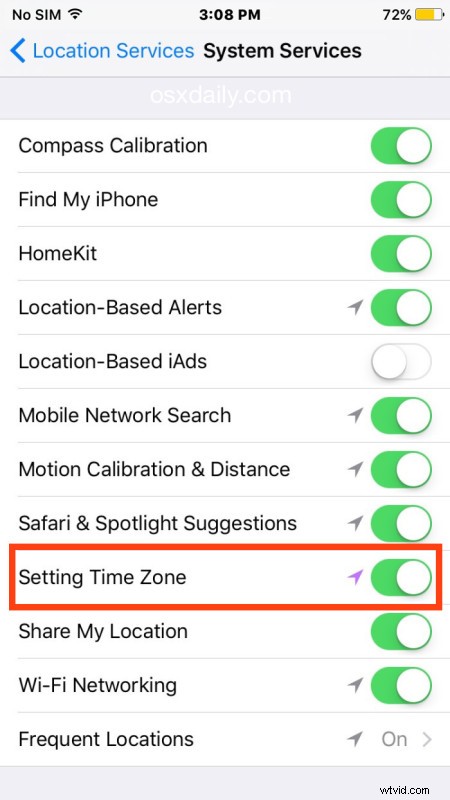
Now you can return to the Night Shift settings and the scheduling section will be enabled and accessible as intended. This is a good setting to keep enabled in general, it prevents the problem of time displaying wrong on iPhone and iPad if a device has changed time zones, or has been turned off for a long time.
By the way, for the Mac users out there, Flux offers a similar feature and color changing scheduling ability for MacOS X.