
Do you use Notes often on an iPhone or iPad and want quick access from the Lock Screen to create a new note? With a simple settings adjustment, you can gain the ability to have quick note creation capability directly from Control Center and the locked screen of an iPad or iPhone.
How to Add & Create Notes in Control Center of iOS
This is a two part tip; first we’ll add the Notes app to Control Center, then show you how to access Notes from the lock screen of an iPhone or iPad.
How to Add Notes to Control Center in iOS for Quick Lock Screen Access
- Open the Settings app on the iPad or iPhone
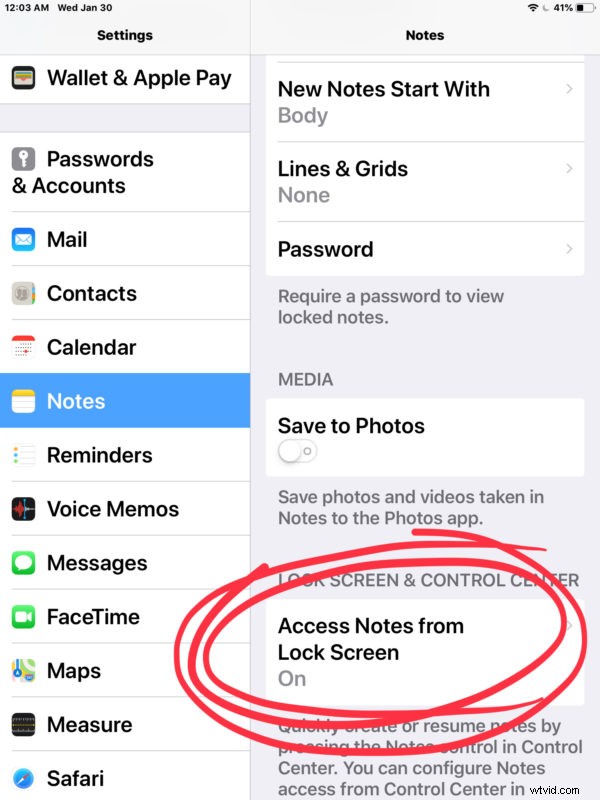
- Go to “Notes” and make sure “Access Notes from Lock Screen” is enabled, if not then turn this ON
- Optional but recommended* , select “Always create new note”
- Now return to the primary Settings section again
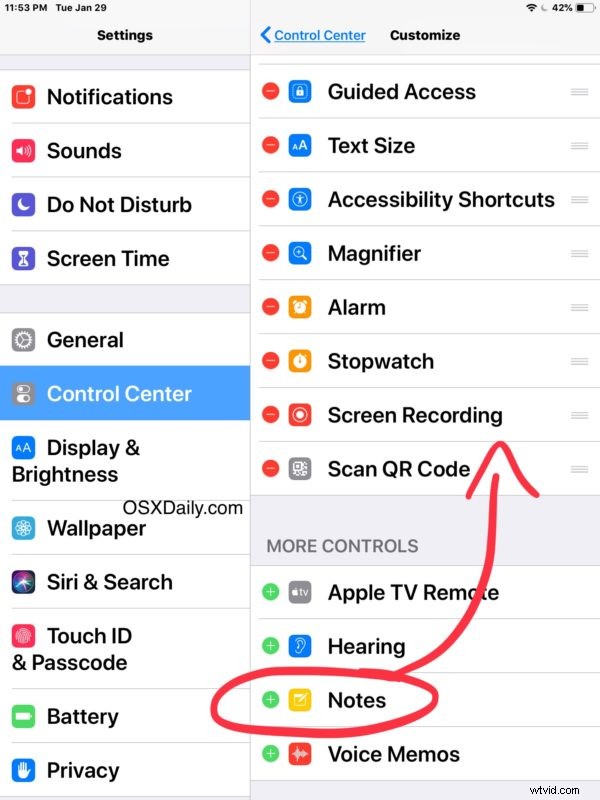
- Choose “Control Center” in Settings and then select “Customize Controls”
- Locate “Notes” in the list of optional controls and tap the green plus + button, or drag the Notes option up to add it to Control Center
- Exit Settings

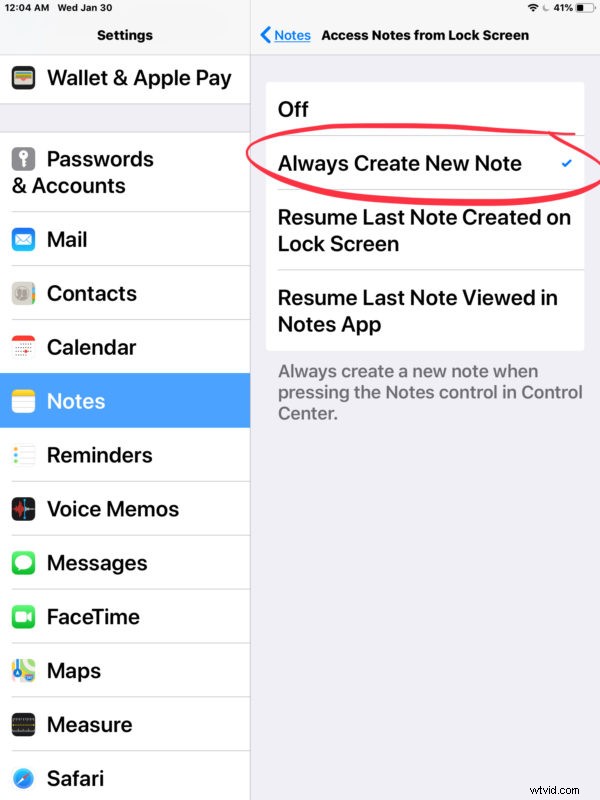
* This setting creates new notes from lock screen only, it does not grant access to other notes without entering a device passcode or authenticating with Face ID or Touch ID.
How to Create a New Note from the Lock Screen of iPhone or iPad
- From the locked screen of iOS, access Control Center by swiping down from the top right corner of the screen
- Tap the little notes icon to launch Notes app with a newly created note
- Create your new note as usual
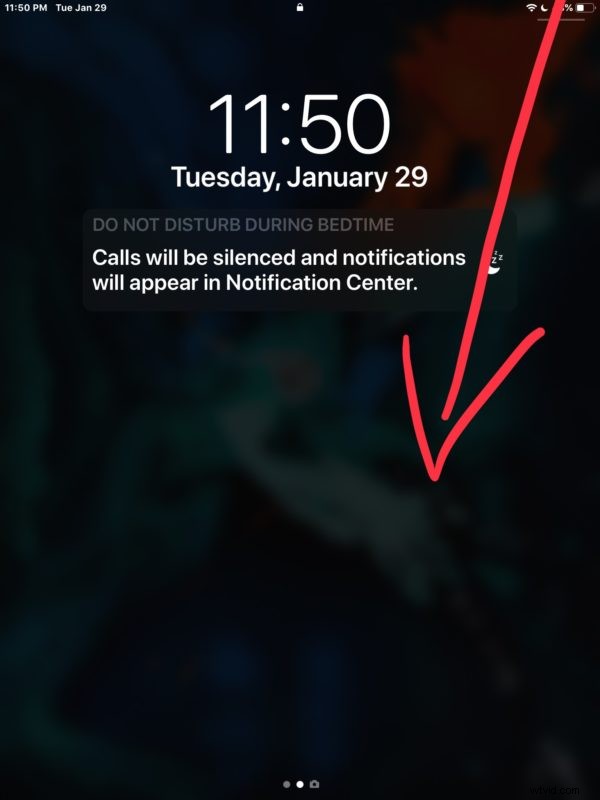
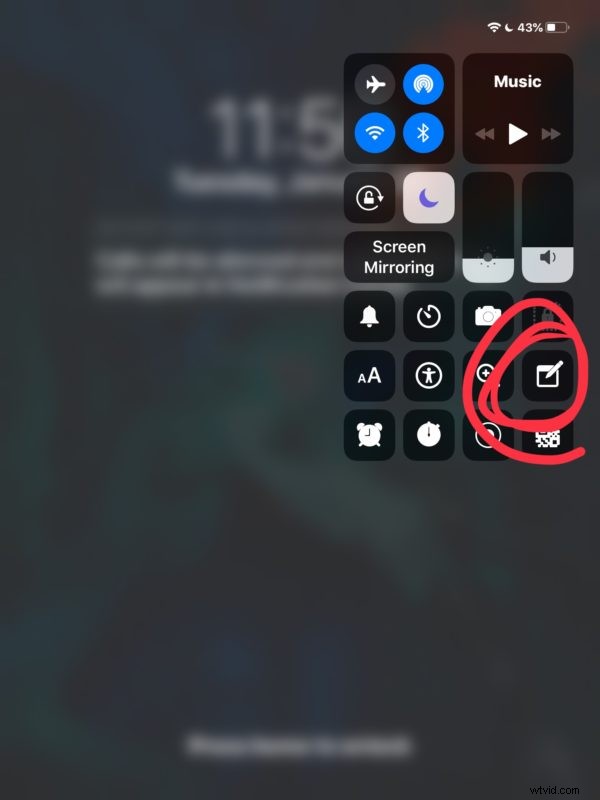
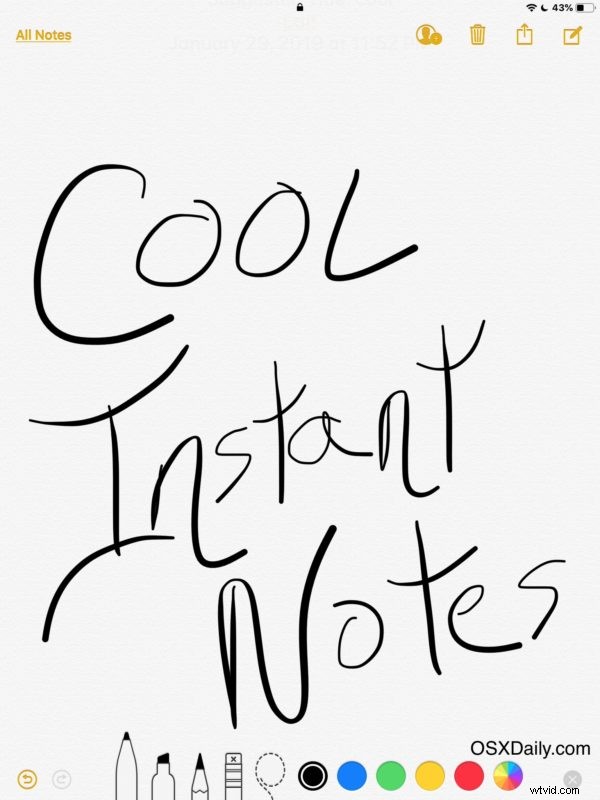
You can also create a new note from within Control Center from anywhere else in iOS too, including within other apps or from the Home Screen, but obviously we’re focusing on the lock screen here. Similarly, you can make other customizations to Control Center on iPhone and iPad as well, but adding Notes is our focus on this article.
If you chose the recommended setting then you’ll create a new note each time you access the Notes app from the devices lock screen. Accessing any previously existing or created notes requires the device passcode to unlock as usual.
Any created note from the lock screen has the same features you’ve come to expect from the Notes app of iOS. That means you can password protect Notes on iPhone and iPad if desired, share the notes with other people for collaborative editing, use find and search on the notes, add photos or videos to the notes, and much more.
This is a really handy feature if you use the Notes app for note taking or jotting things down quickly, since the Control Center access is often faster than authenticating an iPad or iPhone then launching the Notes app afterwards. In some respects this is similar to the iPad Pro capability with Apple Pencil that allows you to create a new note from the locked screen of the iPad simply by tapping the screen with the Apple Pencil, except of course the Pencil approach is even faster, but it’s also hardware limited, whereas this method works on any iPhone or iPad.