
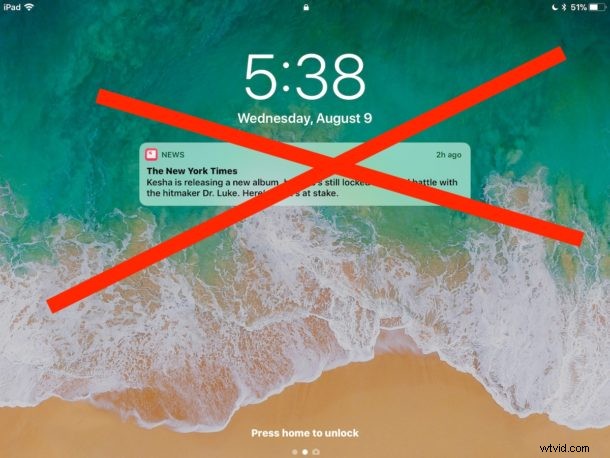
iOS Apple News defaults to pushing ‘news’ alerts and notifications to your devices lock screen, this is why sometimes you may pick up an iPad or iPhone and have various “News” notifications on the display, even if you never signed up to receive any headlines or news alerts.
These breaking News alerts on the iOS lock screen are often a mishmash of curious headlines on various topics, and while some users may find those type of stories to be vitally important and love having them pushed to their iPhone or iPad lock screens, other users may prefer to not have their device screens scattered with miscellaneous headlines of stories they might be disinterested in.
Fortunately it’s easy to stop the News app from pushing those alerts and notifications to your iOS device, thereby stopping all ‘news’ from appearing on the lock screen of an iPad or iPhone completely.
How to Remove Apple News Notifications from iPad and iPhone Lock Screen
We’ll show you how to remove the News notification alerts from the lock screen (or “cover sheet” as later iOS calls it), and also how to turn them off completely device-wide, if you don’t want to see the news alerts anywhere ever again.
- Open the “Settings” app on the iPad or iPhone and go to “Notifications”
- Find and tap on “News” within the Notifications app list, then adjust settings depending on the desired effect of hiding news from the lock screen, or hiding news alerts entirely:
- To hide News from the iOS Lock Screen only (or “Cover Sheet” as the lock screen is called in iOS 11), flip the toggle next to “Show on Cover Sheet” or “Show on Lock Screen” to the OFF position
- To hide all News notifications and alerts from everywhere in iOS, toggle the switch next to “Allow Notifications” to the OFF position
- Exit out of Settings app as usual
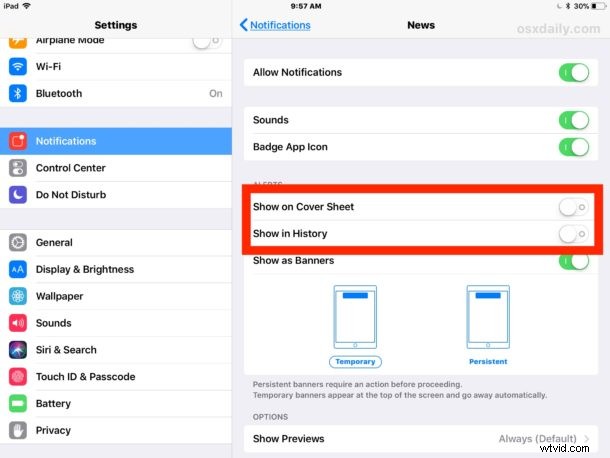
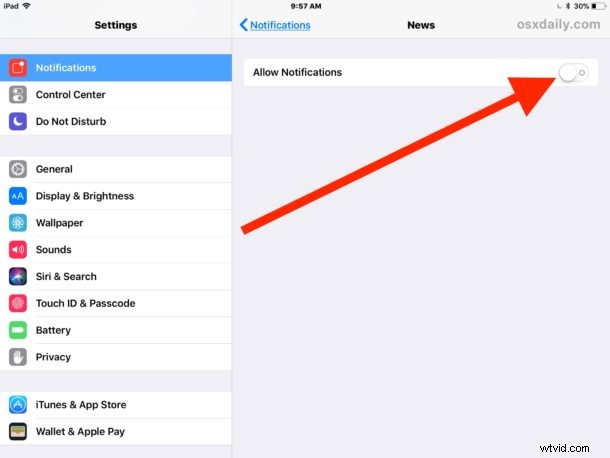
With the News notifications now turned off (either for the cover sheet / lock screen, or entirely disabled so the News app won’t alert you whatsoever) you are now free to lock your iPhone or iPad, then pick it up again, and not have the display scattered with headlines.
As long as the Notifications are disabled for News app, these type of notifications and headlines will no longer show up on your devices screen:
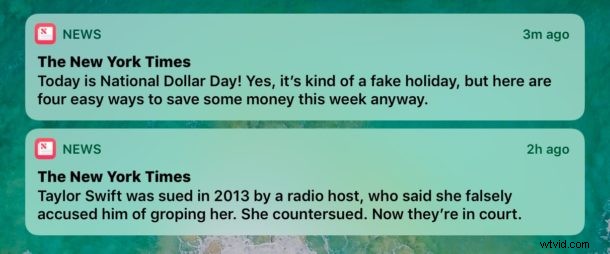
(I wonder, is there an intentional emphasis on tabloid style topics and buzzy headlines to show up on iOS screens? Are the news headlines chosen at random? What’s the point?)
Another possible approach is to go about blocking and hiding news channels and news sources in the News app that you don’t want to see. But while blocking news channels is a good solution to clean up the News app feed itself, it’s not as helpful if your aim is for stopping some of the nonsensical alerts from showing up at the lock screen. That’s because many respectable and high quality publications also push out tabloid headlines intermixed with their other news, and any of that may show up on the lock screen of an iPad or iPhone.
Going further, if you’re not thrilled with these sort of headlines and “News” material dotting various places throughout iOS, you might also want to remove News headlines from Spotlight search in iOS too so that the “News” headlines will no longer appear in your iOS Spotlight search results as well.
As usual, you can always reverse these changes simply by going back to the appropriate Settings and toggling the switches again. So if you decide to hide the “News” headlines but later determine you really miss seeing those latest headlines on the iOS screen, you will be relieved to know those alerts are just a few settings taps away again.